
Turn Chat Messages Into Tasks: Drumee's One-Workspace Flow
To turn a chat message into a task in Drumee, hover over the message, click the create-task icon, and the message text becomes the task description. Because chat, files, tasks and meetings live in the same workspace, the task lands on that workspa...
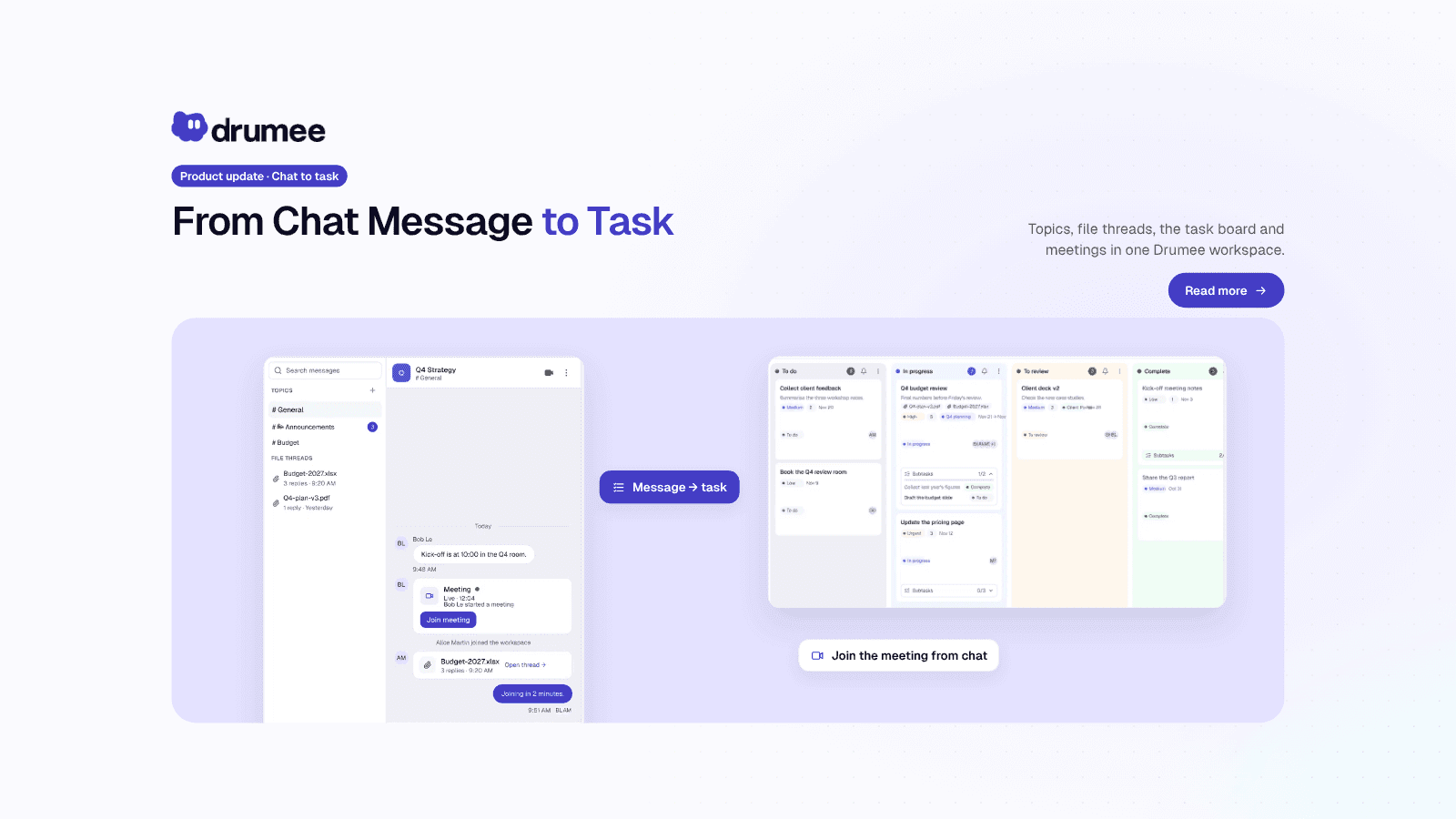
Drumee workspace showing a chat message next to the task it became on the board and a scheduled meeting, all inside one project workspace
To turn a chat message into a task in Drumee, hover over the message, click the create-task icon, and the message text becomes the task description. Because chat, files, tasks and meetings live in the same workspace, the task lands on that workspace's board, with the same members and the same permissions.
This post walks the whole flow in the new Drumee, from chat to board to meeting, as it works today on the hosted service at app.drumee.com.
The short answer: one workspace, four sections
In Drumee, a workspace is the room for one project, and it has four sections: Files, Chat, Task and Meeting. A message in Chat can become a task in Task, and a task can lead to a meeting in Meeting, without copying anything into another tool. One role per person covers all four sections.
In many teams, a request is made in a chat app, copied into a tracker, discussed in a video tool, and the file sits in a fourth place. Each hop loses context. We covered the cost of that pattern in what tool sprawl is and how to fix it.
Drumee's documentation puts it plainly: conversations are native to the files they discuss, and a workspace holds files, a conversation in every folder, a task board, meetings, and its own members with roles in one unit.
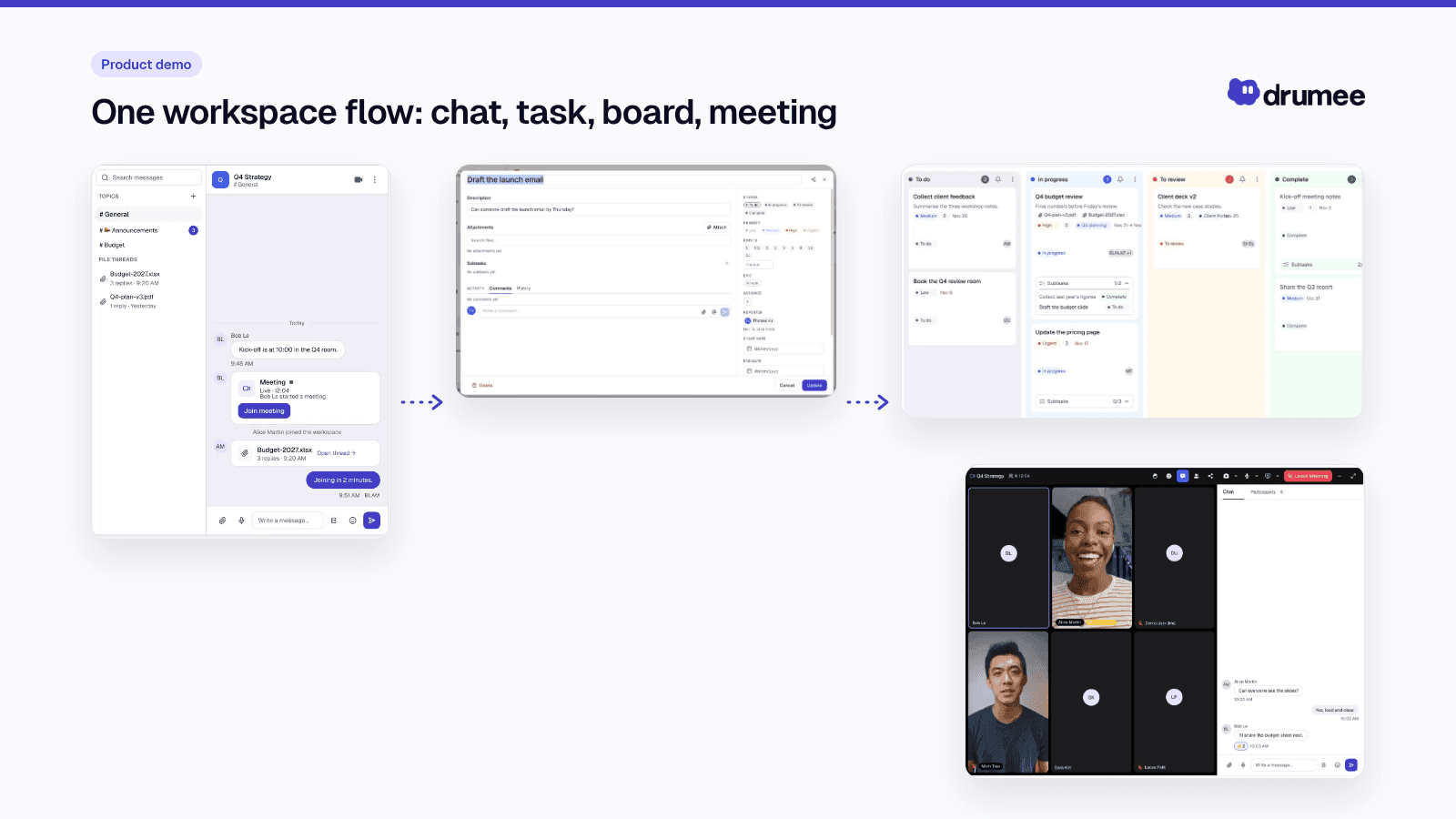
From message to task to meeting in one Drumee workspace.
Step 1: Talk in chat, next to the work
Open a workspace and go to Chat. The conversation sits beside the files it is about, not in a separate app.
- #General and topics. Every workspace starts with a # General channel. Add more topics with +, for example #Announcements for decisions and #Budget for a specific stream of work.
- File threads. Every file has its own conversation. Feedback on a spreadsheet stays on that spreadsheet instead of scrolling away in a busy channel.
- Slash links. Type /task to mention a task, or /folder to link a folder or file, so a message points at the exact item it is about.
- Calls from the channel. Start a video or voice call from the buttons at the top of the channel.
- Direct messages and mentions. Alongside workspace conversations, the platform supports direct messages and mentions.
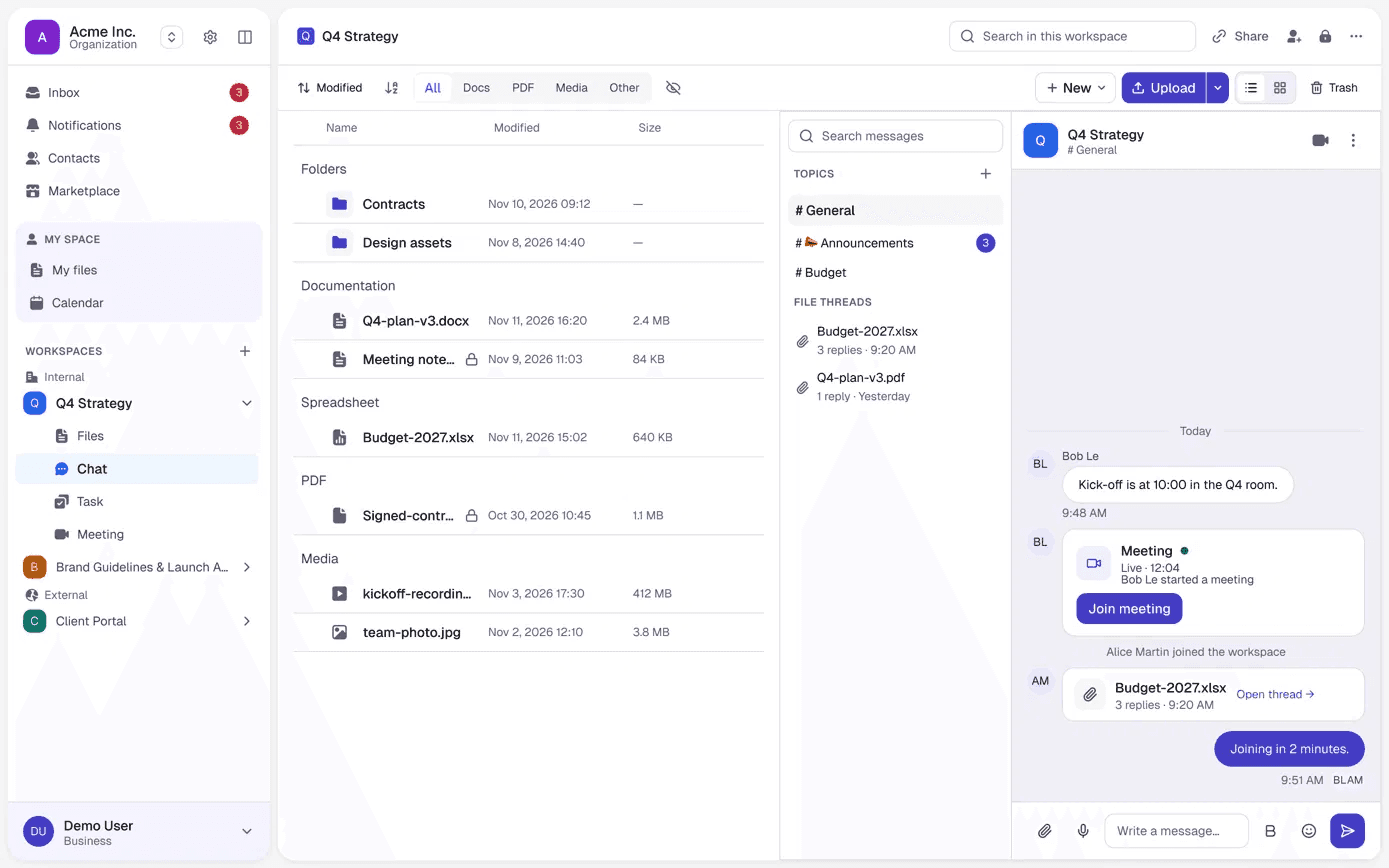
Chat lives next to the files: topics on the left, a three-reply thread on a budget spreadsheet, and a "Join meeting" card when a call is live.
A file thread answers "where was that feedback?" before anyone asks: the next person who opens the file sees the discussion that shaped it, and anyone in the workspace with at least the Chatter role can reply.
Step 2: Turn the message into a task
Someone writes: "Can someone draft the launch email by Thursday?" That is a task, and in Drumee you do not need to retype it.
- Hover over the message. A small toolbar appears.
- Click the create-task icon (the clipboard).
- Check the pre-filled description. The message text is already in the Description field.
- Add the details. Give it a title, a priority, an assignee, a due date and labels.
- Click Create. The task appears on the workspace's board, in To do.
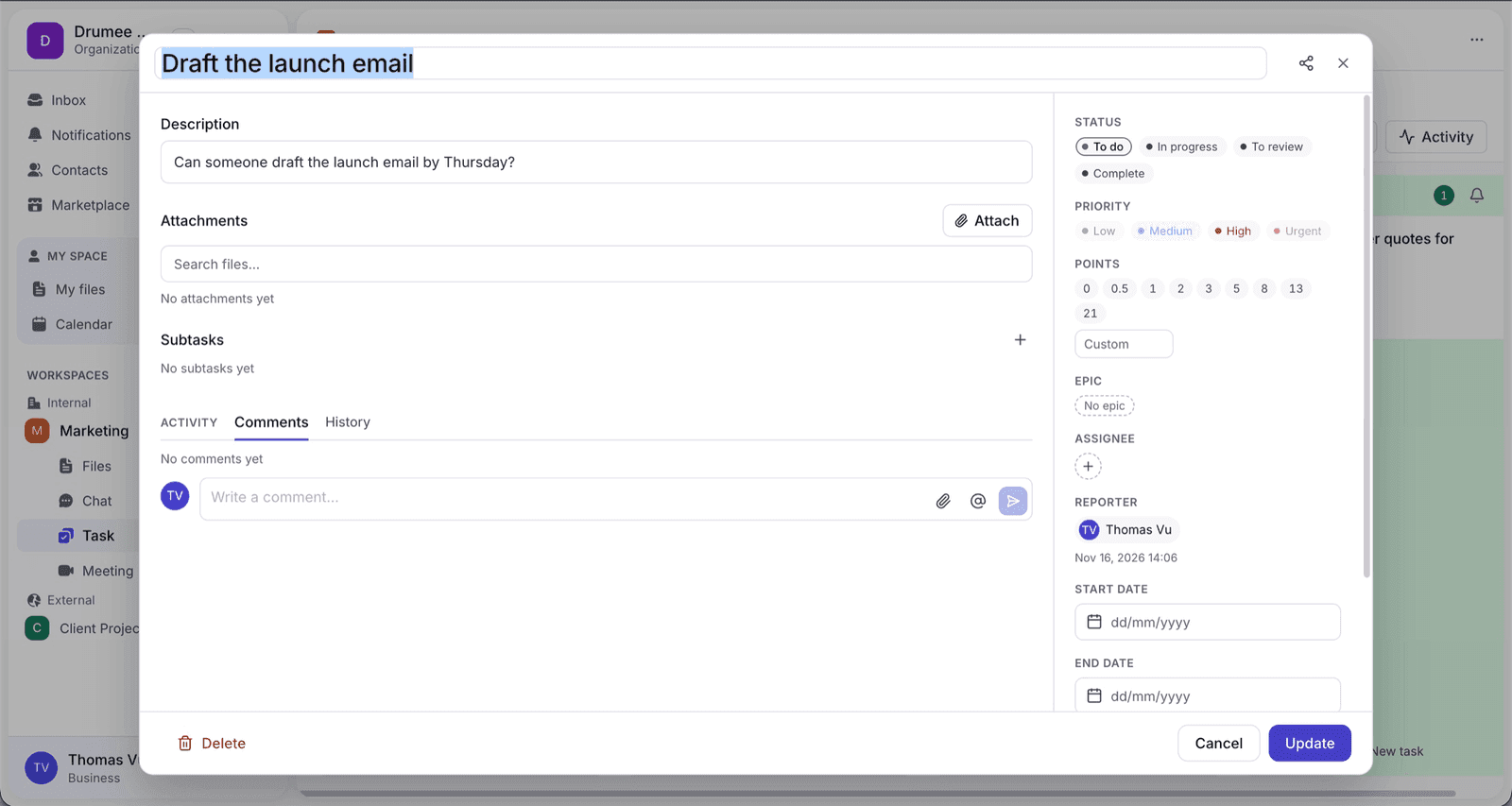
The message becomes the task description; you add the title, priority, assignee and labels.
What the server checks when you click Create
The flow looks like two clicks, but the server still decides. According to the request pipeline documentation, creating a task works like this:
- The service resolves your role in the workspace and requires the Editor role (the
task_writeaction). - It validates references: assignees must be members of the workspace, and attachments must be in the same workspace.
- Each create request carries a client-generated ID, so a retry after a network error returns the first task instead of creating a duplicate.
- After the task is saved, an event reaches every open tab in that workspace, and a background worker notifies the assignees and the people mentioned.
So a task cannot be assigned to someone outside the project, or point at a file outside the workspace.
Step 3: Track it on the board, or in five other views
Open Task. The new card sits in To do. Drag it forward as the work moves:
- To do → In progress → To review → Complete
Click a card to see its details, add subtasks, comment and view its history. Cards show priorities and coloured labels, and files can be attached to them.
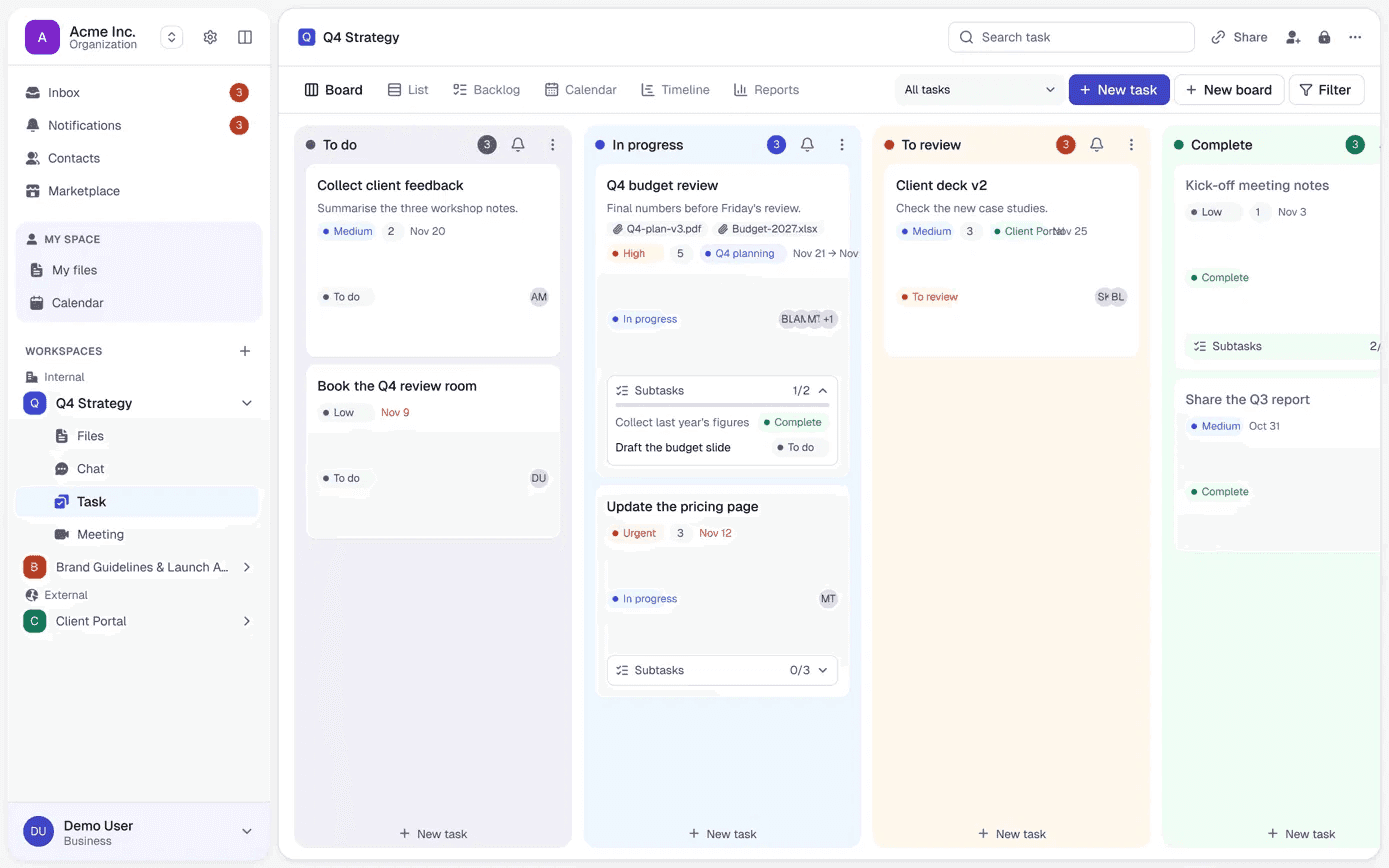
The board, with priorities, labels, subtasks and attached files on each card, and tabs for the other views.
When the board is not the right lens, switch to one of the other views from the tabs above it:
- List
- Backlog
- Calendar
- Timeline
- Reports
Together they cover sprints, burndown and workload, so planning and reporting happen on the same tasks the team created from chat.
Behind those views, the Drumee stack page lists boards with columns, sprints, labels, comments and history, plus a calendar.
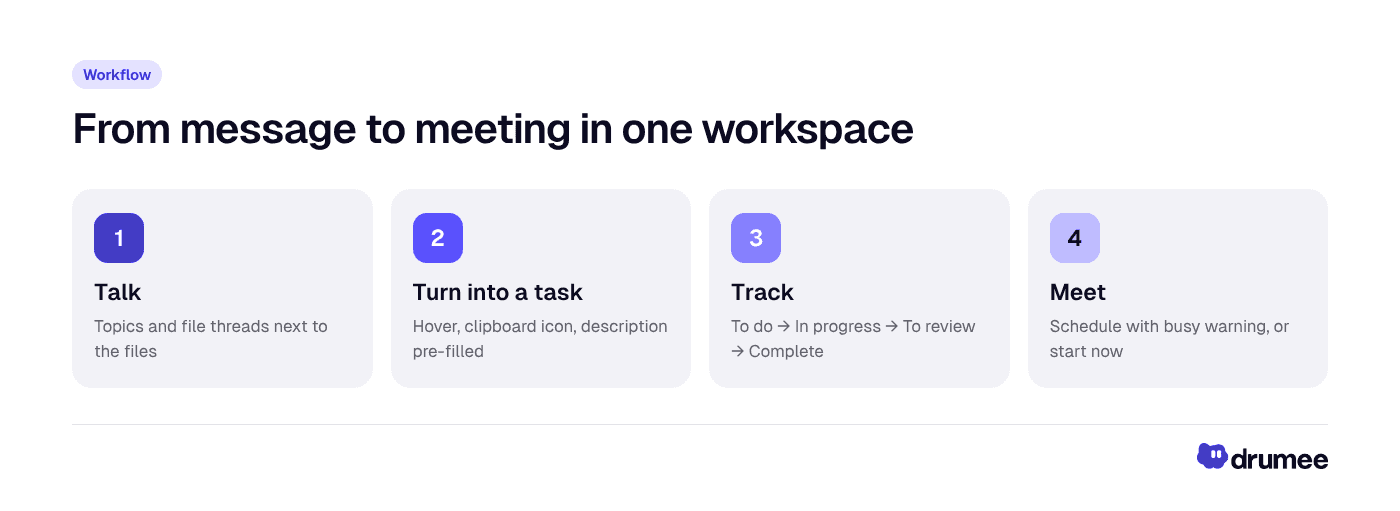
Four steps, one workspace: no copying between a chat app, a tracker and a calendar.
Who can do what on the board
Because one role covers the whole workspace, task permissions follow directly from the RBAC system:
- Viewer can browse and open the board.
- Chatter can also comment on, reply to and react on tasks, and attach files to tasks.
- Editor can create, edit and delete tasks, columns, sprints and labels.
- Admin and Owner can also manage the workspace's members.
A Chatter can follow progress and comment without moving cards. We go deeper on that model in how Drumee's RBAC permission model works.
Step 4: Schedule the meeting, or start one now
Some tasks need a conversation. Open the workspace's Meeting section.
To plan ahead:
- Click Schedule.
- Enter a title and agenda, then pick the date, start and end time.
- Add invitees. Drumee warns you if someone is busy at that time.
- Choose Repeat and a Reminder, then click Schedule.
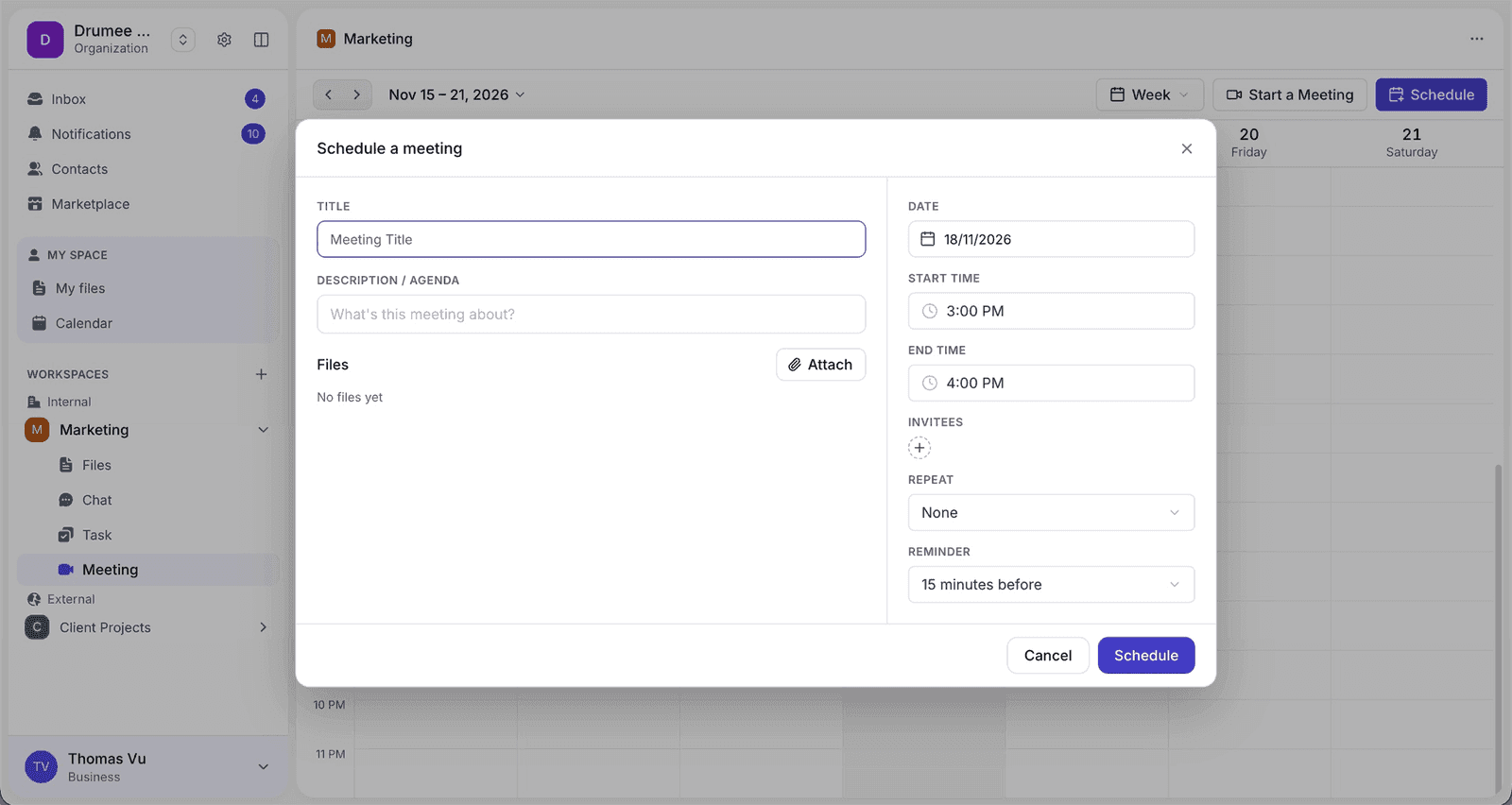
Scheduling inside the workspace: Drumee flags invitees who are busy at the chosen time.
To talk right away, click Start a Meeting. Colleagues in the workspace see the meeting in progress and click to join. In chat, a live meeting appears as a card with a Join meeting button.
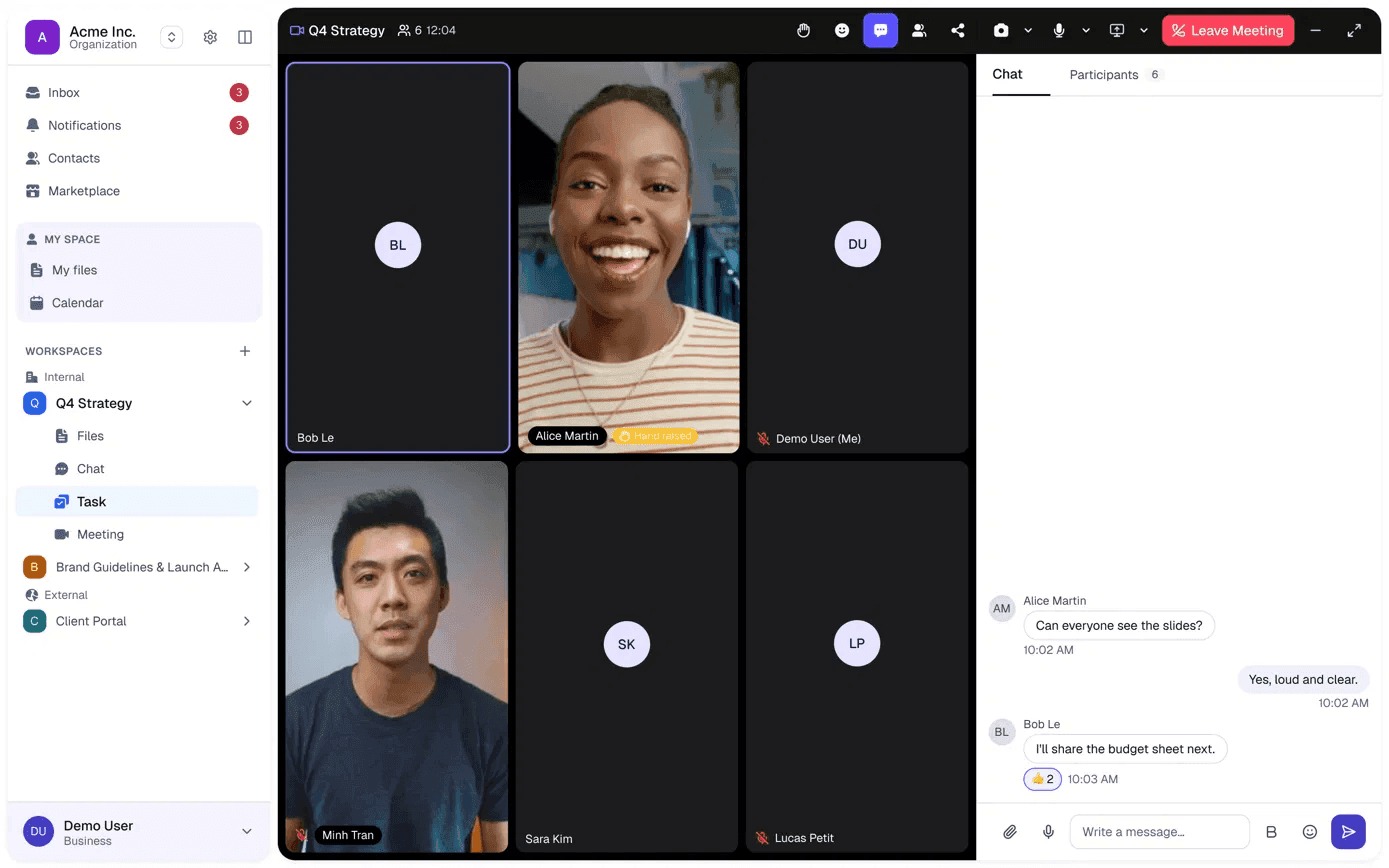
A live meeting in the workspace, with the video grid, a raised hand, and chat and participants side by side.
What meetings include
The documentation lists audio and video rooms, 1:1 calls, screen sharing, and guest links with a lobby. Audio and video run on LiveKit (WebRTC), as shown in the technology overview.
Permissions follow the same ladder as everything else. Any member, including a Viewer, can join a meeting in progress. Starting or scheduling a meeting, and admitting people from the lobby, requires the Editor role. Moderation belongs to the host, the organizer of a scheduled meeting, and workspace Admins.
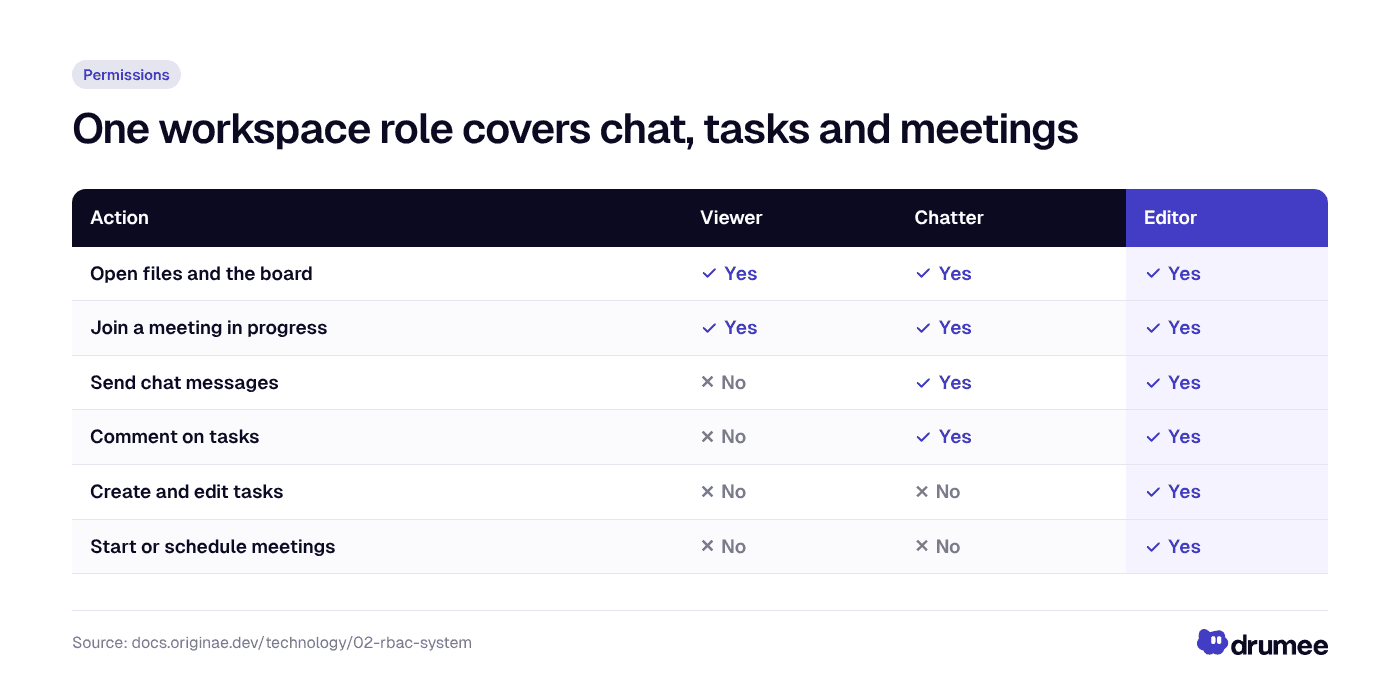
One role per workspace decides chat, task and meeting rights together.
Why one workspace beats four connected tools
Integrations can pass a message from a chat app to a tracker, but each tool still keeps its own members and roles. In one workspace:
- One member list. Invite someone once, with one role, and it applies to files, chat, tasks and meetings. The RBAC documentation states that the server checks that role before it touches any data.
- Context stays attached. File threads keep feedback on the document; tasks carry the original message as their description; meetings are scheduled where the project lives.
- A path to sovereignty. Drumee runs today as a hosted service. A self-hosted edition is coming soon, and moving your data from the hosted service to your own deployment is in its final stage on the roadmap.
If you are weighing Drumee against a dedicated chat tool, our self-hosted Slack alternatives comparison covers that angle. For project management depth, see Drumee vs ClickUp.
Where this fits in the November 2026 update
The overview of what is new in Drumee covers the full release. Related posts in the series:
- Internal vs External workspaces, for bringing clients into the same flow safely.
- Drumee's Office engine, for co-editing the documents your tasks point to.
New to Drumee altogether? Start with Drumee in 5 minutes or the idea behind it in what a sovereign workspace is.
FAQ
How do I turn a chat message into a task in Drumee?
Hover over the message and click the create-task icon (the clipboard) in the toolbar that appears. The message text is pre-filled as the task description. Add a title, priority, assignee, due date and labels, then click Create, and the task appears in To do on the workspace's board.
Who can create tasks from chat messages?
Creating tasks requires the Editor role or higher in that workspace. A Chatter can read and send messages, comment on tasks and attach files, but cannot create or edit tasks. The server checks the role on every request, not just the interface.
What are file threads in Drumee chat?
Every file in a workspace has its own conversation. Feedback on a document stays attached to that document instead of getting lost in a channel. In the chat view, a file thread shows its reply count, for example three replies on a budget spreadsheet.
Which task views does Drumee offer?
The board has To do, In progress, To review and Complete columns. You can also switch to List, Backlog, Calendar, Timeline or Reports, which cover sprints, burndown and workload. Cards support subtasks, comments, history, priorities, labels and attached files.
Does Drumee warn me about scheduling conflicts?
Yes. When you add invitees in the Schedule dialog, Drumee warns you if someone is busy at that time. You can also set the meeting to repeat and add a reminder before you click Schedule.
Can I self-host Drumee's chat and tasks?
Not yet. Drumee runs today as a hosted service at app.drumee.com, and the self-hosted edition is coming soon. Moving data from the hosted service to your own deployment is in its final stage on the roadmap.
Conclusion
A chat request, its task and the meeting about it are one piece of work. Drumee keeps them in one workspace, under one role per person, so nothing is copied and nobody is invited twice. Try the flow on your next project at app.drumee.com.
Try Drumee with your team: your first month is $1. Start your team for $1
Keep reading
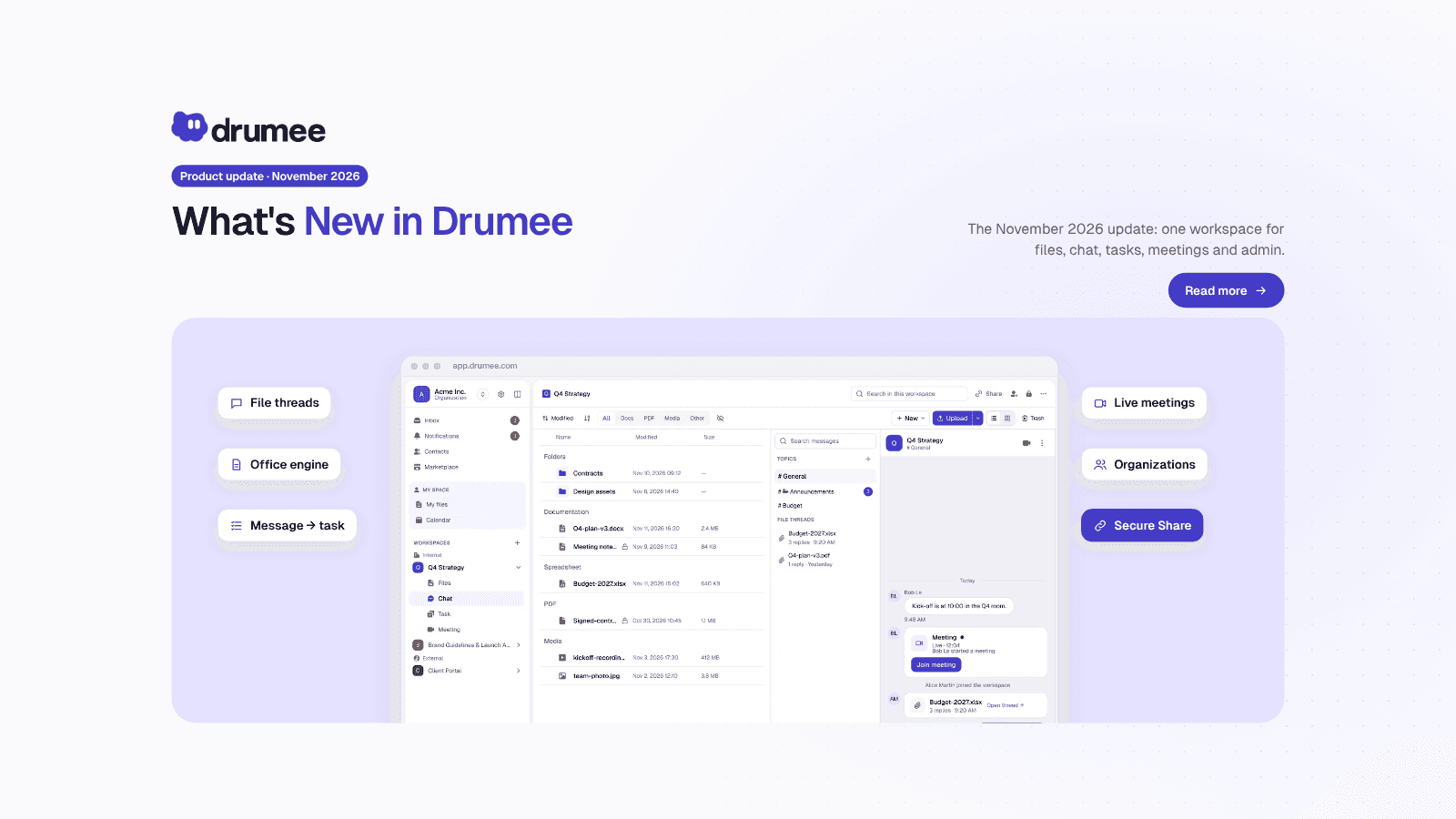
What's New in Drumee: November 2026 Product Update
The new version of Drumee is a rebuilt workspace platform, running today as a hosted service at app.drumee.com. Each workspace now holds a project's files, conversations, tasks and meetings under one role model, with Drumee's own Office engine, se...
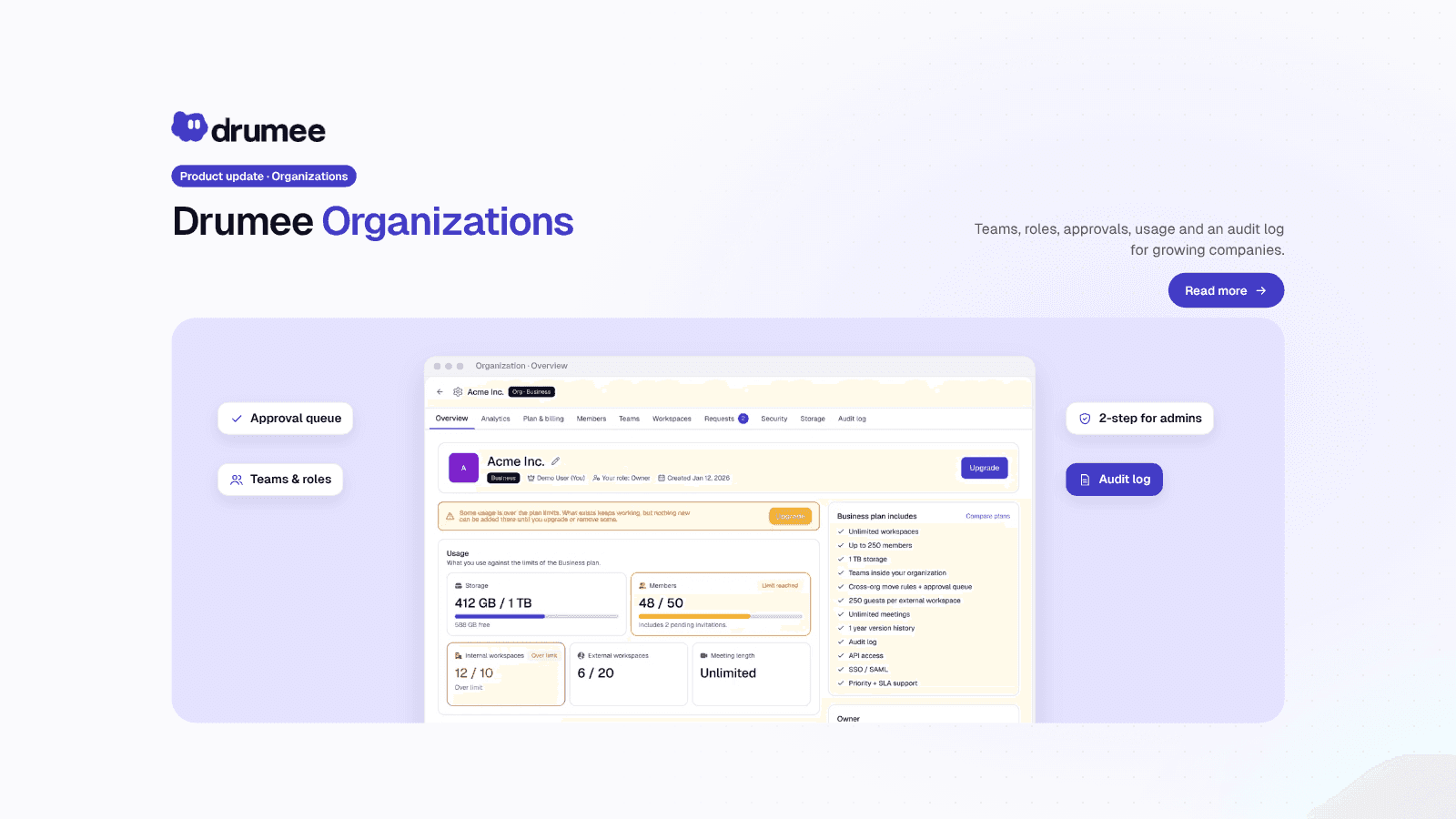
Drumee Organizations: Workspace Admin Roles and the Audit Log
A Drumee organization is a shared space for a company's members, teams and workspaces, administered on its own ladder of six levels, from Member to Owner. Admins manage people, teams, policies and the audit log, but administration is not access: a...
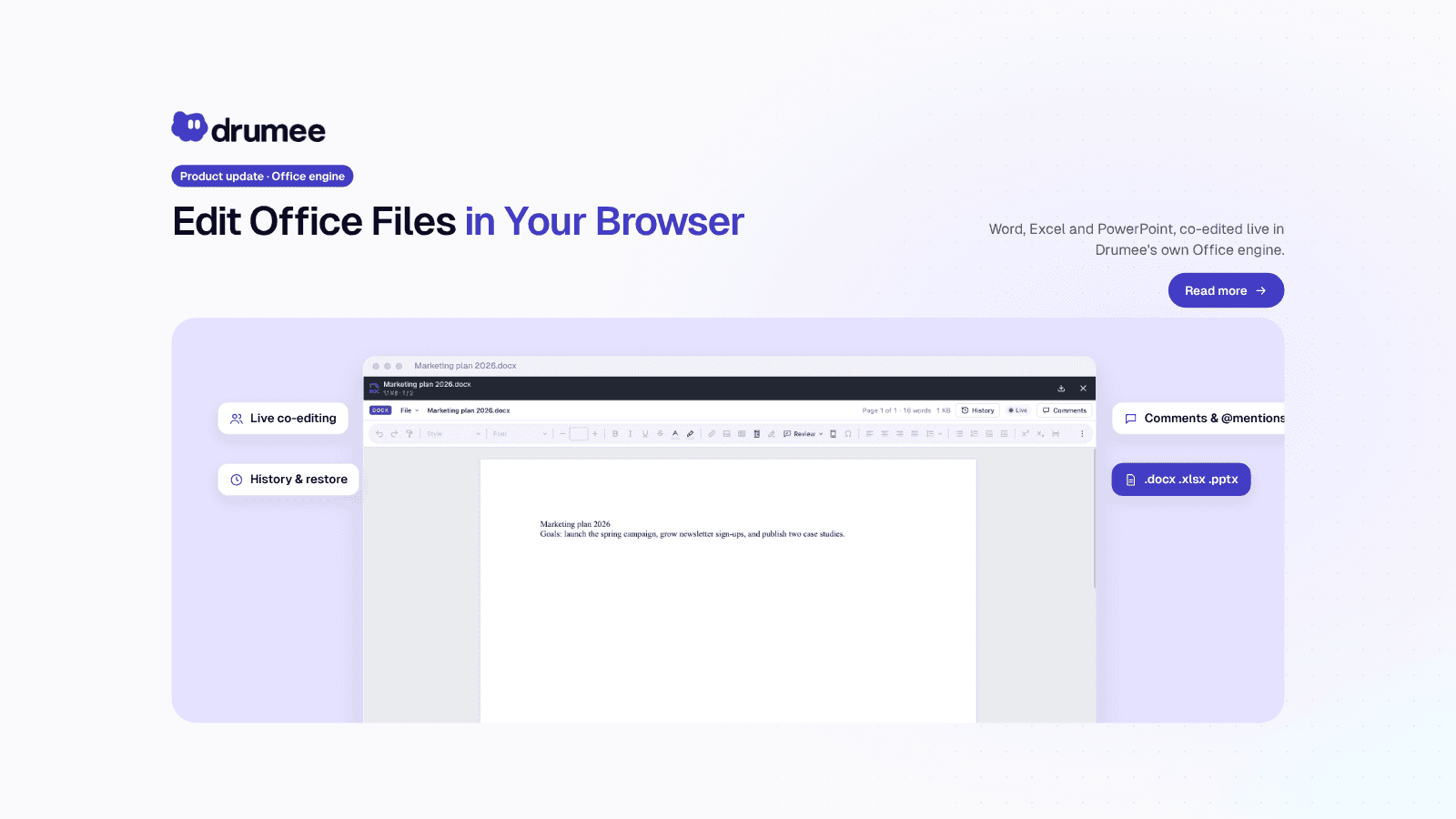
Drumee Office Engine: Edit Word Documents Online Together
Drumee's Office engine lets a team edit Word, Excel and PowerPoint files online collaboratively, directly in the browser, with no Office install. Several people type at once, every change saves automatically, and History shows who changed what. Th...