
How to Share Files with Clients Securely: Drumee Workspaces
To share files with clients securely in Drumee, you work in an External workspace and send a Secure Share link: one file or folder, behind an email check and/or a password, with an expiry date and an access log. Internal workspaces stay for yo...
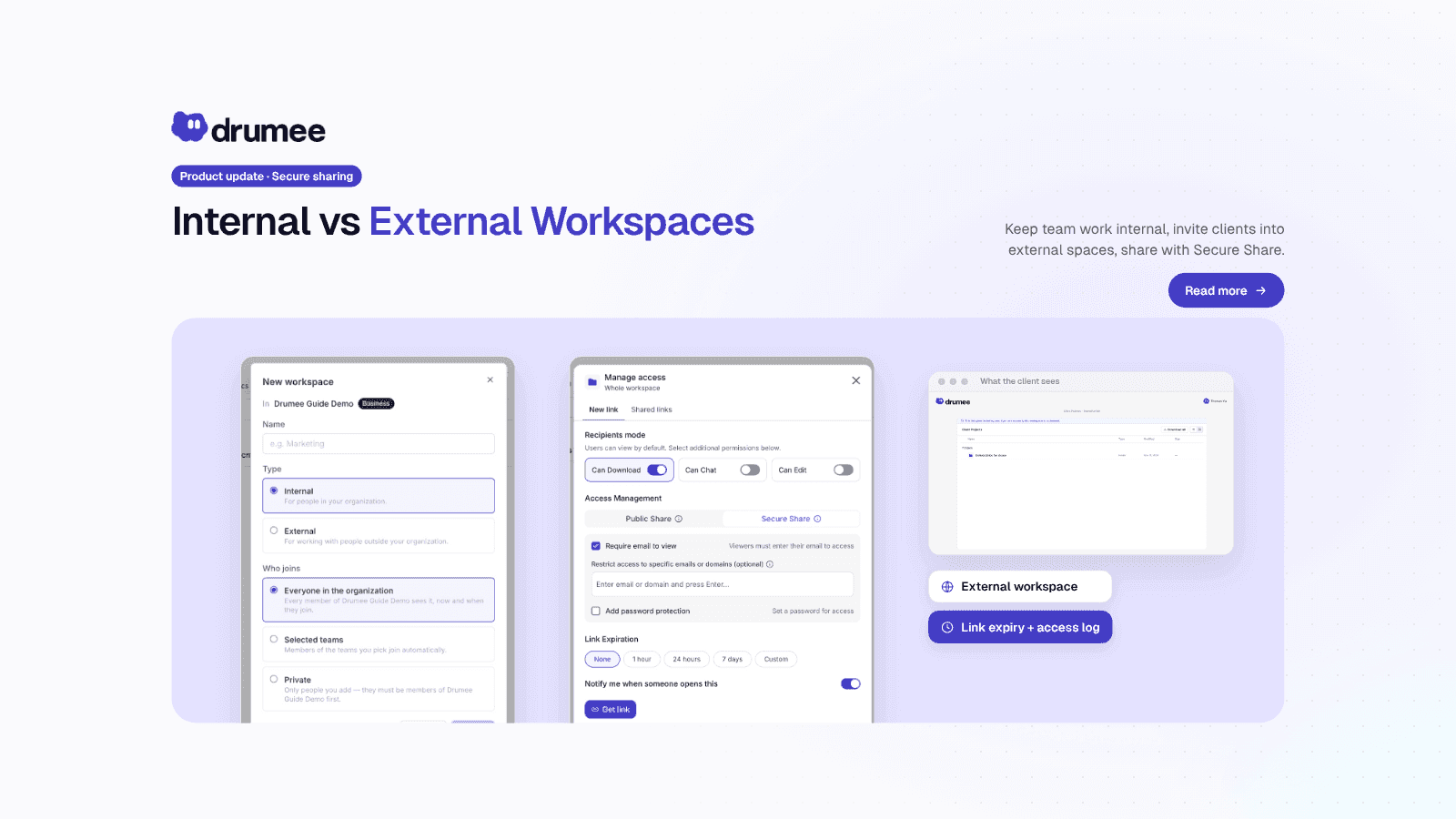
Drumee keeps internal work in Internal workspaces and shares with clients from External workspaces through Secure Share links with an access log
To share files with clients securely in Drumee, you work in an External workspace and send a Secure Share link: one file or folder, behind an email check and/or a password, with an expiry date and an access log. Internal workspaces stay for your organization only, so client sharing never starts from internal work.
How do you share files with clients securely in Drumee?
Create an External workspace for the client, then click Share on a file or folder. Recipients can view by default; turn on download, chat or edit only if needed. Secure Share can require an email and/or a password, restrict access to specific emails or domains, and set an expiry. Every link has an access log, and you can extend or revoke it at any time.
This model is part of the November 2026 Drumee update, live today on the hosted service at app.drumee.com. It rests on one idea from Why Drumee: "Client work needs outsiders," while "your internal workspaces stay internal."
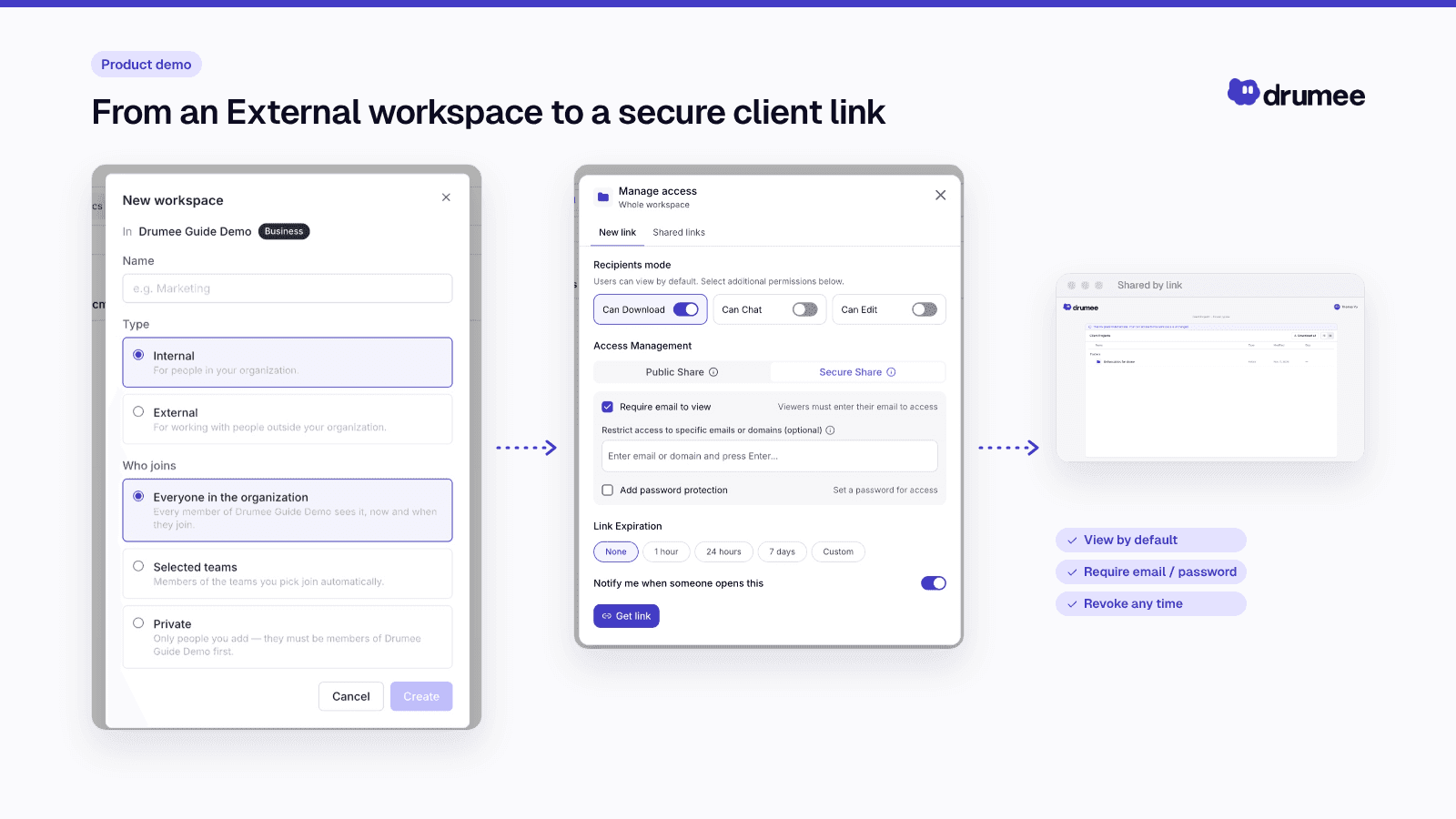
Sharing a deliverables folder from an External workspace with Secure Share.
The workspace is the unit of work
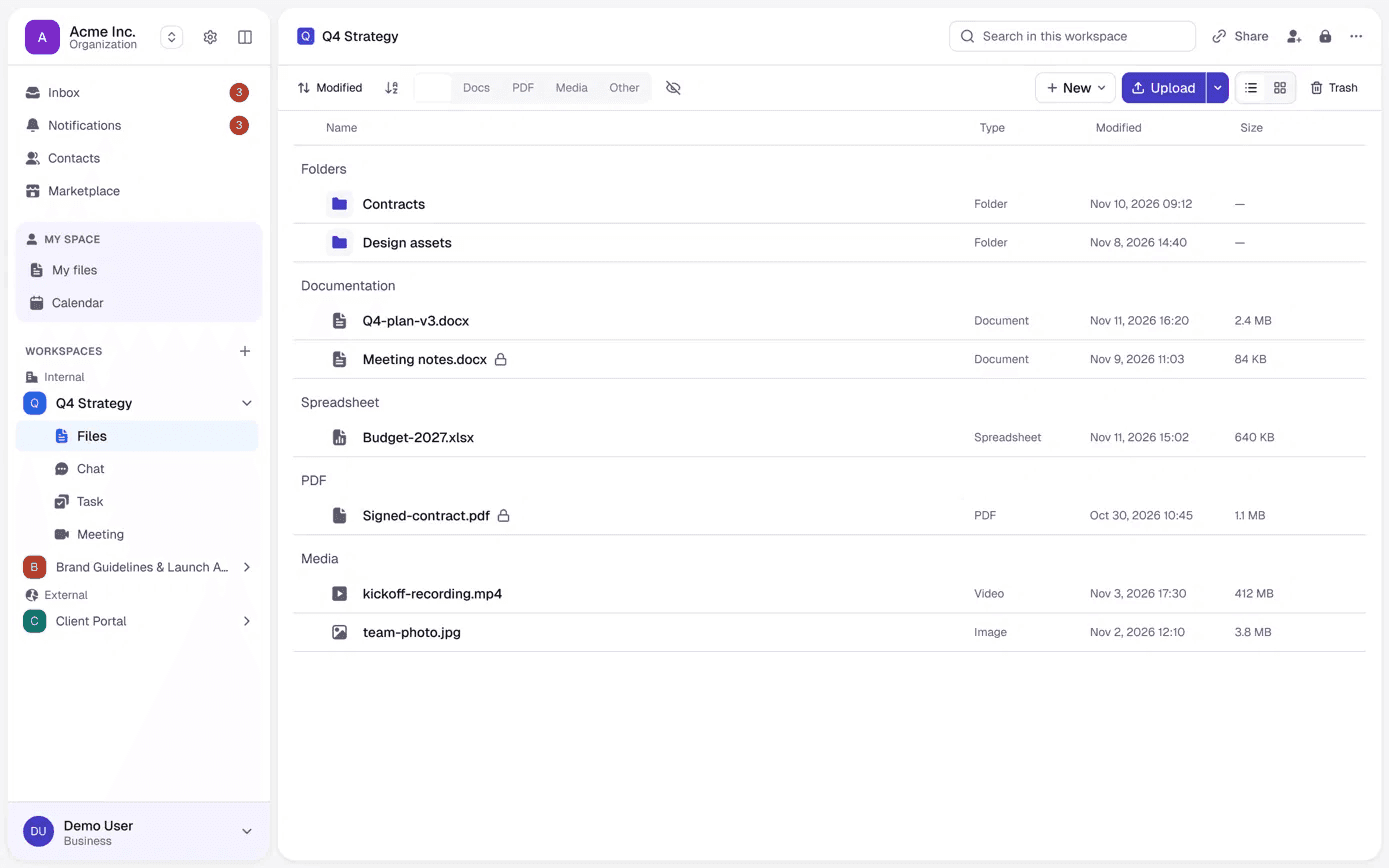
In Drumee, a workspace is the room for one project. It holds the project's files, a conversation in every folder, a task board, meetings and its own members with roles. The positioning docs frame the shift as a question: not "Where do I store this file?" but "What workspace does this work belong to?"
Each person has one role per workspace: Viewer, Chatter, Editor, Admin or Owner. That role covers files, chat, tasks and meetings alike, and the server checks it on every request. You cannot give a member a different role on a single folder. As the Drumee FAQ puts it, to give someone access to one item only, use a share link, or put the content in a workspace of its own.
So each client gets a workspace whose membership is the access list, not a shared drive with exceptions on every folder.
Internal vs External workspaces
When you create a workspace (under WORKSPACES in the sidebar, click +), you choose its type. The type decides who can be a member at all.
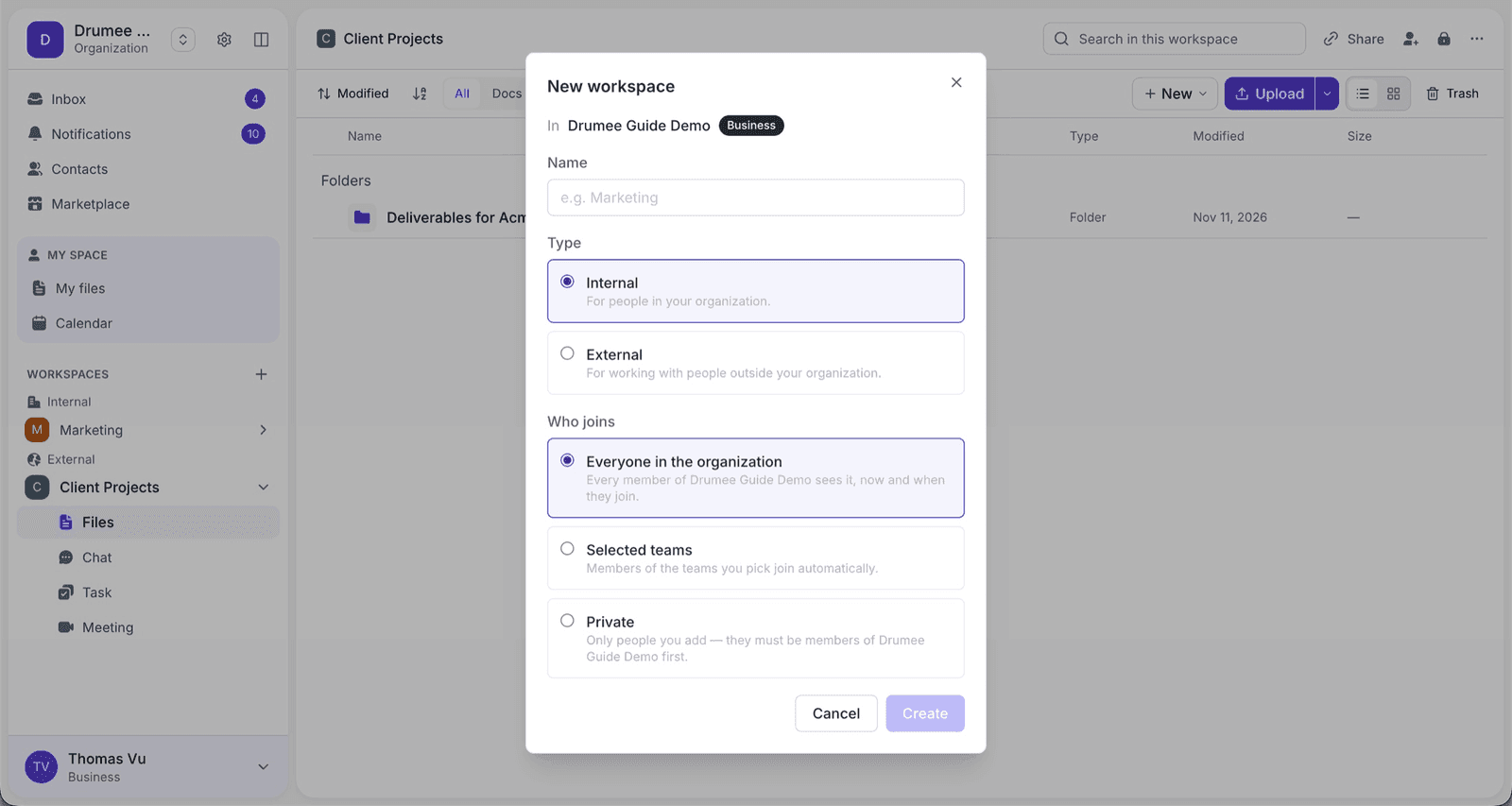
Internal workspaces are open only to members of your organization. You choose who joins:
- Everyone in the organization,
- Selected teams, whose members get automatic membership with the workspace's default role, or
- Private, with people added by hand.
External workspaces can include members of your organization and invited people from outside it. According to the RBAC System docs, an outside person in an External workspace is either a guest (Viewer or Chatter role) or an outside member (Editor or Admin role). A guest is an ordinary member with a guest-level role, not a separate kind of account.
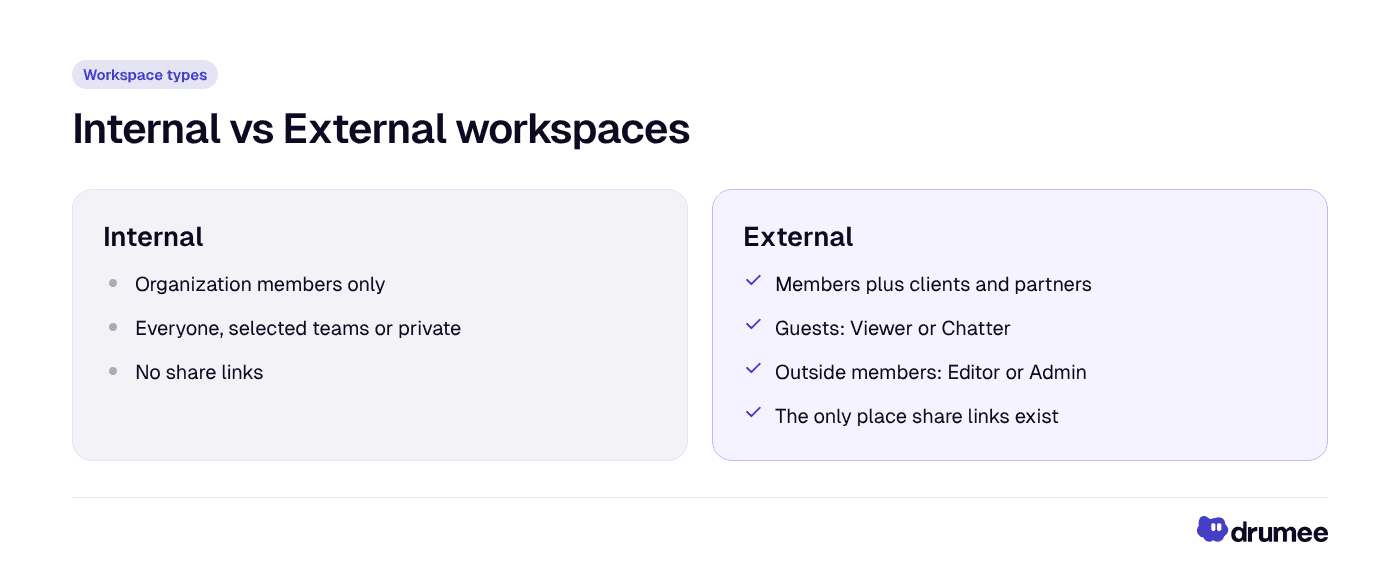
Internal keeps work inside the organization; External is where clients join and links are created.
Two ways to give a client access
Drumee gives you two tools, and they answer different needs.
1. Invite the client into the External workspace. Click the invite icon or the padlock to open Who has access, enter an email, choose a role and send the invitation. The person has 7 days to accept. Pick the role for the job:
- Viewer: browse and open content in the browser, without downloading originals.
- Chatter: also download, take part in conversations and comment on tasks.
- Editor: also create and change content, including co-editing documents in Drumee's Office engine.
2. Send a share link. A link gives people outside the workspace access to one file, one folder or one task, with its own permissions and protections. The recipient does not need to join the workspace.
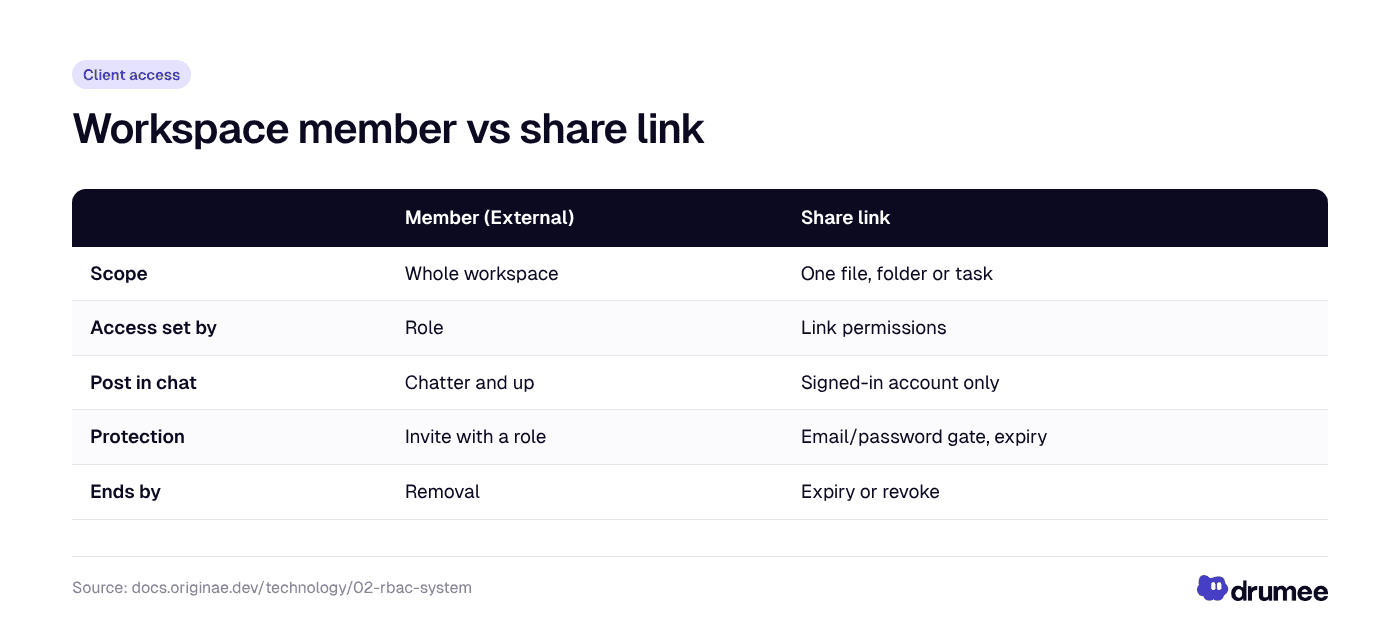
Membership is for ongoing collaboration; a share link is for delivering one item.
Use membership for ongoing work; use a link to deliver a result or collect a review.
Why share links exist only in External workspaces
The Get Started guide is explicit: only External workspaces can create share links. The glossary defines an External workspace as "the only kind in which share links exist."
The effect is structural: nobody can accidentally publish a link to an internal HR folder, because links cannot be created there. To share something, you first place it in client-facing work. Creating a link also requires at least the Editor role.
How to send a Secure Share link, step by step
- Open Share. In an External workspace, click Share in the top bar, or right-click a file or folder.
- Set permissions. Recipients can view by default. Turn on Can Download, Can Chat or Can Edit only if needed.
- Choose Secure Share. Require an email and/or a password, or restrict access to specific emails or domains.
- Set expiry and alerts. Pick a Link Expiration and turn on Notify me when someone opens this.
- Send it. Click Get link, copy it and send it to your client.
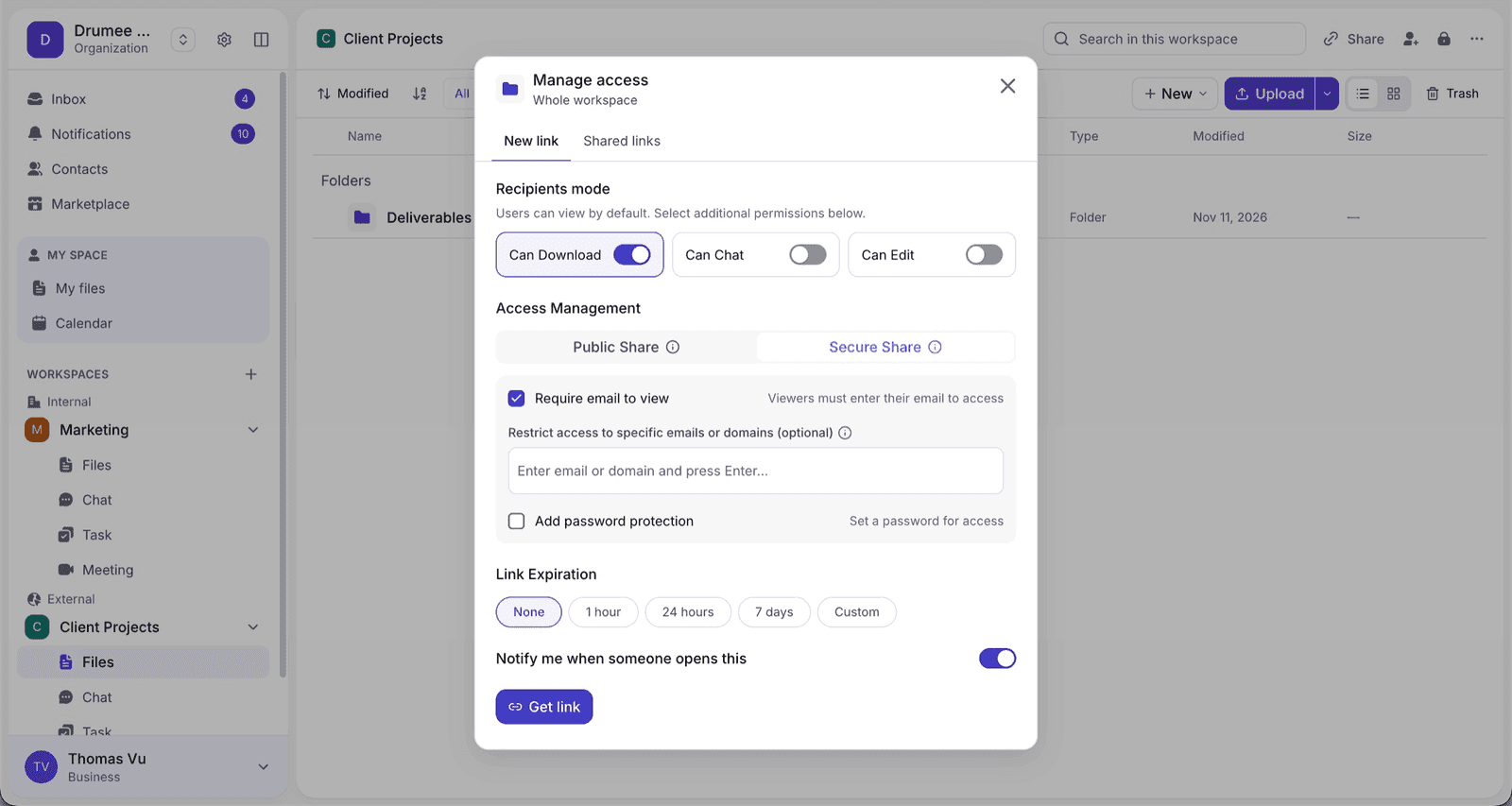
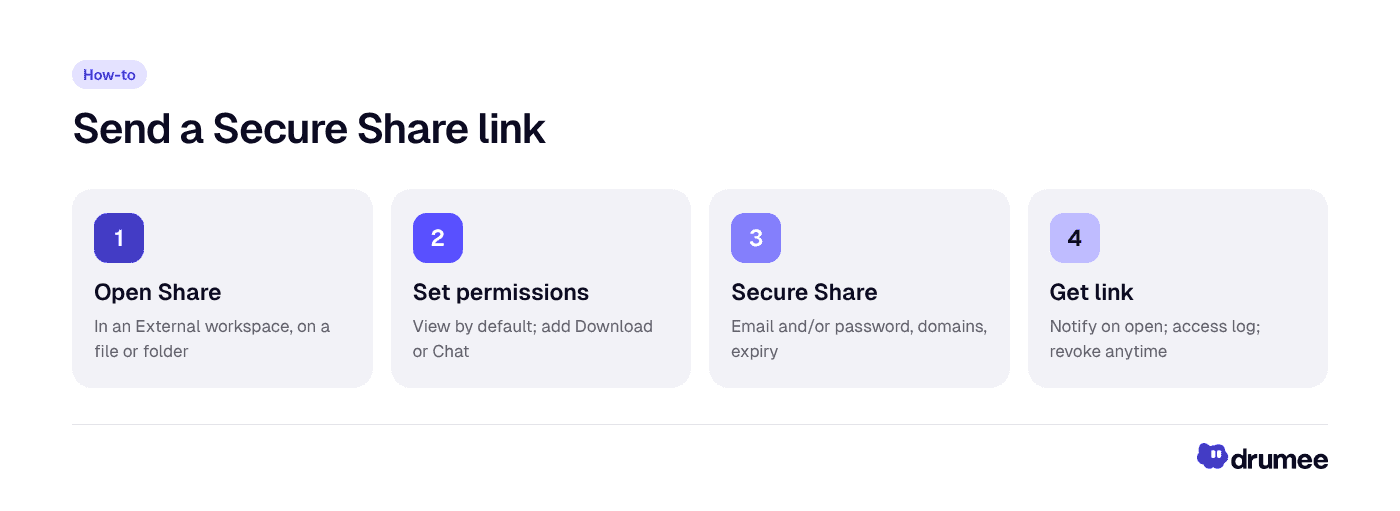
Five steps from a finished folder to a protected client link.
What each permission means
The RBAC System docs define the link permissions precisely:
- View is always on: open the shared item in the browser.
- Download adds originals, and a folder as a zip archive.
- Chat lets the visitor read the conversation of the shared folder; posting requires a signed-in account.
- Edit is reserved for editing through a link; today it grants what download grants.
Permissions are fixed when the link is created. For a task link, the ceiling is view and comment.
What protects the link
- Secure mode: the visitor must pass a gate, an email address (optionally restricted to a list of addresses or domains), a password, or both. Passwords are stored only as Argon2id hashes.
- Attempt limits: repeated wrong passwords are throttled, and a link under sustained guessing locks itself temporarily.
- Expiry: the link stops working at the time you choose.
What the client sees
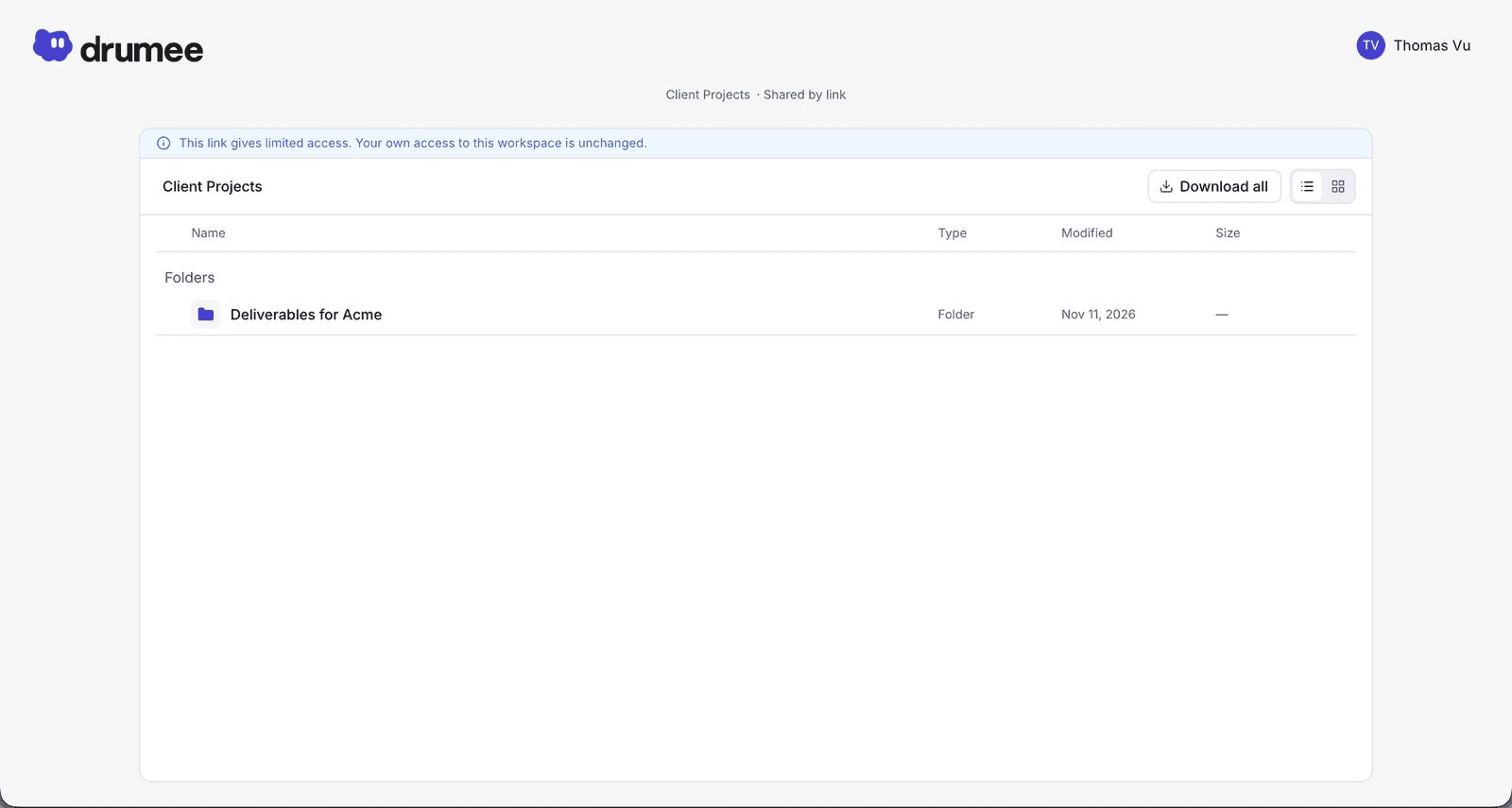
The client sees only what you shared. A visitor who opens a link can reach only the items inside the shared file or folder, never hidden files or the workspace's system folders, and every request made through the link is checked on the server (File Storage docs).
If the client needs more, such as download rights you left off, they can request it. Someone who manages the link approves or denies the request, and nobody decides their own request. An approval is attached to the signed-in account or the visitor's session, never to an email typed at the gate, because that address is not verified.
Stay in control: access log, extend, revoke
Sharing does not end when you send the link.
- Access log: every link shows who opened it and when.
- Extend: give a link more time when a review runs long.
- Revoke: cut access at any time. Revocation is permanent; a revoked link cannot be reactivated, so you create a new one if needed.
Responsibility is clear too. Editors see and manage the links they created; Admins see and manage all links of the workspace. An Editor who is demoted loses control of their links.
At the organization level, the audit log records share links created and revoked, along with membership and invitation changes, and keeps entries for one year. The organizations and admin post explains who can read it.
Why this matters for EU teams and client data
Client files often contain personal data, and GDPR expects you to know who can access it. Drumee's model gives you three practical answers: membership of each External workspace is the access list, every share link has its own log, and the organization audit log records links created and revoked. Organization administrators who are not members of a workspace cannot open its files or conversations.
If you share client personal data on the hosted service, review the hosting details and data processing terms as part of your vendor assessment. For wider context on keeping control of shared files, see our guides to secure self-hosted file sharing and file sharing without the cloud, and why a sovereign workspace changes who controls the data.
A simple setup for agencies
Drumee's audience docs describe the agency pattern: one Internal workspace for your own drafts, a separate External workspace per client with granular roles, and share links for one-off deliveries. The model behind it is covered in Drumee's RBAC permission model.
FAQ
How do I share files with a client securely in Drumee?
Put the work in an External workspace, click Share on the file or folder, and turn on Secure Share to require an email and/or a password. Set a link expiration and turn on notifications. The link's access log shows who opened it, and you can extend or revoke it at any time.
What is the difference between an Internal and an External workspace?
An Internal workspace is open only to members of your organization, with visibility set to everyone, selected teams or private. An External workspace can also include clients and partners. Share links exist only in External workspaces.
Can a client open a share link without a Drumee account?
Yes, a visitor can open a share link and pass its gate without joining the workspace. Reading the folder's conversation can be allowed with Can Chat, but posting in it requires a signed-in account.
Can I password-protect a share link and set an expiry date?
Yes. Secure Share can require a password, an email, or both, and can restrict access to specific emails or domains. You pick a link expiration, after which the link stops working.
What happens when I revoke a share link?
The link stops working immediately and permanently; a revoked link cannot be reactivated. If the client needs access again, create a new link with the permissions and protections you want.
Can a client edit documents through a share link?
Not yet in practice. The Edit permission on a link is reserved for editing through a link and today grants the same as download. To co-edit with a client, invite them into the External workspace with an Editor role.
Conclusion
Secure client sharing in Drumee starts with a structural choice: internal work stays in Internal workspaces, and clients meet you in External ones. From there, Secure Share links add a gate, an expiry and an access log to every delivery.
Set up an External workspace at app.drumee.com, or read the next post in the series: workspace admin roles and the audit log.
Try Drumee with your team: your first month is $1. Start your team for $1
Keep reading
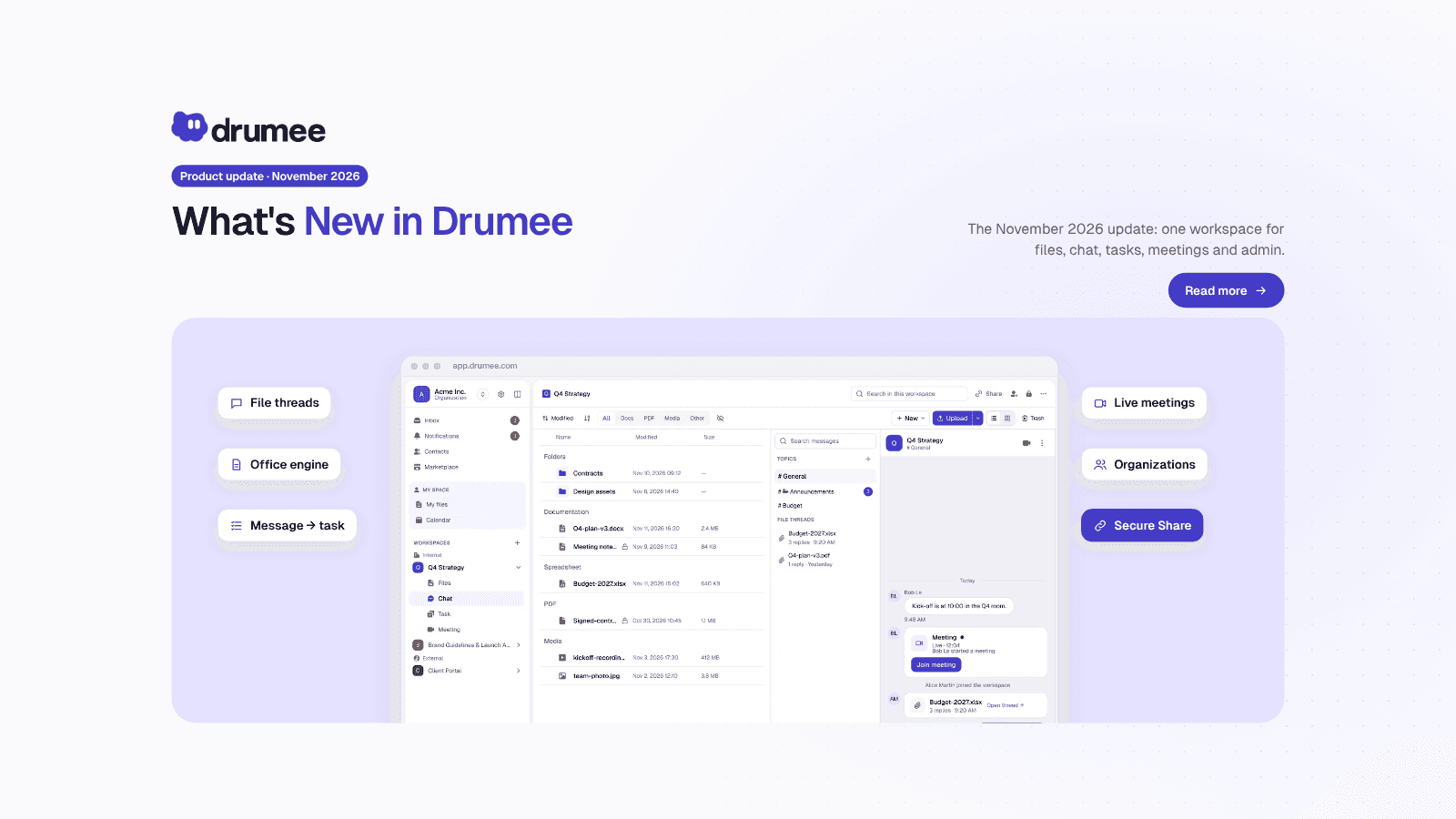
What's New in Drumee: November 2026 Product Update
The new version of Drumee is a rebuilt workspace platform, running today as a hosted service at app.drumee.com. Each workspace now holds a project's files, conversations, tasks and meetings under one role model, with Drumee's own Office engine, se...
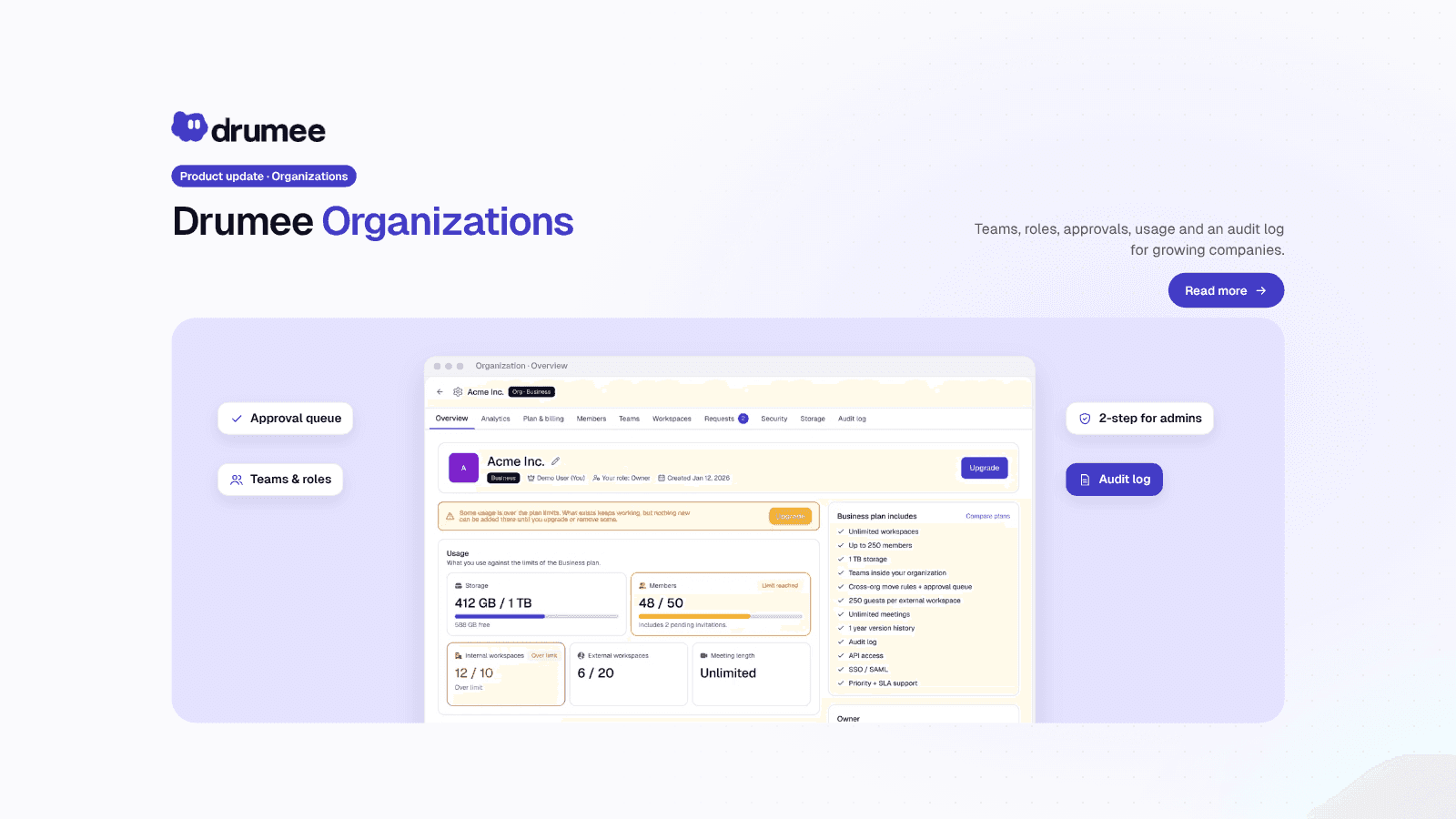
Drumee Organizations: Workspace Admin Roles and the Audit Log
A Drumee organization is a shared space for a company's members, teams and workspaces, administered on its own ladder of six levels, from Member to Owner. Admins manage people, teams, policies and the audit log, but administration is not access: a...
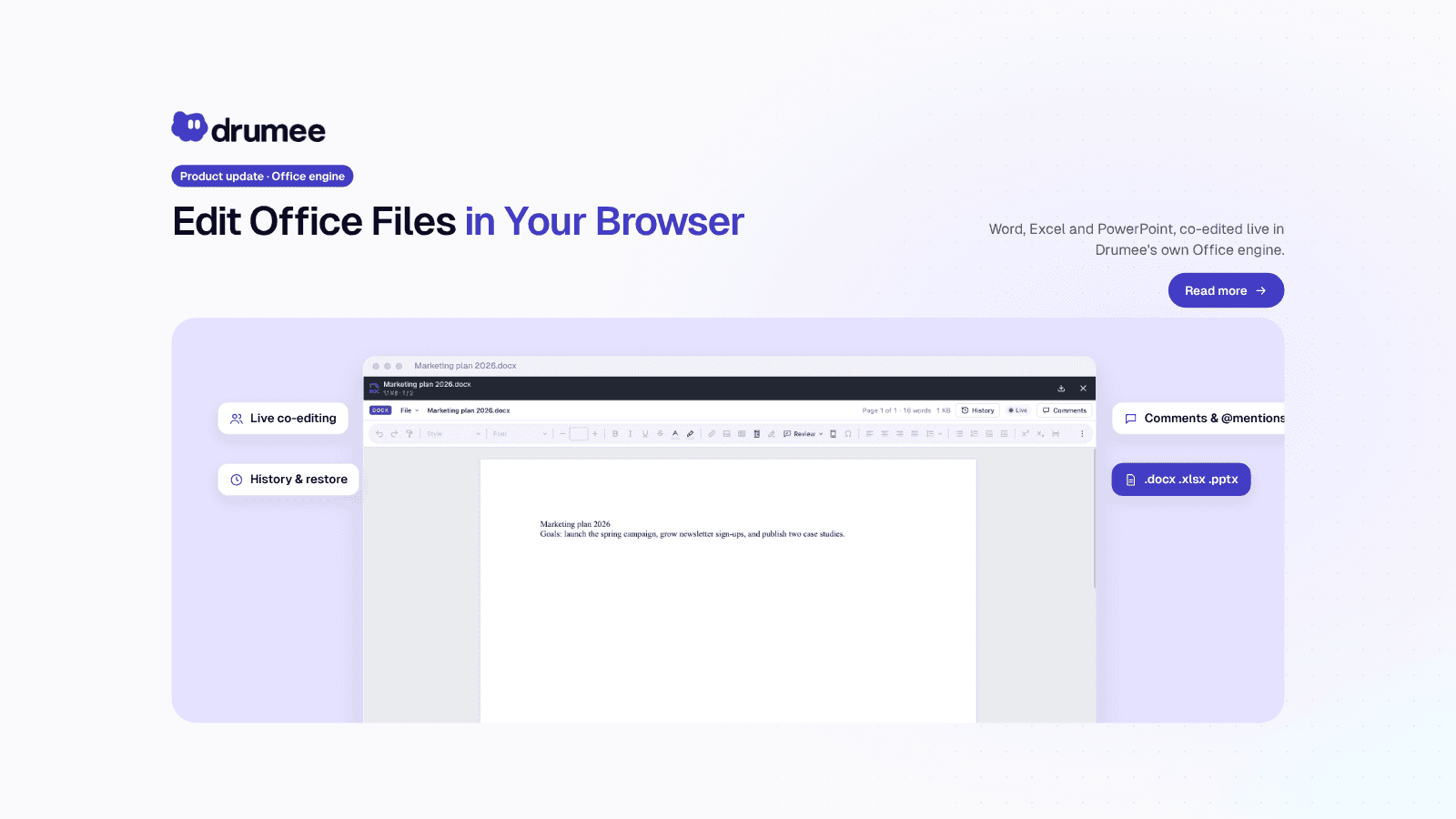
Drumee Office Engine: Edit Word Documents Online Together
Drumee's Office engine lets a team edit Word, Excel and PowerPoint files online collaboratively, directly in the browser, with no Office install. Several people type at once, every change saves automatically, and History shows who changed what. Th...