
Role-Based Access Control for Collaboration Apps: Drumee's RBAC Model
Role-based access control (RBAC) for a collaboration app means permissions follow from a person's role, not from per-file settings. In Drumee, each person holds exactly one role per workspace, on a ladder from Viewer to Owner, and the server check...
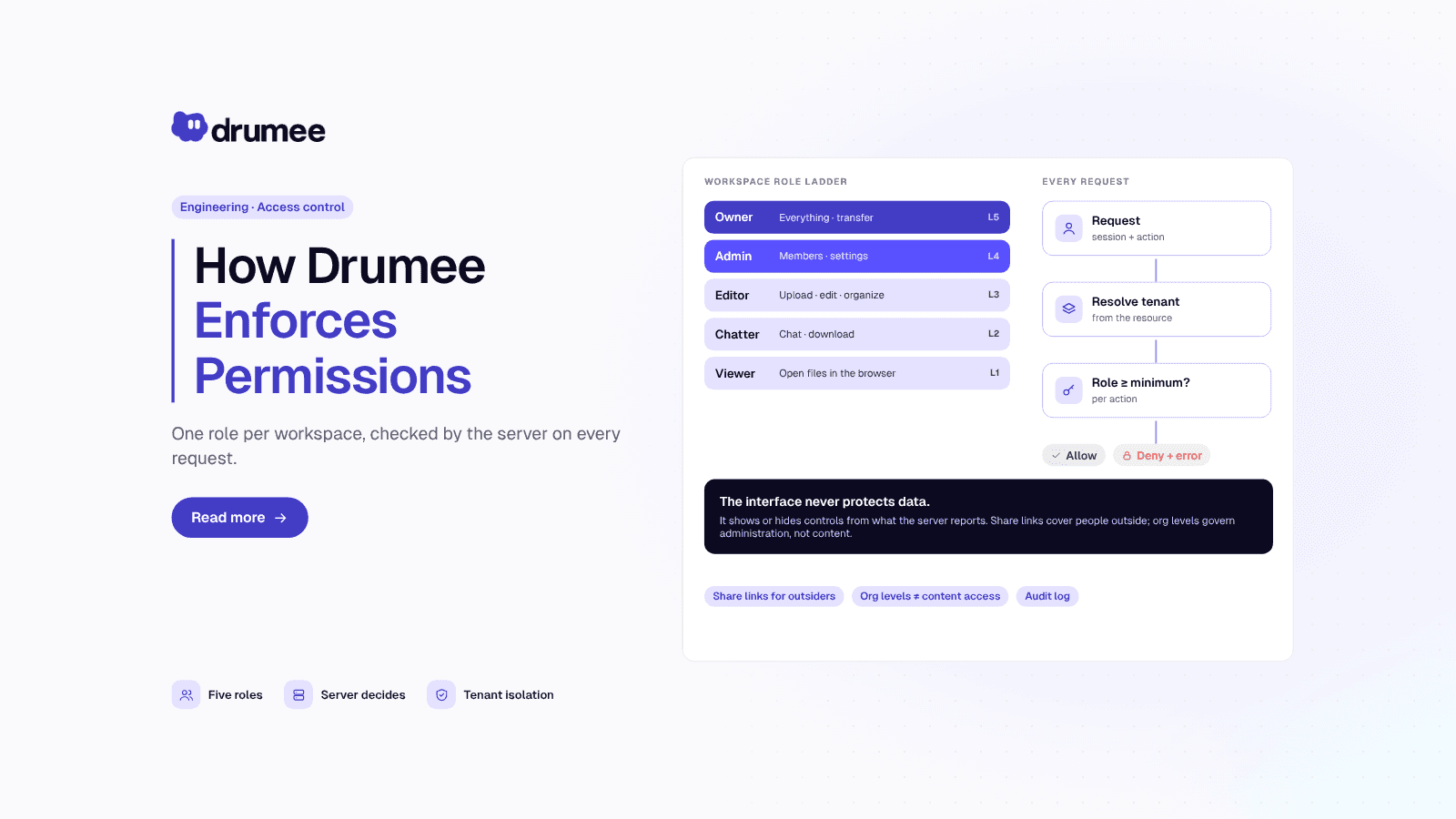
Drumee RBAC model: three independent layers (workspace role, organization level, share link) feeding one server-side authorization check
Role-based access control (RBAC) for a collaboration app means permissions follow from a person's role, not from per-file settings. In Drumee, each person holds exactly one role per workspace, on a ladder from Viewer to Owner, and the server checks that role before it touches any data, for files, chat, tasks and meetings alike.
This post, for CTOs and developers, follows Drumee's RBAC System documentation: the three layers, the role ladder, the authorization path, caching, 404 vs 403, and build-time tenant isolation. Where we add our own commentary, we say so.
The short answer
Drumee's RBAC has three independent layers: a workspace role (Viewer, Chatter, Editor, Admin, Owner) that governs content, an organization level that governs administration, and share links for people outside a workspace. Every check runs on the server, next to the code that performs the action. Unknown actions require the highest role, and non-members are told the resource does not exist.
Four principles from the docs drive everything else:
- The server decides. The interface only shows or hides controls according to what the server reports. Hiding a button never protects data.
- One role per workspace. A member's role applies to every folder, file, conversation and task in that workspace.
- Roles are a ladder. Each role includes everything below it, so every check is "is this role at least X?".
- Unknown means refused. An action missing from the table requires the highest role.
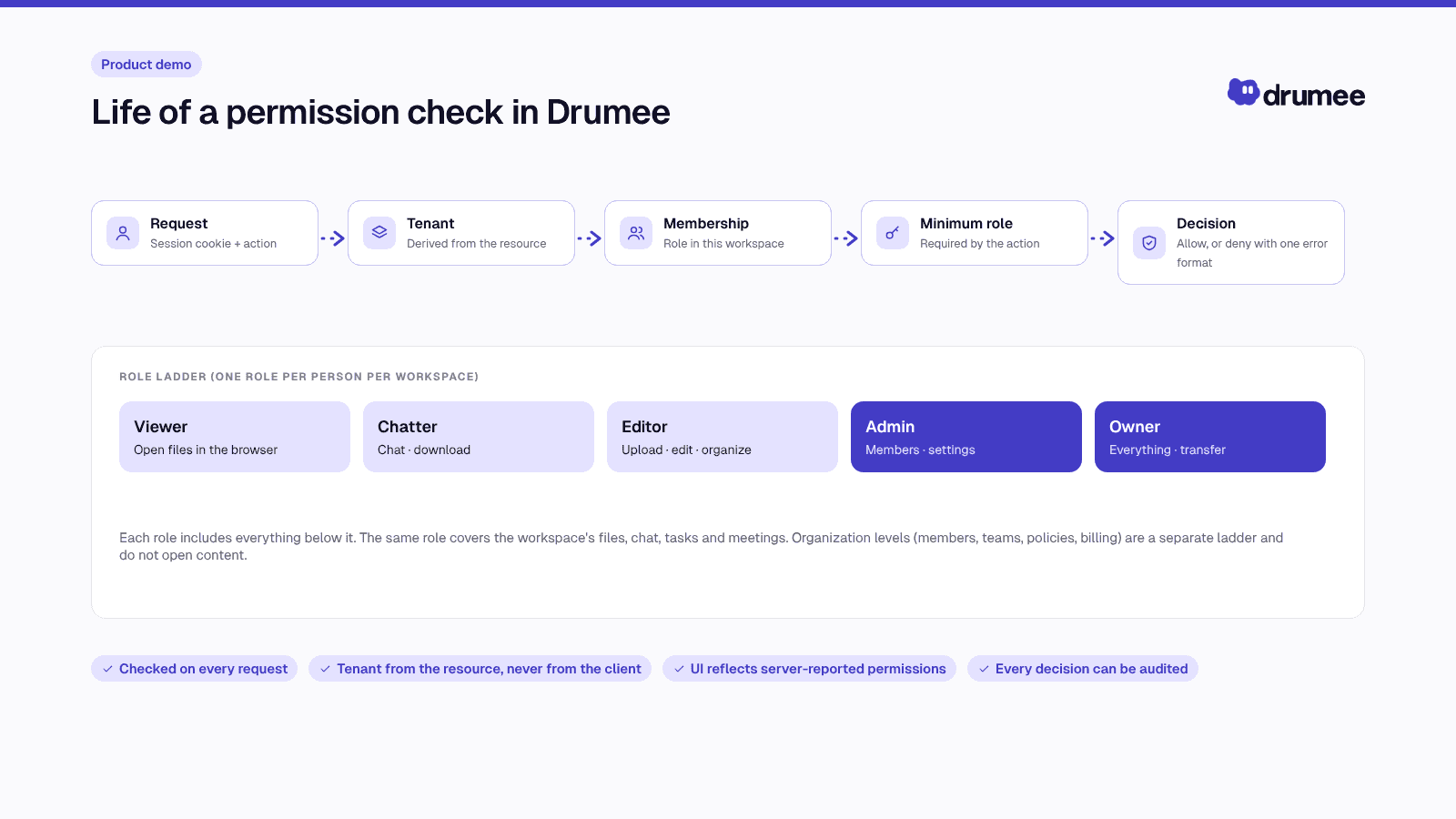
One authorization path for every request: identify, resolve role and tenant, check, guard, scope.
Why one role per workspace
A stack of separate tools means separate permission systems, each with its own member list and its own idea of "editor". Keeping them aligned is manual work, and drift is where leaks happen. We describe that pattern in what tool sprawl is.
Drumee makes the workspace the unit of permission. A role is assigned once and covers files, chat, tasks and meetings. The trade-off is explicit in the FAQ: you cannot set member permissions on a single folder or file. To give someone access to one item, use a share link, or put the content in a workspace of its own.
Our view: that constraint is a feature. Per-item ACLs are flexible but hard to audit; a workspace boundary is easy to reason about: who is in this room, and what can they do?
The three layers
The layers are independent, and none of them leaks into another:
- Workspace role answers "what may this person do inside this workspace?" It covers files, chat, tasks, meetings and members of one workspace.
- Organization level answers "what may this person administer?" It covers members, teams, policies, audit log and billing.
- Share link answers "what may someone with this link do?" It covers one file, folder or task, for people outside the workspace.
An organization administrator has no automatic access to the content of a workspace they are not a member of. A share link grants nothing beyond the item it points at.
The workspace role ladder
Owner    transfer ownership, delete workspace (exactly one per workspace)
  ▲
Admin    + invite, manage members and roles, workspace settings, whole trash
  ▲
Editor   + create/change content, share links, tasks, start meetings
  ▲
Chatter  + download, chat, comment on tasks, attach files
  ▲
Viewer   browse, open and search in the browser; join a meeting in progress
In the application the roles are labelled View, Chat, Edit, Admin and Owner. Roles that can be assigned or offered in an invitation are Viewer, Chatter, Editor and Admin. The owner cannot be removed, given another role, or leave; ownership must be transferred first, after which the former owner becomes an Admin.
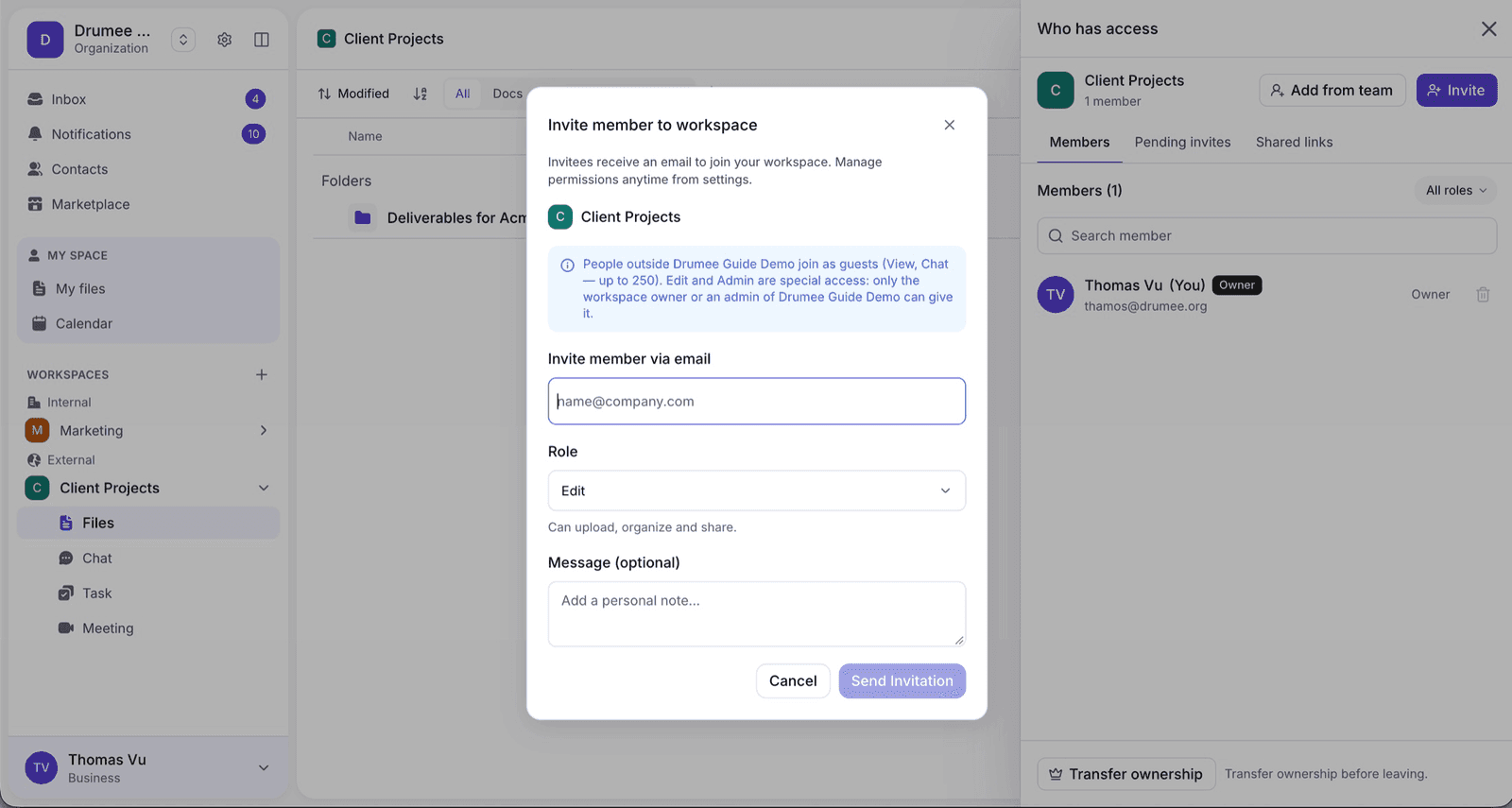
The invite dialog exposes the same ladder: View, Chat, Edit, Admin. Ownership is never offered in an invitation.
Actions and the minimum role
The whole model is a single table that maps each action to the lowest role allowed to perform it:
view              Viewer    browse, open, search
leave             Viewer    leave the workspace (owner cannot)
download          Chatter   download originals, copy
chat              Chatter   read/send messages, create topics
task_comment      Chatter   comment, reply, react on tasks
write             Editor    upload, create, rename, move, trash, lock
share_link        Editor    create a share link
task_write        Editor    tasks, columns, sprints, labels
meet_start        Editor    start/schedule meetings, admit from lobby
invite            Admin     invite people
manage_members    Admin     change roles, remove members
manage_workspace  Admin     rename, settings, manage chat topics
transfer_owner    Owner     hand the workspace to another member
delete_workspace  Owner     move the workspace to the trash
One table means one place to review, and a forgotten row fails closed: the action requires the highest role.
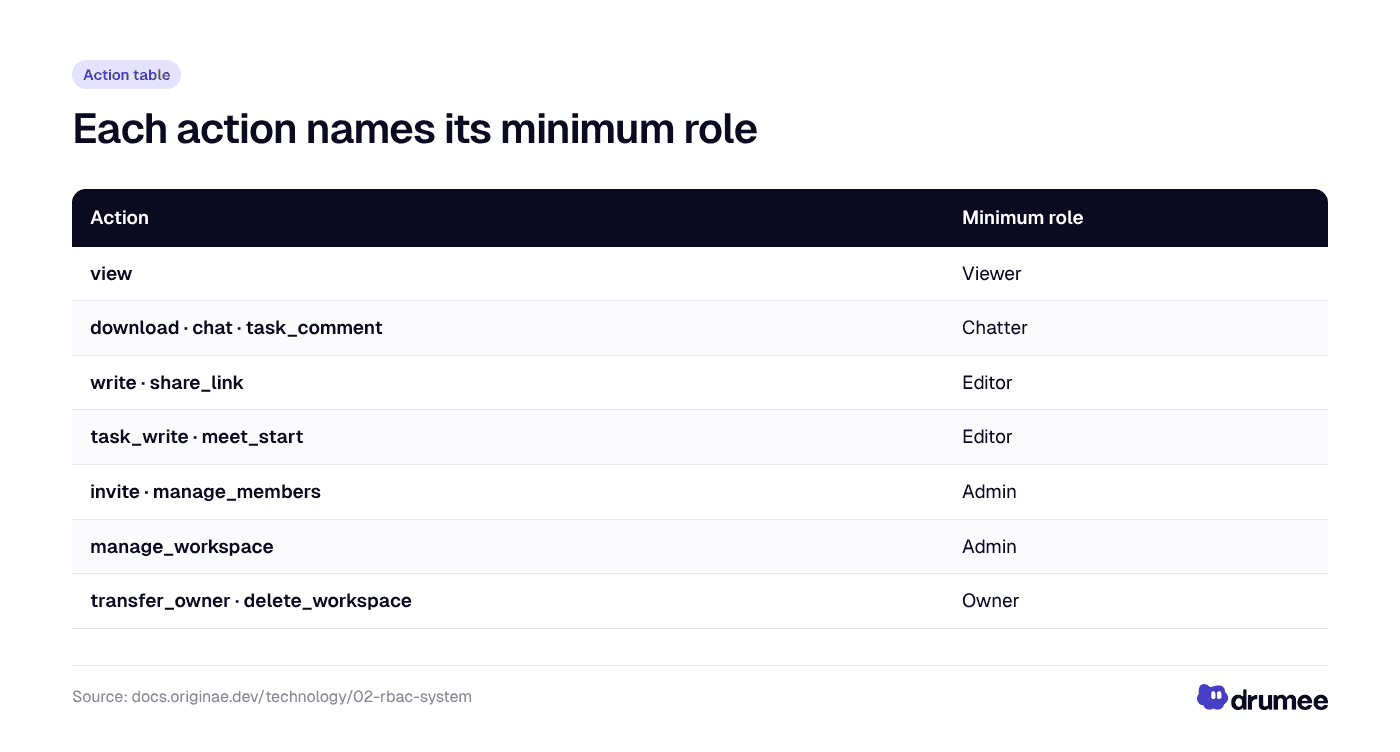
The action table: each action names the lowest role allowed to perform it.
Rules that refine the table
- Viewing is not downloading. A Viewer can read a PDF, play a video or view an image in the browser but cannot download the original. The docs are candid: this limits casual copying; it is not copy protection.
- Authorship still matters. Only the author can delete a chat message for everyone or edit a task comment, not an Admin. Below Admin, the trash shows only what you own or trashed.
- Locks. An Editor can lock a file; only the locker or an Admin can unlock it.
- No self-service escalation. An Admin cannot change their own role or the owner's.
Workspace kinds, guests and outside members
The workspace kind decides who can be a member: Personal (owner only), Internal (organization members) or External (members plus outsiders). In an External workspace, an outsider is a guest (Viewer or Chatter, an ordinary member with a guest-level role) or an outside member (Editor or Admin). On every plan, an outside member needs explicit approval from the workspace owner or an Org admin. Share links exist only in External workspaces; we cover the product side in Internal vs External workspaces.
Organization levels: a separate ladder for administration
An organization (a tenant) has its own ladder, which governs administration, not content:
Owner         transfer the organization; billing and plan
Org admin     change levels, remove members, rename org, reclaim orphaned workspace
Org security  directory policy, mandatory 2FA, file-move policy, audit log
Org manage    invite members, manage teams, manage workspace members/visibility
Org view      read-only admin: analytics, storage report, workspaces, invitations
Member        belongs; sees the directory as policy allows
The safety rules are worth copying into any design:
- No one promotes above themselves. Changing a level requires Org admin, at least at the target's current level and at the level granted. Nobody changes themselves or the owner.
- Sensitive transfers need a second factor: transferring the organization requires a one-time code sent by email. Billing belongs to the owner alone.
- Administration is not access. Admins can add and remove workspace members without thereby reading files or conversations; Personal workspaces stay hidden from them.
Teams carry no permissions of their own. They give a set of people automatic membership of internal workspaces assigned to their team, with that workspace's default role. Someone below Org admin cannot use team changes to add themselves to a workspace or raise their own role. The admin side is covered in Drumee organizations and admin roles.
Share links: the third layer
A share link gives people outside the workspace access to one file, folder or task. Its permissions are fixed at creation:
- view: always on.
- download: originals, and a folder as a zip archive.
- chat: read the shared folder's conversation; posting requires a signed-in account.
- edit: reserved; today it grants what download grants.
For a task link the ceiling is view and comment. Protections: expiry, a secure-mode gate (email, optionally restricted to addresses or domains, and/or a password stored only as an Argon2id hash), attempt throttling, permanent revocation, and an access log.
Visitors can request more. Someone who manages the link approves or denies; nobody decides their own request. Approvals attach to the signed-in account or the visitor's session, never to an email typed at the gate, because that address is not verified. The resulting rule:
effective = (link permissions ∪ approvals for this visitor)
            capped by what the target kind allows
Editors manage their own links, Admins all links; a demoted Editor loses control of theirs. Every request through a link is checked on the server: the item must be inside the shared target, in the same workspace, and not hidden or a system item.
How a request is authorized
Every request follows the same five steps:
1. Authentication      middleware: identify caller from the session
2. Access resolution   service: caller's role in the workspace that owns
                       the resource, plus that workspace's tenant
3. Role check          service: require the minimum role for the action
4. Write guard         service: if adding data, tenant must not be read-only
5. Scoped data access  every database call filtered by the tenant from step 2
Two details matter. Authentication is the only step in middleware; authorization lives in the service, next to the code that performs the action, per the request pipeline page. And the request never states its tenant: for a file, task or conversation addressed by ID, the server finds it first, then runs the checks in the workspace it belongs to.
Organization requests follow the same pattern on the organization ladder. Creating a task, for example, requires task_write (Editor), takes the tenant from the workspace, and checks that assignees are members and attachments are in the same workspace.
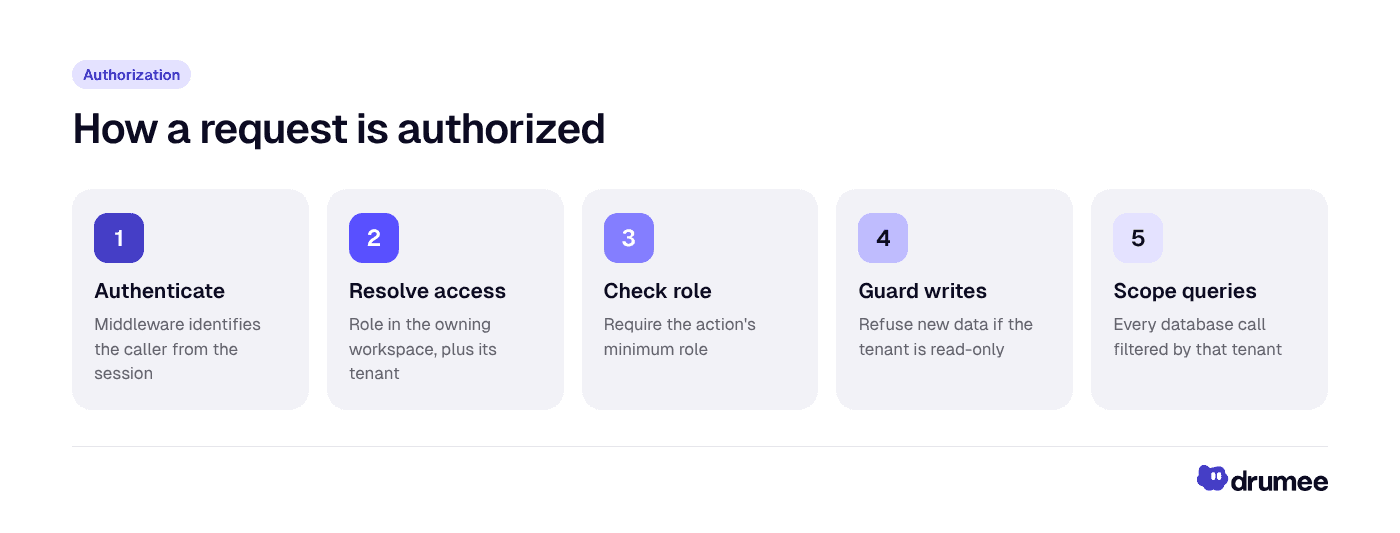
Five steps, in order, for every request; only the first runs in middleware.
Caching without stale roles
A resolved workspace role is cached for a few minutes. A role change, removal or departure invalidates it immediately, and the invalidation is designed so that an in-flight request cannot write a stale role back into the cache. Even on a cache hit, the server re-checks that the person still belongs to the organization. Organization levels are not cached.
Denials: 404 versus 403
The response codes are chosen deliberately:
- 401
auth.unauthorized: not signed in. - 404
common.not_found: not a member, or the resource belongs elsewhere. Existence is not revealed. - 403
authz.insufficient_role: a member whose role is too low, with the action, the caller's role and the required role. - 402
billing.read_only: the organization is over its plan limits. - 404
org.noneand 403org.privilegefor the organization ladder. - 410 for a revoked, expired or locked share link; 403
share.gate_requiredwhen the gate is not passed.
The split is the point: an outsider cannot probe IDs to learn what exists, while a member learns exactly which role they are missing.
Tenant isolation: enforced at build time
Authorization decides what a person may do. Tenant isolation guarantees it only ever happens to the right organization's data:
- Every document belonging to a tenant carries a
tenant_id. - Every data-access function takes the tenant ID as an explicit argument and must use it in the query. A static check in the build enforces this across the codebase; code that does not filter by tenant does not pass.
- The tenant ID comes from access resolution, never from a client-supplied value.
- Dedicated tests try to read one tenant's data as a member of another.
The Directory Schema page shows how tenants and memberships are stored. The data-protection side is covered in how Drumee protects data with tenant isolation; for encryption context see what end-to-end encrypted workspaces mean.
Plan limits in the same decision path
Plan limits (members, workspaces of each kind, guests, outside members, available levels and features) are enforced on the server in the same path as roles. The docs mark per-plan values as pending, so we list none; see the pricing page.
One rule holds on every plan: an organization over its limits becomes read-only. Adding data and people pauses, while reading, downloading, removing and changing settings keep working. That is step 4, the write guard, in action.
How the interface learns permissions
There is no separate capabilities endpoint. The server embeds effective permissions in ordinary responses:
my_roleon every workspace andmy_levelon every organization;- per-resource flags where a role is not enough, such as
can_editon a document orcan_startandcan_joinon a meeting; - on a share page, both the link's permissions and the visitor's effective permissions.
When a role changes, realtime events (membership.changed, membership.removed, share_link.revoked, …) update open screens at once. Realtime subscriptions pass the same access resolver, are re-validated on membership change, and a revoked session is disconnected.
Apps and the audit log
An installed app is a bot member of the workspaces it was added to. Its requests pass two gates: the app's scopes (files:read, files:write, chat:read, chat:write, tasks:read, tasks:write, workspace:read), which deny by default, then the same role checks as a person. Apps cannot reach direct conversations and stay inside the organization that installed them.
Permission-relevant changes (members, invitations, ownership, share links, access decisions, levels, teams, policies, plans, app installs) go to a per-organization audit log recording who, what, target, when and the causing request. Entries are kept for one year; reading them requires Org security.
Where this fits
This post is part of the November 2026 update series; start with what is new in Drumee, or see how roles shape everyday work in the chat-to-task workflow. For the bigger idea, read what a sovereign workspace is. Drumee runs today as a hosted service at app.drumee.com; the self-hosted edition is coming soon, per the roadmap.
FAQ
How does Drumee handle permissions?
Each person holds one role per workspace: Viewer, Chatter, Editor, Admin or Owner. The role covers files, chat, tasks and meetings in that workspace, and the server checks it on every request. Organization administration and share links are separate, independent layers.
Can I set permissions on a single file or folder in Drumee?
Not for members: a role covers the whole workspace. To give someone access to one item, create a share link, or move the content into a workspace of its own. This keeps the model auditable.
Why does Drumee return 404 instead of 403 to non-members?
So that people outside a workspace cannot learn whether an ID exists. Members whose role is too low get a 403 that names the action, their role and the required role, which tells them what to ask for.
How does Drumee prevent one tenant from reading another's data?
Every tenant document carries a tenant ID, every data-access function must filter by it, and a static check in the build rejects code that does not. The tenant is derived from the resource, never from client input, and dedicated tests attempt cross-tenant reads.
Conclusion
Drumee's RBAC is small on purpose: one role per workspace, one action table, one authorization path, a separate admin ladder, and share links for outsiders. The server decides every time. See the model at work at app.drumee.com, or read the next post in the series on organizations and admin roles.
Try Drumee with your team: your first month is $1. Start your team for $1
Keep reading
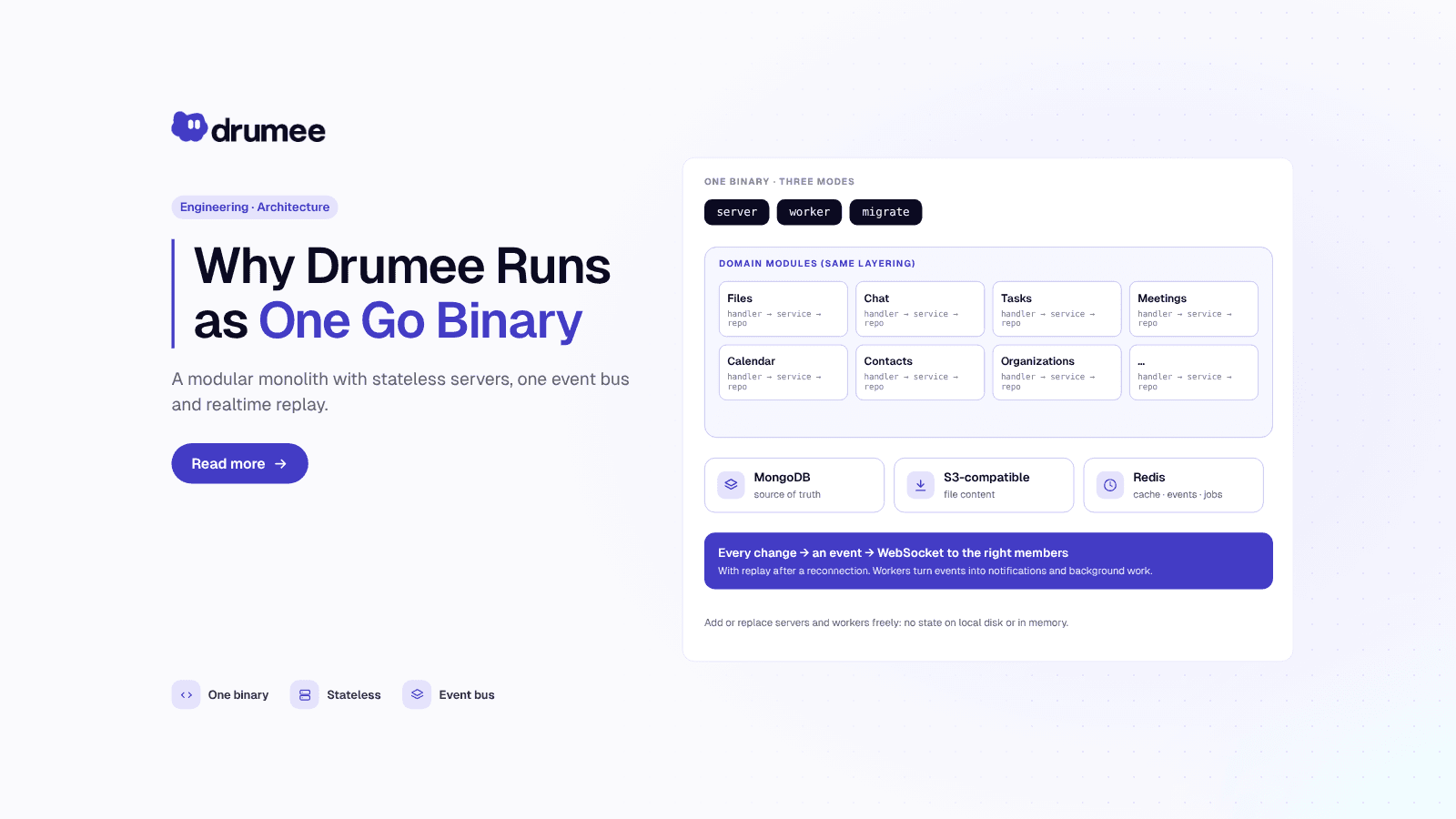
Why Drumee Is a Modular Monolith: One Go Binary, Many Modules
A modular monolith is one deployable program split into self-contained modules with explicit boundaries. Drumee is built this way: a single Go binary runs as an API server, a background worker or a migration job, and each domain (files, chat, task...
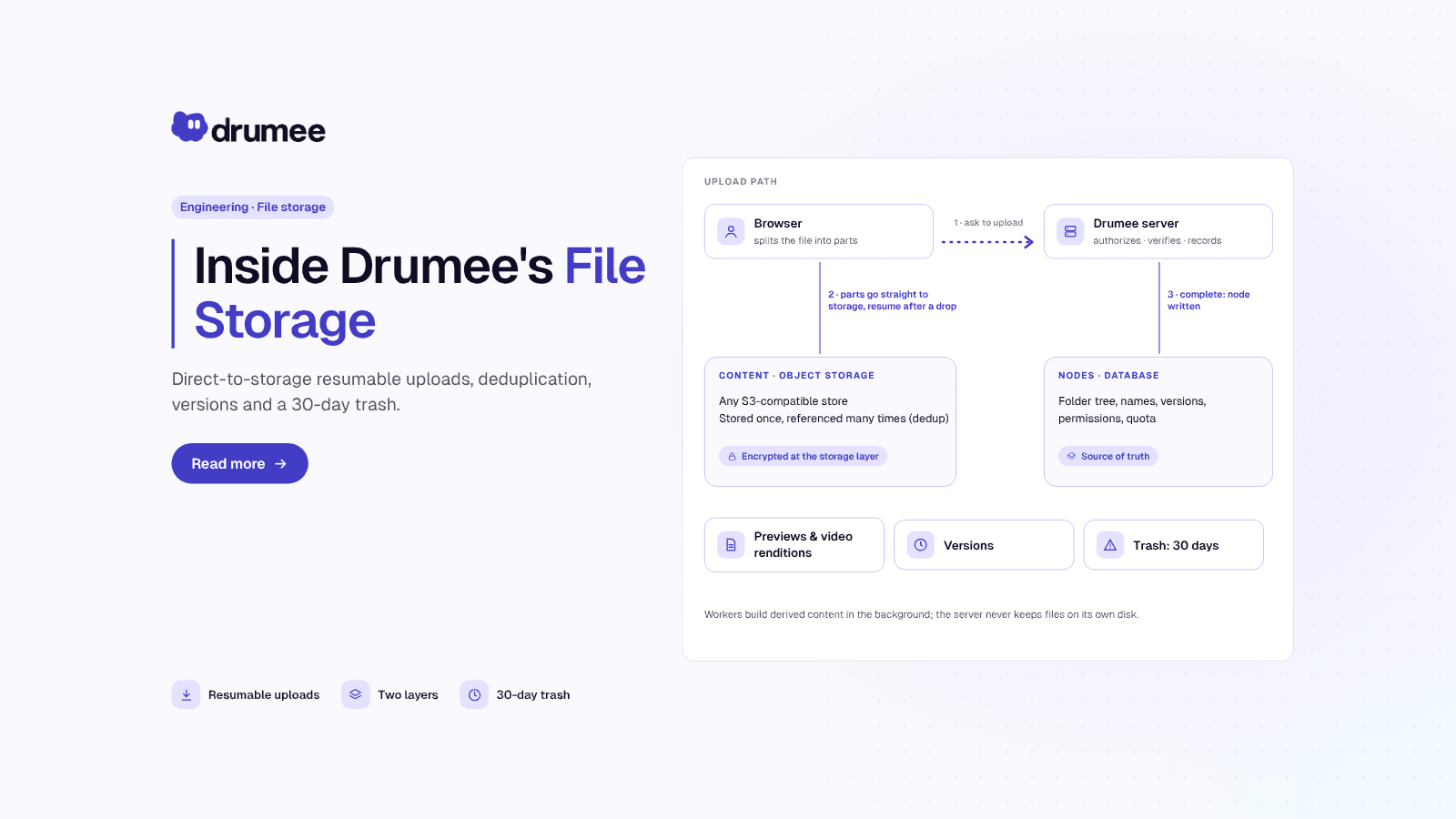
How Drumee Stores Files: Resumable Uploads to S3-Compatible Storage
Drumee stores every file in two places. What the file is (name, folder, owner, current version) is a node in MongoDB. What the file contains is an object in S3-compatible storage. Browsers upload bytes directly to that storage in resumable par...
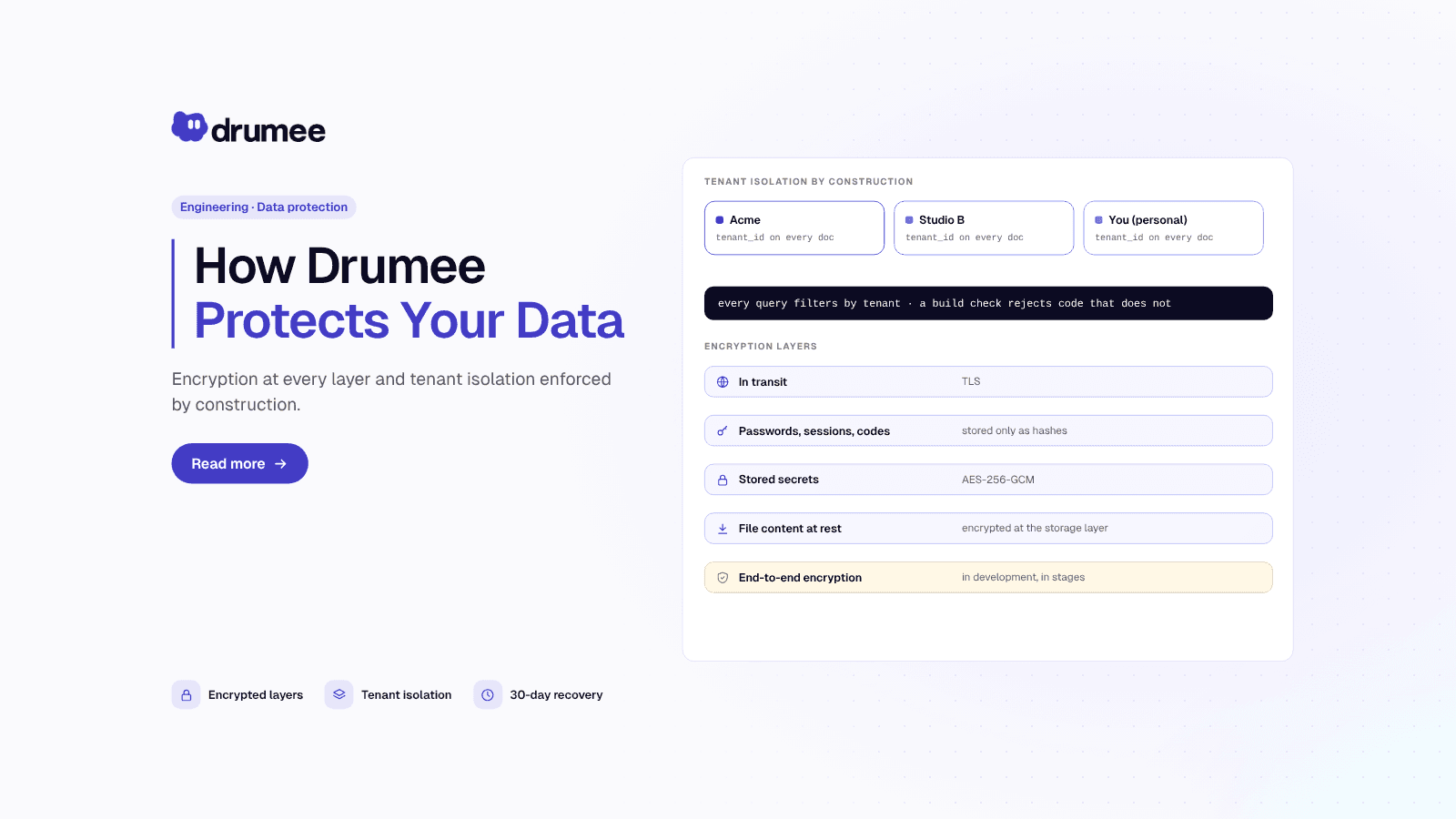
How Drumee Isolates Tenant Data: Multi-Tenant Isolation and Encryption
Multi-tenant data isolation means one customer's data can never be read through another customer's account, even though both run on shared infrastructure. In Drumee, every document carries the ID of the tenant that owns it, every query filters by ...