
Drumee Organizations: Workspace Admin Roles and the Audit Log
A Drumee organization is a shared space for a company's members, teams and workspaces, administered on its own ladder of six levels, from Member to Owner. Admins manage people, teams, policies and the audit log, but administration is not access: a...
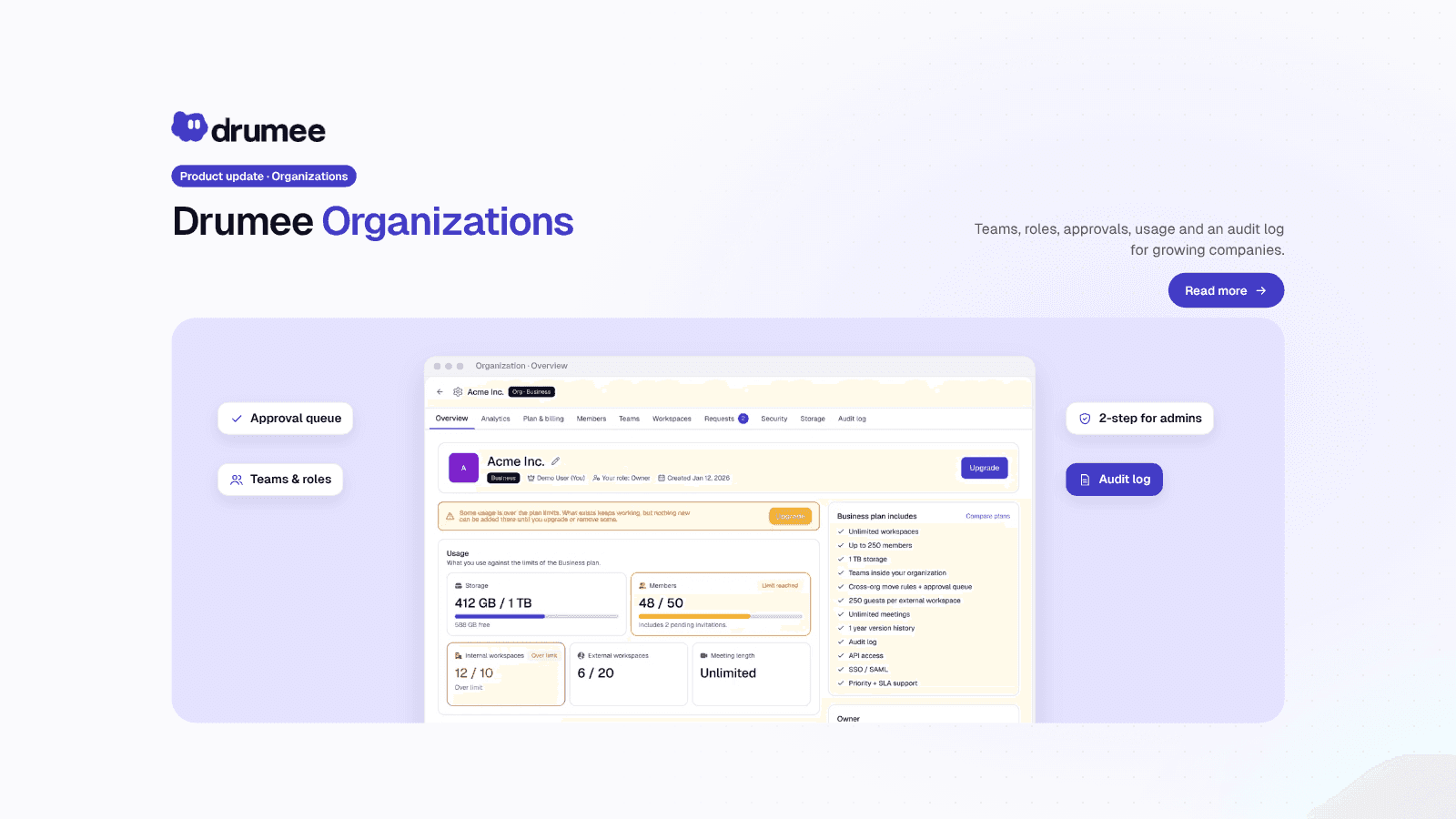
Drumee organization overview with usage, admin tiles for members, teams, workspaces, approvals, security, storage and the audit log
A Drumee organization is a shared space for a company's members, teams and workspaces, administered on its own ladder of six levels, from Member to Owner. Admins manage people, teams, policies and the audit log, but administration is not access: an organization admin cannot read a workspace they are not a member of.
That separation of running the organization from working inside a workspace shapes everything on this page. This post walks through what an organization admin can see and do in the new Drumee, using the RBAC system documentation and the product's own screens.
The short answer
In Drumee, organization levels govern administration (members, teams, policies, billing), not content. The six levels are Member, Org view, Org manage, Org security, Org admin and Owner. Security-sensitive features include mandatory two-factor authentication for admins, a file-move policy with approvals, and an audit log kept for one year.
Two ladders are kept apart: a person's organization level decides what they can administer, and their role in each workspace (View, Chat, Edit, Admin, Owner) decides what they can do with its content.
Team or Organization: pick the right container
Everything starts from the team switcher at the top-left of the sidebar. Choose New team or organization, enter a name and click Create.
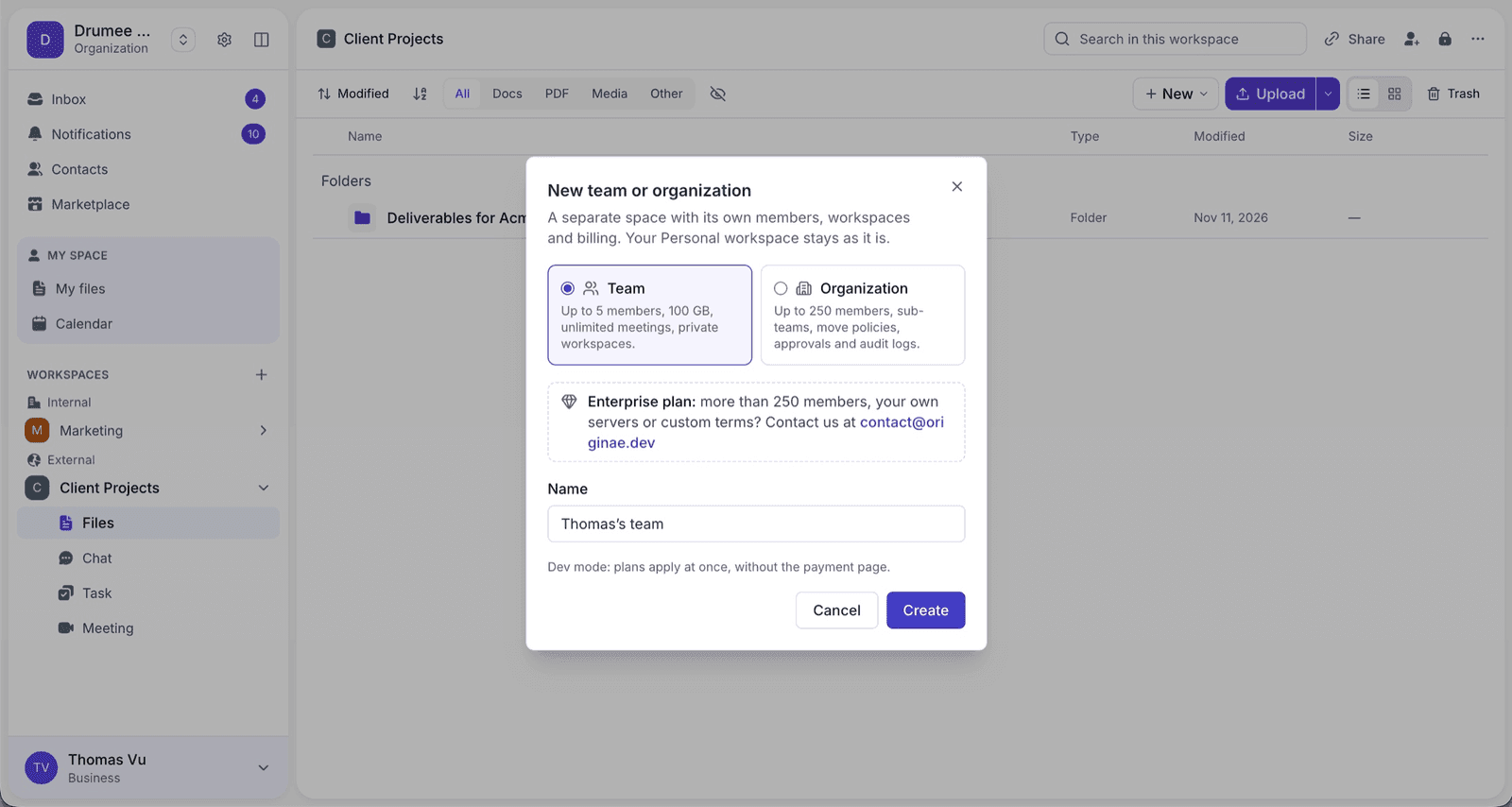
The "New team or organization" dialog: a Team for a small group, an Organization when you need structure and controls.
- Team suits a small group that wants shared workspaces and members without extra structure.
- Organization adds sub-teams, move policies, approvals and audit logs, the organization layer of the platform.
- Enterprise needs are handled by contacting Drumee from the same dialog.
Allowances depend on the plan; see the Drumee pricing page. Your private My Space (My files, Calendar) stays the same whichever team or organization you switch to.
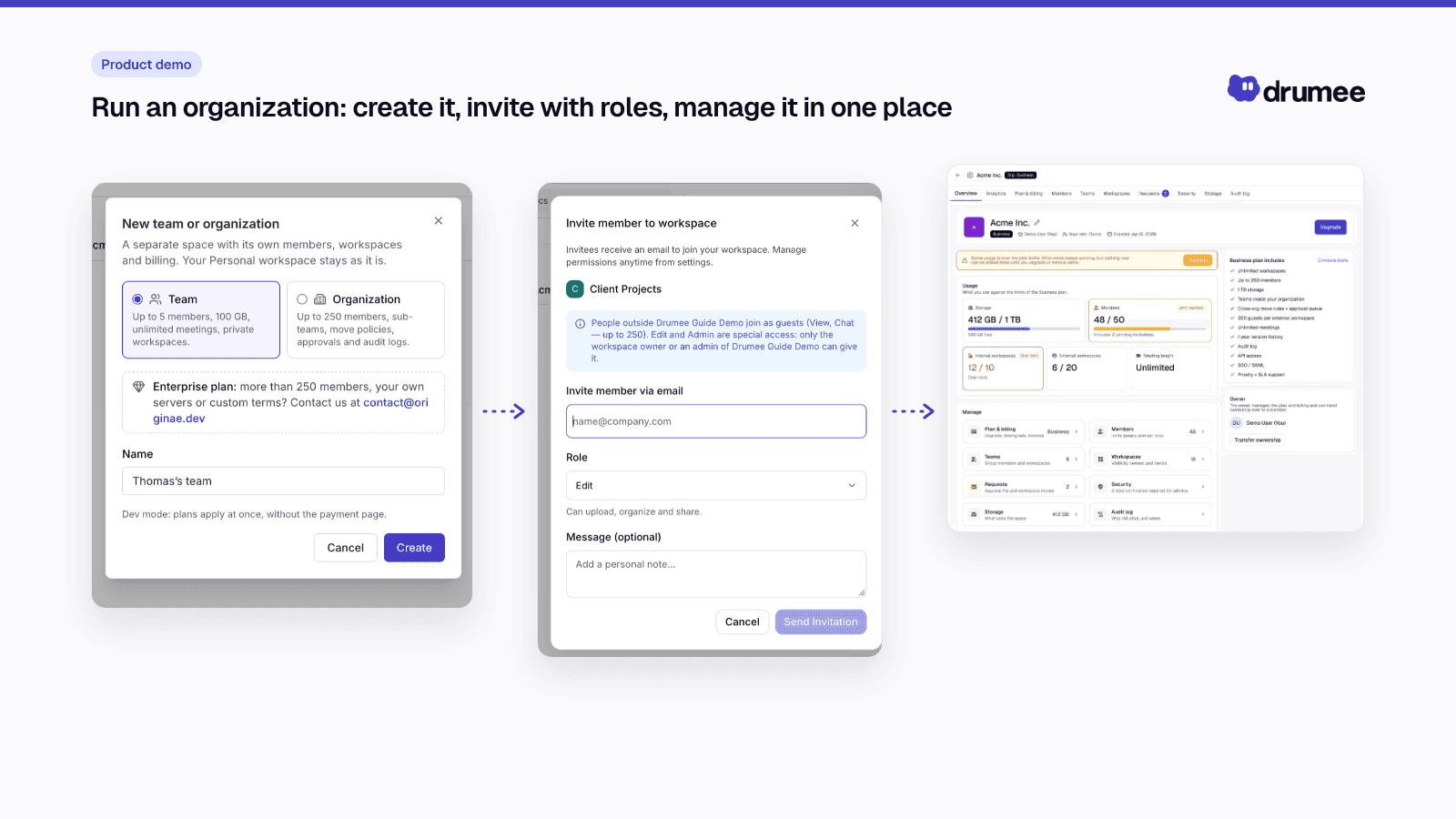
The organization console: usage at a glance, then one tile per admin job.
The organization overview
Open the organization and the overview answers the questions an admin asks first.
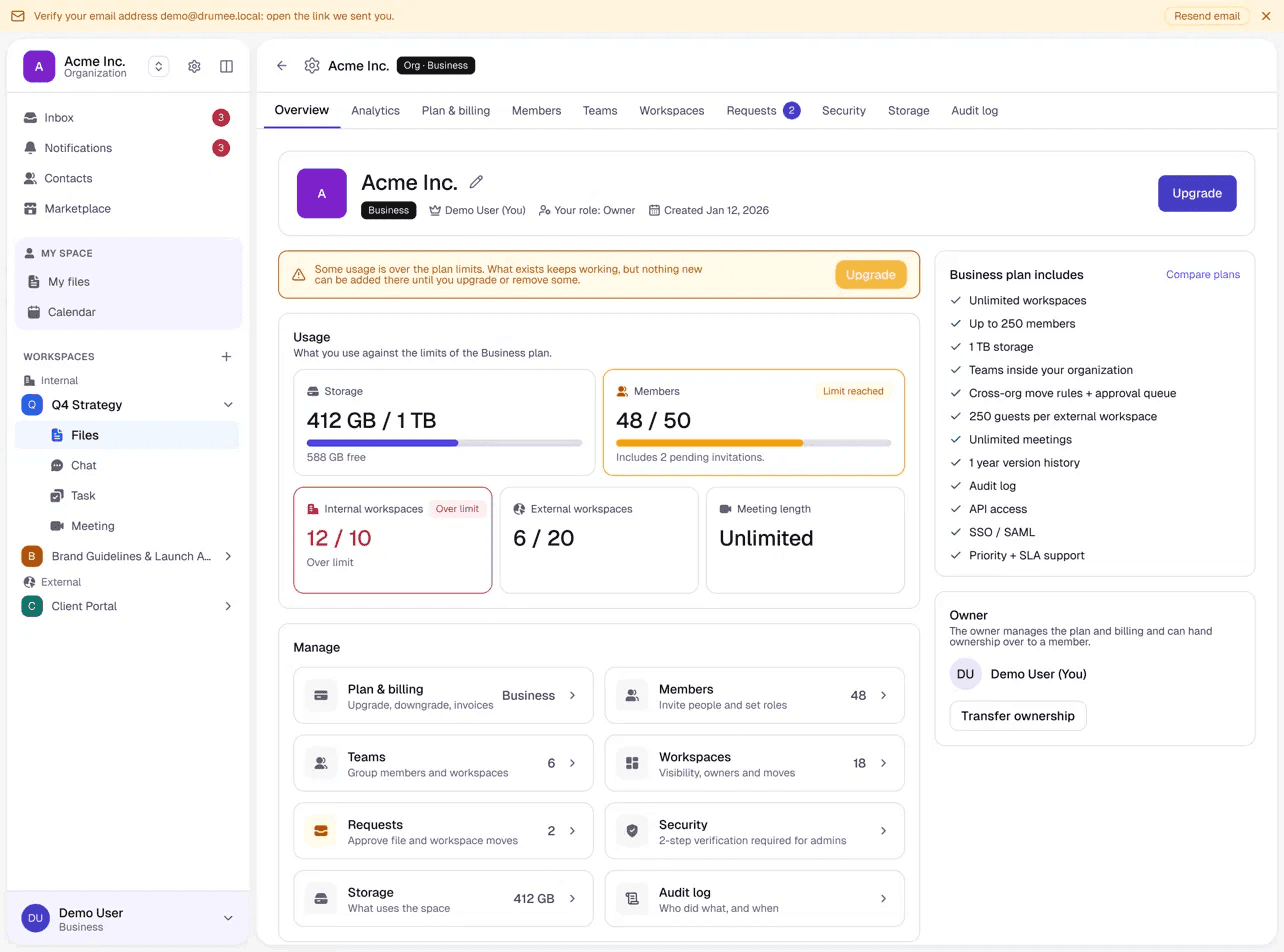
Usage, what the plan includes, and a tile for every admin task, including owner transfer.
- Usage: storage, members, and internal and external workspaces. The directory schema shows the tenant tracks storage used and seats used.
- Plan includes: which features are part of your plan.
- Manage tiles: plan and billing, members, teams, workspaces, requests and approvals, security (2-step verification for admins), storage, and the audit log.
- Owner transfer: handing the organization to someone else.
The six organization levels
The organization has its own ladder, separate from workspace roles. In the application the levels are labelled Member, Viewer, Manager, Security admin, Admin and Owner.
- Member: belongs to the organization and sees the directory as far as the directory policy allows.
- Org view (Viewer): read-only administration: analytics, storage report, list of workspaces, pending invitations.
- Org manage (Manager): invites members, creates and manages teams, manages the members and visibility of any workspace of the organization.
- Org security (Security admin): sets the directory policy, the security policy (mandatory two-factor authentication), the file-move policy, and reads the audit log.
- Org admin (Admin): changes members' levels, removes members, renames the organization, and reclaims a workspace whose owner has left.
- Owner: transfers the organization and manages billing and the plan.
Each level includes everything below it. Which levels are available depends on the plan.
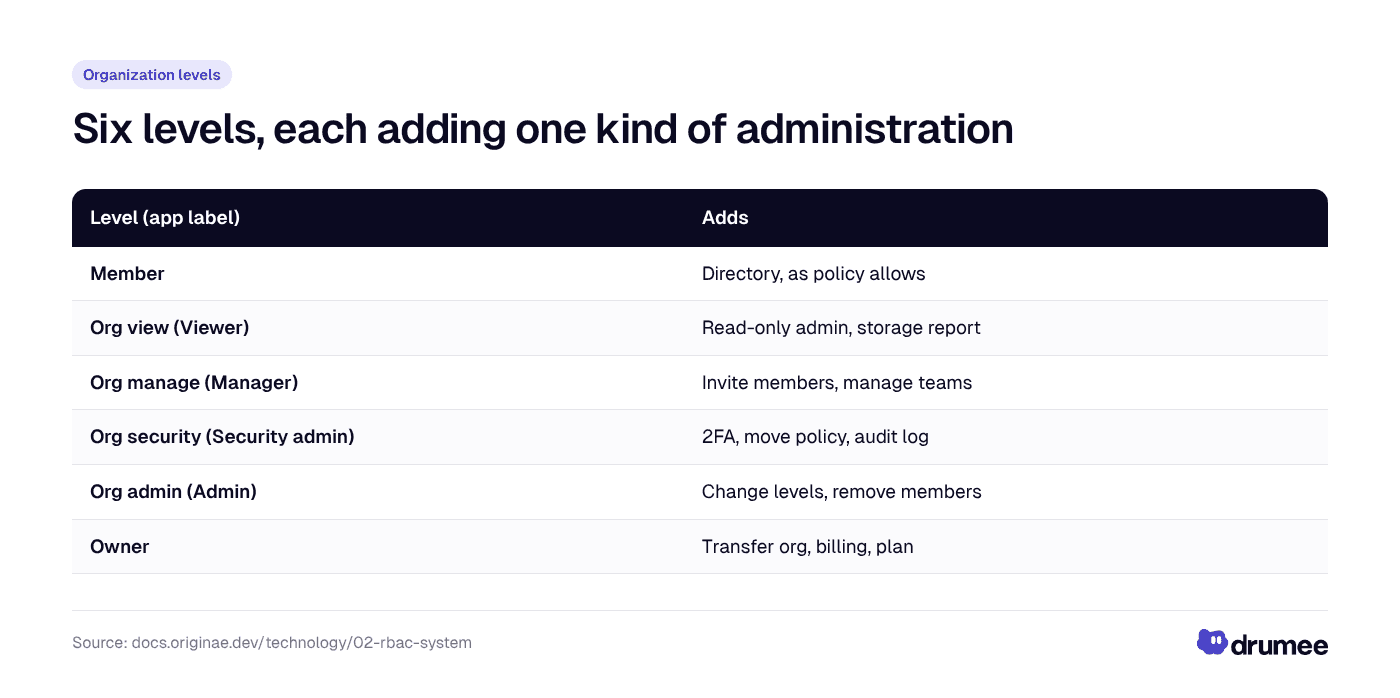
Six levels, each adding one kind of administration; none of them adds access to workspace content.
Rules that keep the ladder safe
- No self-promotion. You need Org admin, and must be at least at the target's level and the level you grant. The same check applies to the level offered in an invitation.
- No changing yourself or the owner.
- A second factor for the biggest move. Transferring the organization requires a one-time code sent by email.
Administration is not access
This is the rule that matters most for privacy and trust inside a company. From the Drumee FAQ: an administrator who is not a member of a workspace cannot open its files or conversations, and nobody but its owner can open a Personal workspace.
An Org manage or Org admin can add and remove members of a workspace through the organization settings, but does not thereby read its files or conversations. A person's Personal workspace is hidden even from organization administrators.
In practice, HR, legal and leadership workspaces stay private from whoever runs the console, and any membership change is a permission-relevant event recorded in the audit log.
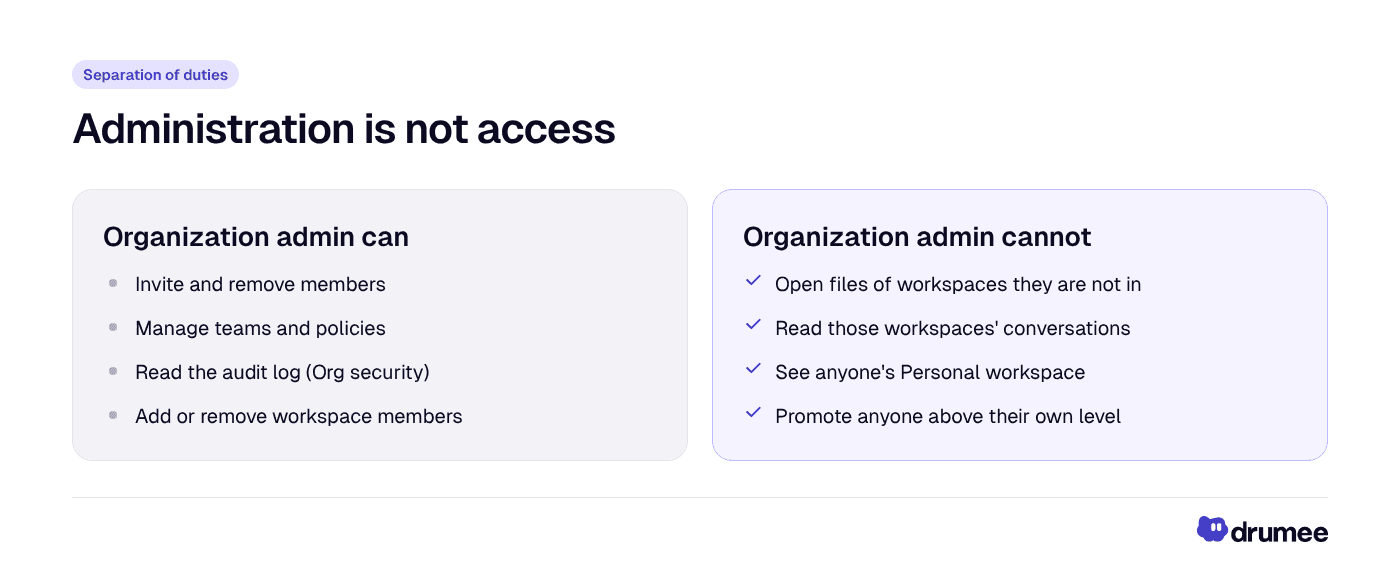
What an organization admin can and cannot do: the console manages people and policy, not content.
For the full model, read Drumee's RBAC permission model explained.
Teams: automatic membership, no hidden permissions
A team is a named group of members of the organization. Teams carry no permissions of their own. They do one job: give a set of people automatic membership of the internal workspaces assigned to their team, with that workspace's default role.
When you create an Internal workspace you choose who joins: Everyone, Selected teams or Private. Pick Selected teams, and everyone in those teams joins with the default role. Managing teams requires Org manage, and someone below Org admin cannot use team changes to add themselves to a workspace or raise their own role.
Invite members with the right role
From a workspace's top bar, click the invite icon or the padlock to open Who has access, then Invite.
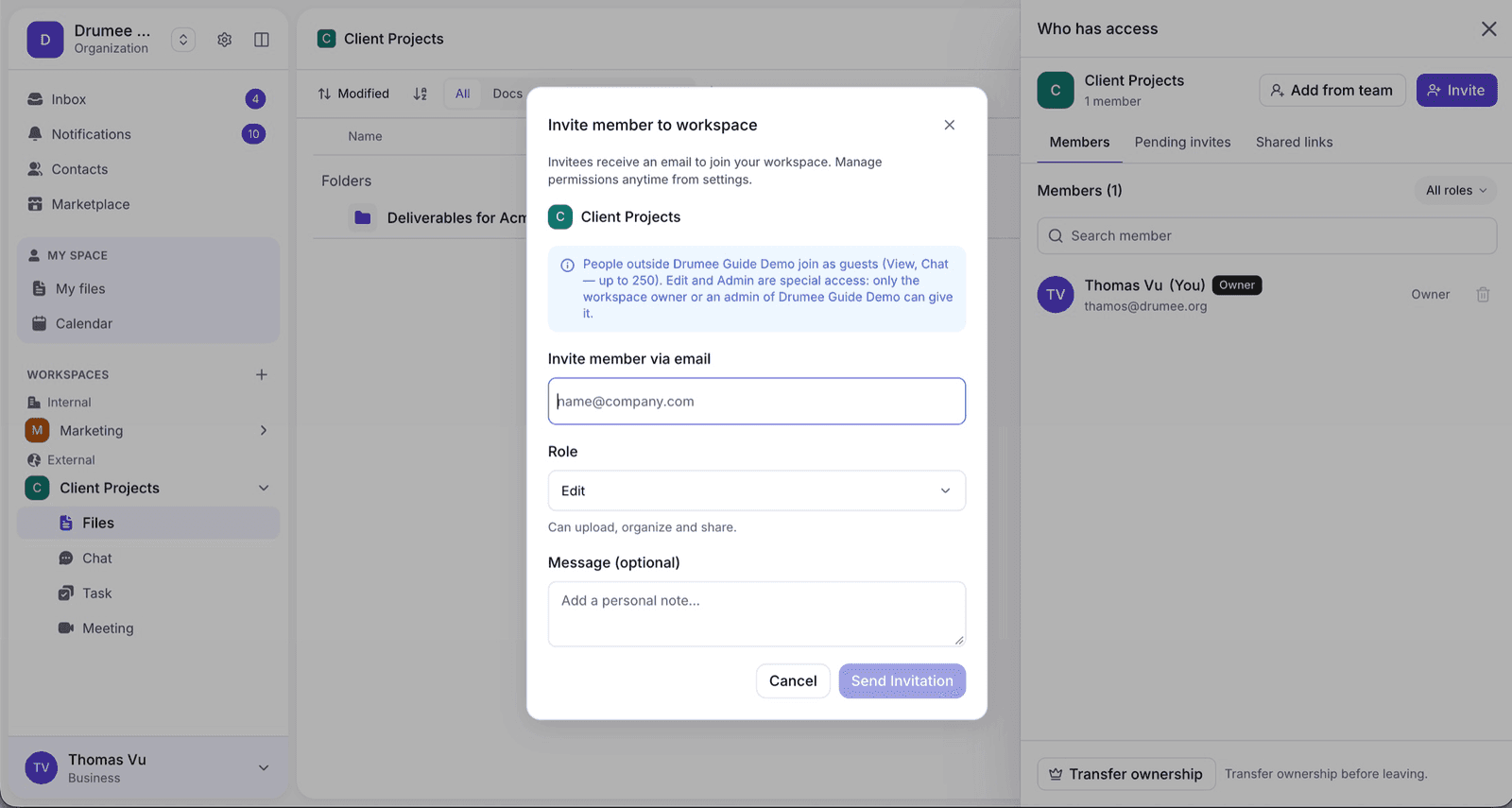
Invite with a role, or use "Add from team" to add people already in the organization without an email.
- Enter an email, choose a Role (View, Chat, Edit or Admin) and add a message if you like.
- Click Send Invitation. The person has 7 days to accept.
- In an organization's workspace, Add from team adds people already in the organization without sending an email.
Ownership is never offered in an invitation; it is transferred, not shared.
Move policies and approvals (Requests)
Moving content between workspaces or organizations is a policy question, not just a drag and drop.
- Moving to another workspace requires write access on both sides and is subject to the organization's move policy. Chat threads and share links stay with the source workspace.
- Org security sets the policy, separately for moves across workspaces and across organizations.
- Moves that need an approval are recorded as transfer requests until they are approved.
- Outside members (people from outside the organization holding the Editor or Admin role in an External workspace) need explicit approval from the workspace owner or an Org admin, on every plan.
- Share-link access requests from visitors are approved or denied by someone who manages the link; nobody decides their own request.
The Requests tile on the overview gathers these decisions in one place.
The audit log
Permission-relevant changes are recorded per organization. According to the RBAC documentation, the audit log captures:
- members added, removed or changed, and invitations;
- workspace ownership and settings;
- share links created and revoked;
- access requests approved or denied;
- organization levels, teams and policies;
- plan changes and app installations.
Each entry records who, what, the target, when, and the request that caused it. Entries are kept for one year. Reading the audit log requires the Org security level, on a plan that includes the audit log.
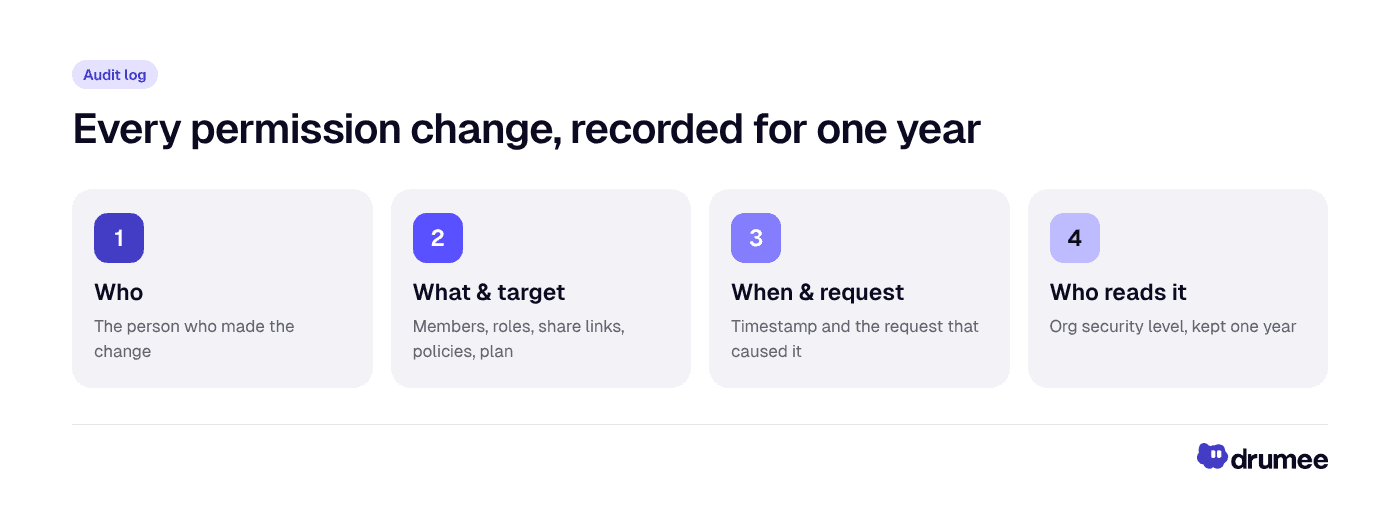
What the audit log records and who can read it.
Security: 2-step verification for admins
Org security sets the security policy. The tenant record supports two settings: two-factor authentication required for admins, or for everyone.
When two-factor authentication is on, or required by the organization, the sign-in flow returns a short-lived challenge after the password, and the session opens only after a valid authenticator code, emailed code or recovery code. Sessions are stored on the server, so removing a device ends its session immediately.
Owner transfer and departures
- Workspace owners cannot be removed or leave until they transfer ownership; the former owner then becomes an Admin.
- When a workspace owner leaves, an Org admin can reclaim that workspace.
- Over the plan? The organization becomes read-only: adding data and people pauses, while reading, downloading, removing and changing settings keep working.
Where this fits in the November 2026 update
The overview of what is new in Drumee covers the full release. Related posts in the series: Internal vs External workspaces and how chat turns into tasks. For the bigger picture, see what a sovereign workspace is and how SaaS vendor lock-in builds up.
Drumee runs today as a hosted service at app.drumee.com. The self-hosted edition is coming soon, and moving data from the hosted service to your own deployment is in its final stage.
FAQ
Can a Drumee organization admin read every workspace?
No. Organization levels govern administration (members, teams, policies, billing), not content. An administrator who is not a member of a workspace cannot open its files or conversations, and nobody but its owner can open a Personal workspace.
What is the difference between a Team and an Organization in Drumee?
A Team is a home for a small group's workspaces and members. An Organization adds sub-teams, move policies, approvals and audit logs for larger groups. Allowances depend on the plan; check the pricing page for current details.
How long does Drumee keep audit log entries?
One year. Each entry records who did what, to which target, when, and the request that caused it. Reading the audit log requires the Org security level on a plan that includes it.
Can I require two-factor authentication for admins?
Yes. Someone with the Org security level can set the security policy to require two-factor authentication for admins or for everyone. Sign-in then needs an authenticator code, emailed code or recovery code after the password.
Who can change a member's organization level?
Only an Org admin who is at least at the member's current level and at least at the level being granted. Nobody can change their own level or the owner's, and transferring the organization requires a one-time code sent by email.
How do I add colleagues to a workspace without emailing them?
In an organization's workspace, use Add from team in the invite dialog. It adds people already in the organization directly. Assigning a team to an Internal workspace also gives its members automatic membership with that workspace's default role.
Conclusion
Drumee's organization layer gives admins what they need to run a company workspace (levels, teams, policies, approvals, 2-step verification and a one-year audit log) without turning the admin console into a master key. Create an organization and set it up at app.drumee.com.
Try Drumee with your team: your first month is $1. Start your team for $1
Keep reading
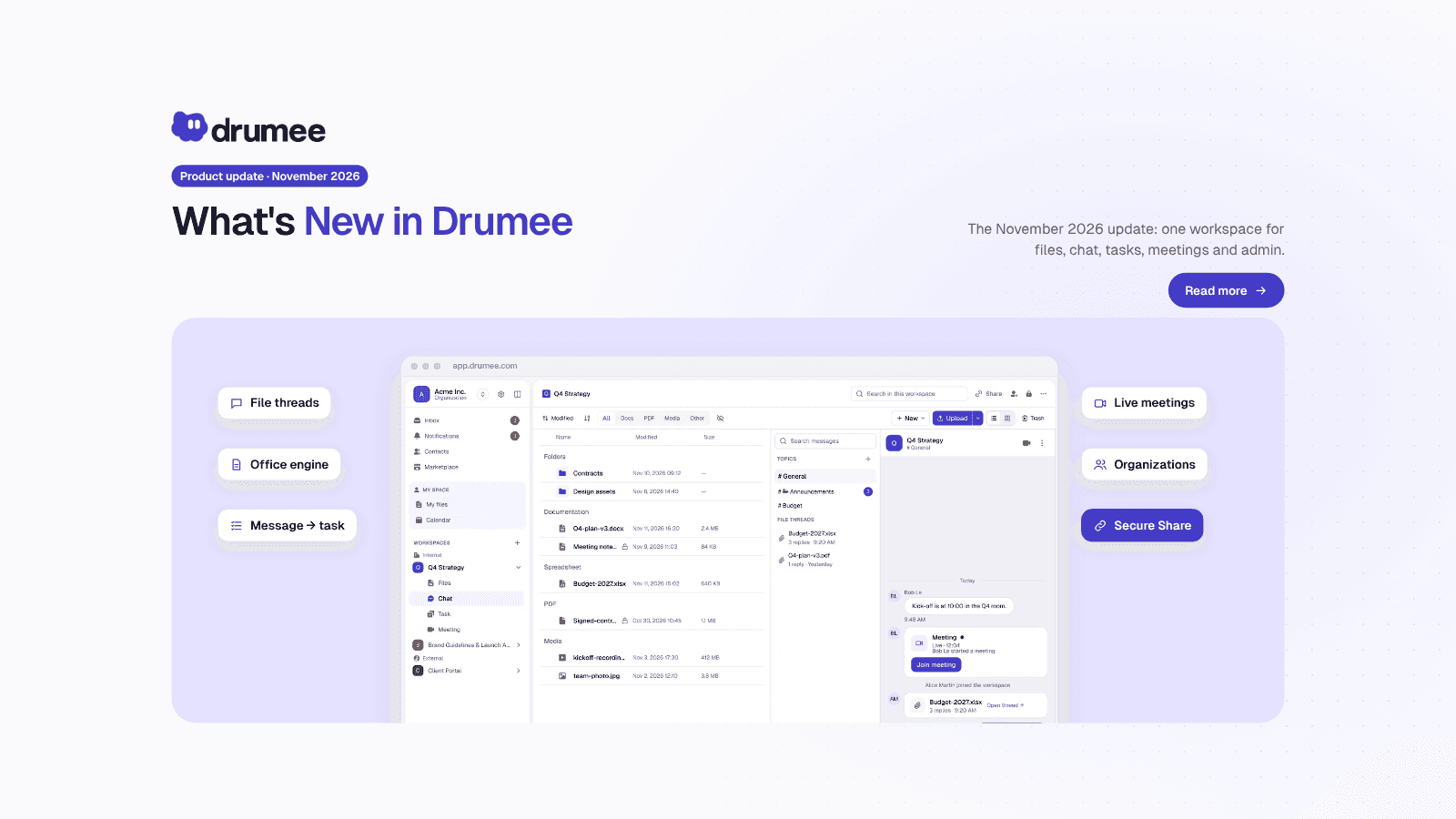
What's New in Drumee: November 2026 Product Update
The new version of Drumee is a rebuilt workspace platform, running today as a hosted service at app.drumee.com. Each workspace now holds a project's files, conversations, tasks and meetings under one role model, with Drumee's own Office engine, se...
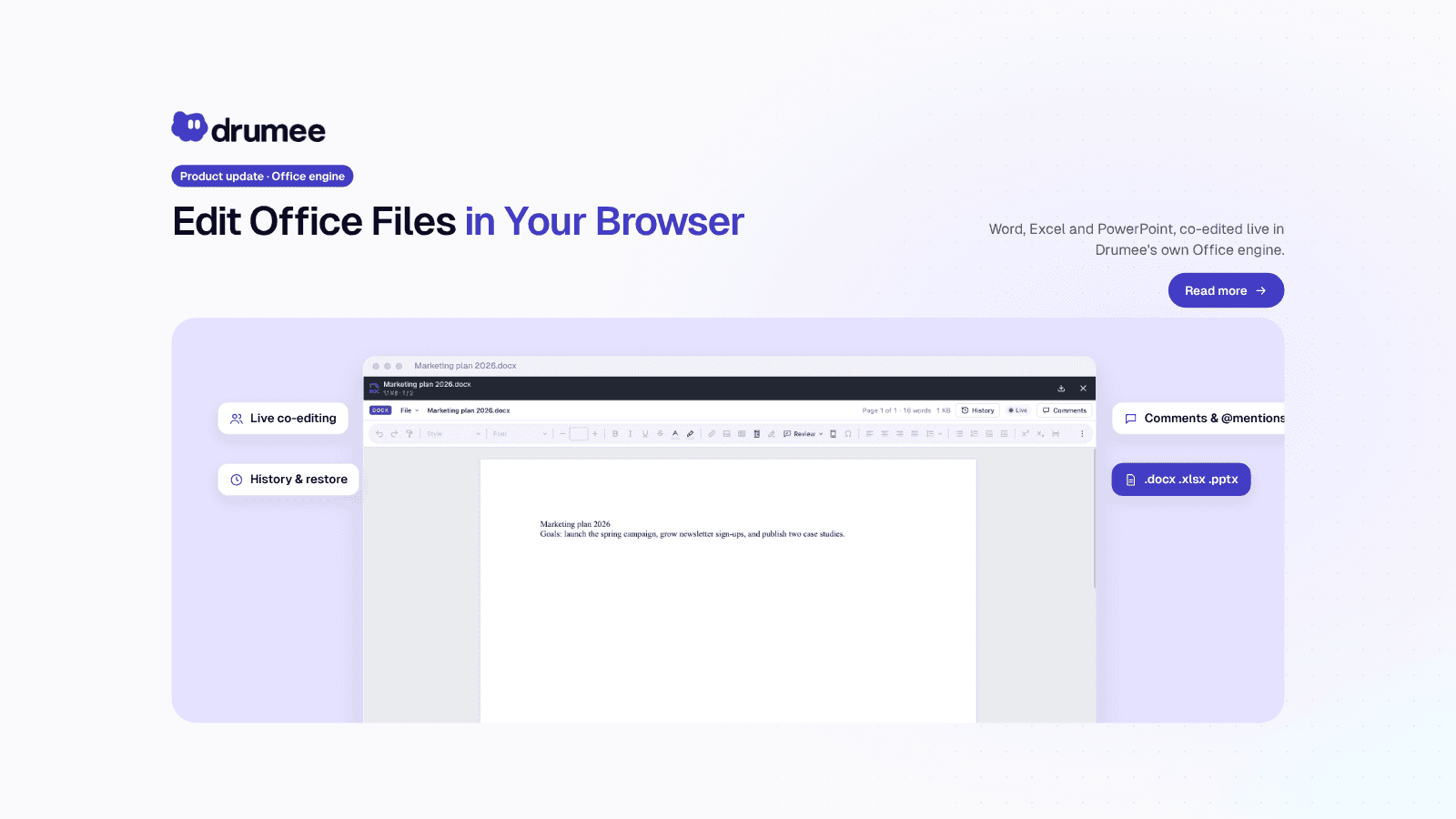
Drumee Office Engine: Edit Word Documents Online Together
Drumee's Office engine lets a team edit Word, Excel and PowerPoint files online collaboratively, directly in the browser, with no Office install. Several people type at once, every change saves automatically, and History shows who changed what. Th...
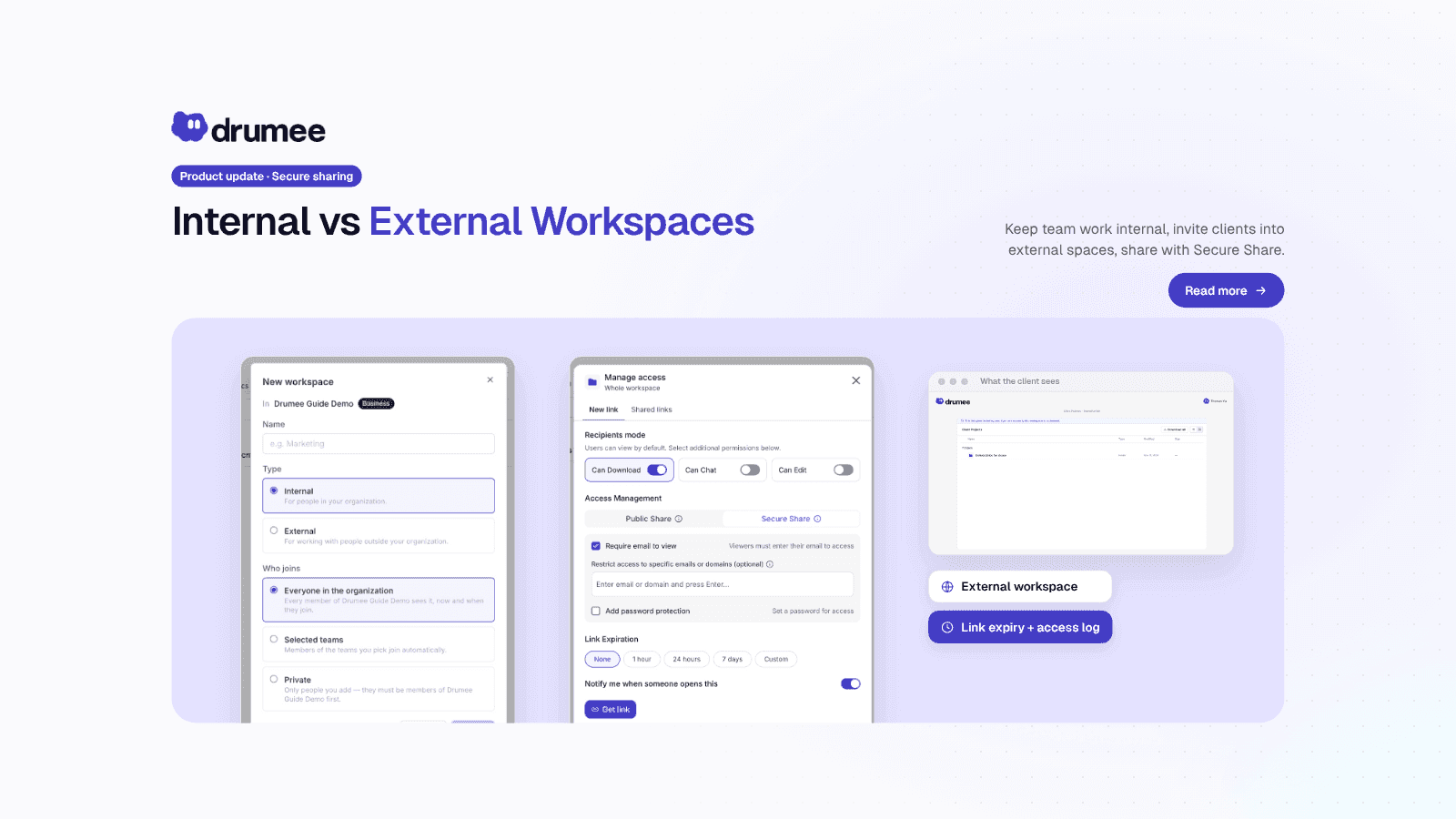
How to Share Files with Clients Securely: Drumee Workspaces
To share files with clients securely in Drumee, you work in an External workspace and send a Secure Share link: one file or folder, behind an email check and/or a password, with an expiry date and an access log. Internal workspaces stay for yo...