
Drumee in 5 Minutes
A five-minute field guide to Drumee. Start here: why Drumee puts everything in one workspace, the problem it solves, the product, and eight practical steps to get started. Why Drumee Puts Everything in One Workspace Cost Efficiency Slash your tea...
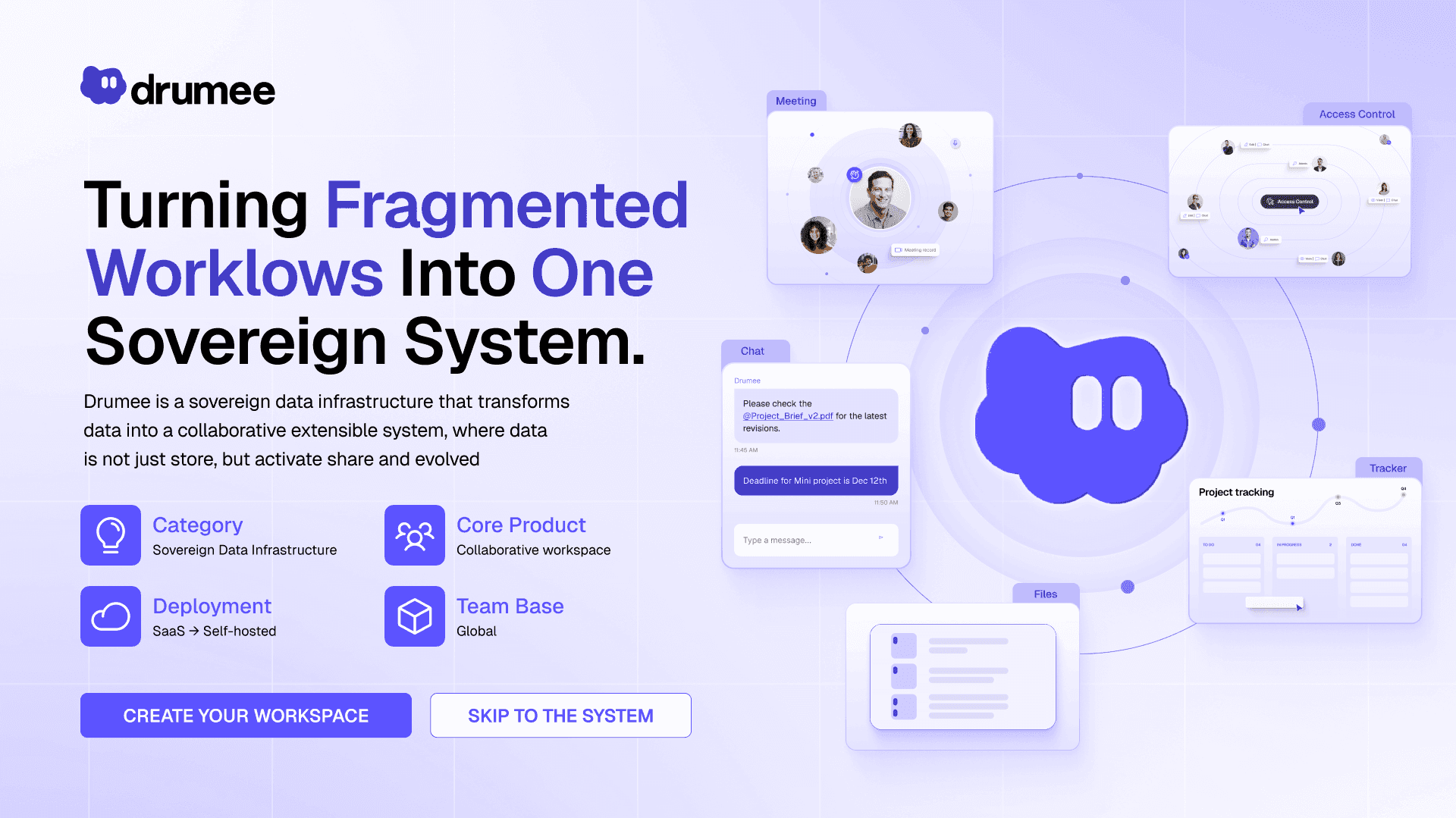
Drumee briefing visual: turning fragmented workflows into one sovereign system
A five-minute field guide to Drumee. Start here: why Drumee puts everything in one workspace, the problem it solves, the product, and eight practical steps to get started.
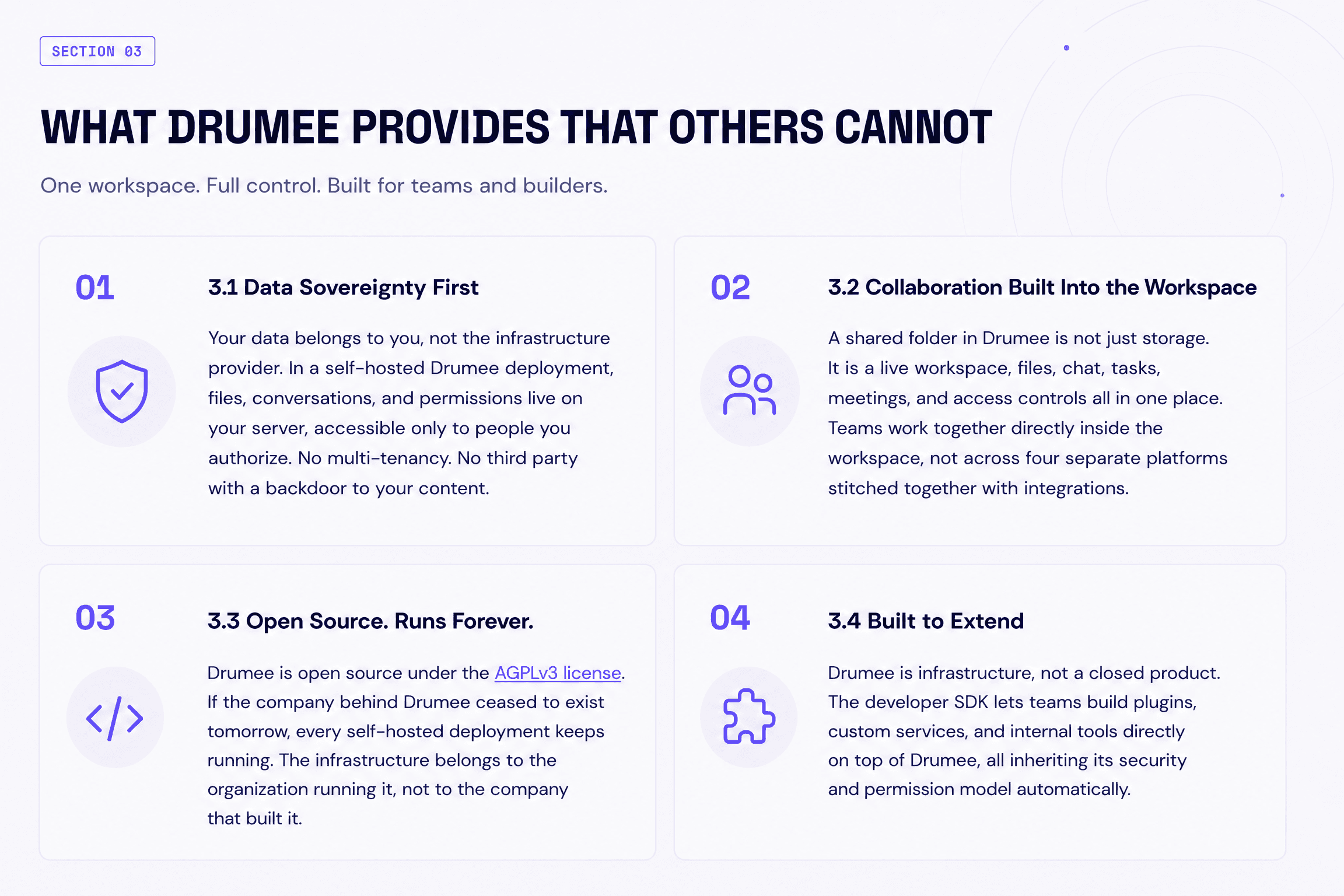
Why Drumee Puts Everything in One Workspace
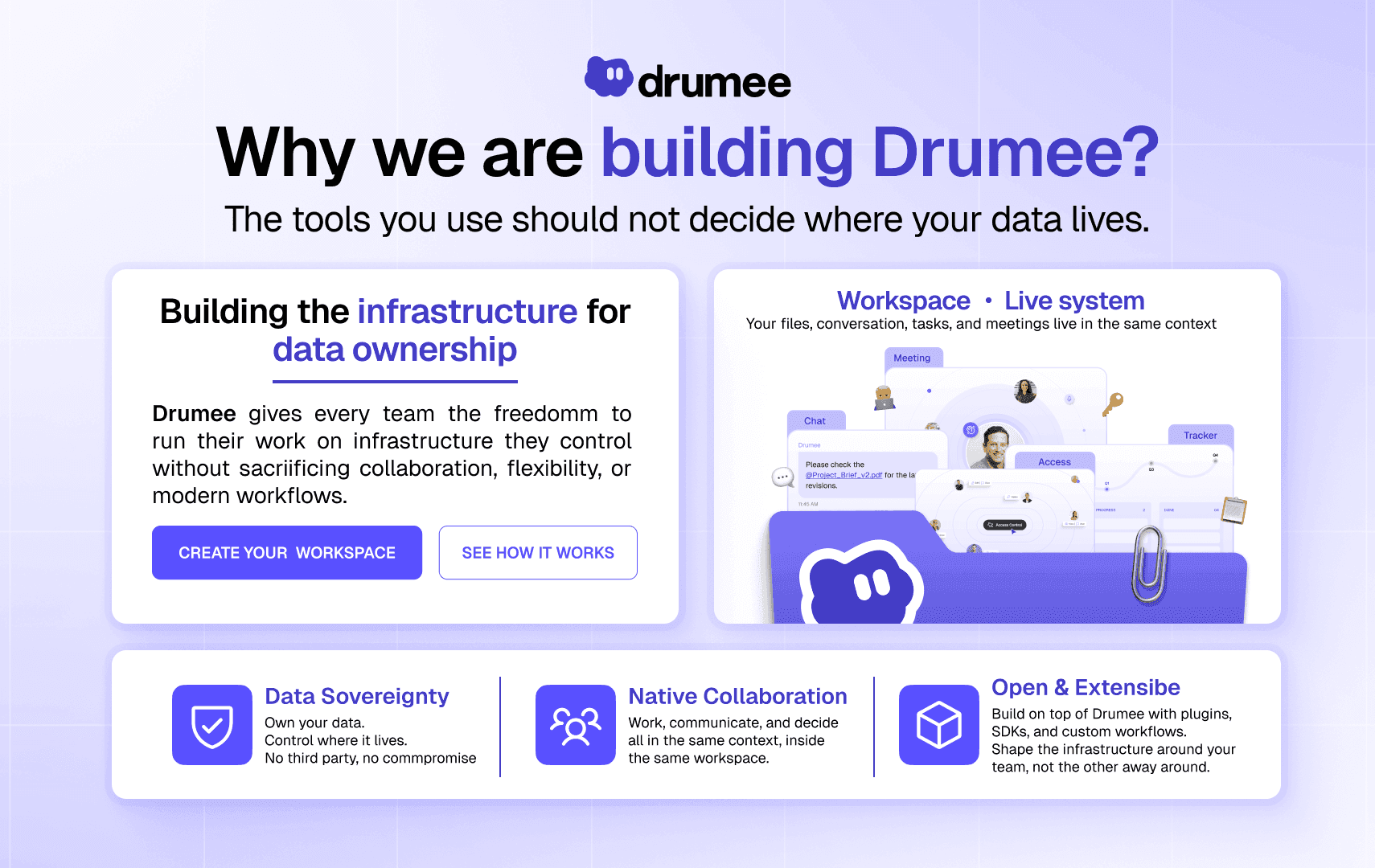
Cost Efficiency
Slash your team’s software costs by 4x without cutting capability by replacing Google Drive, Slack, Trello, and Zoom with one connected workspace.
Empower Productivity
Empower your team to move faster by 3x with less context switching with one unified workspace that brings files, chat, tasks, and meetings together in one workspace.
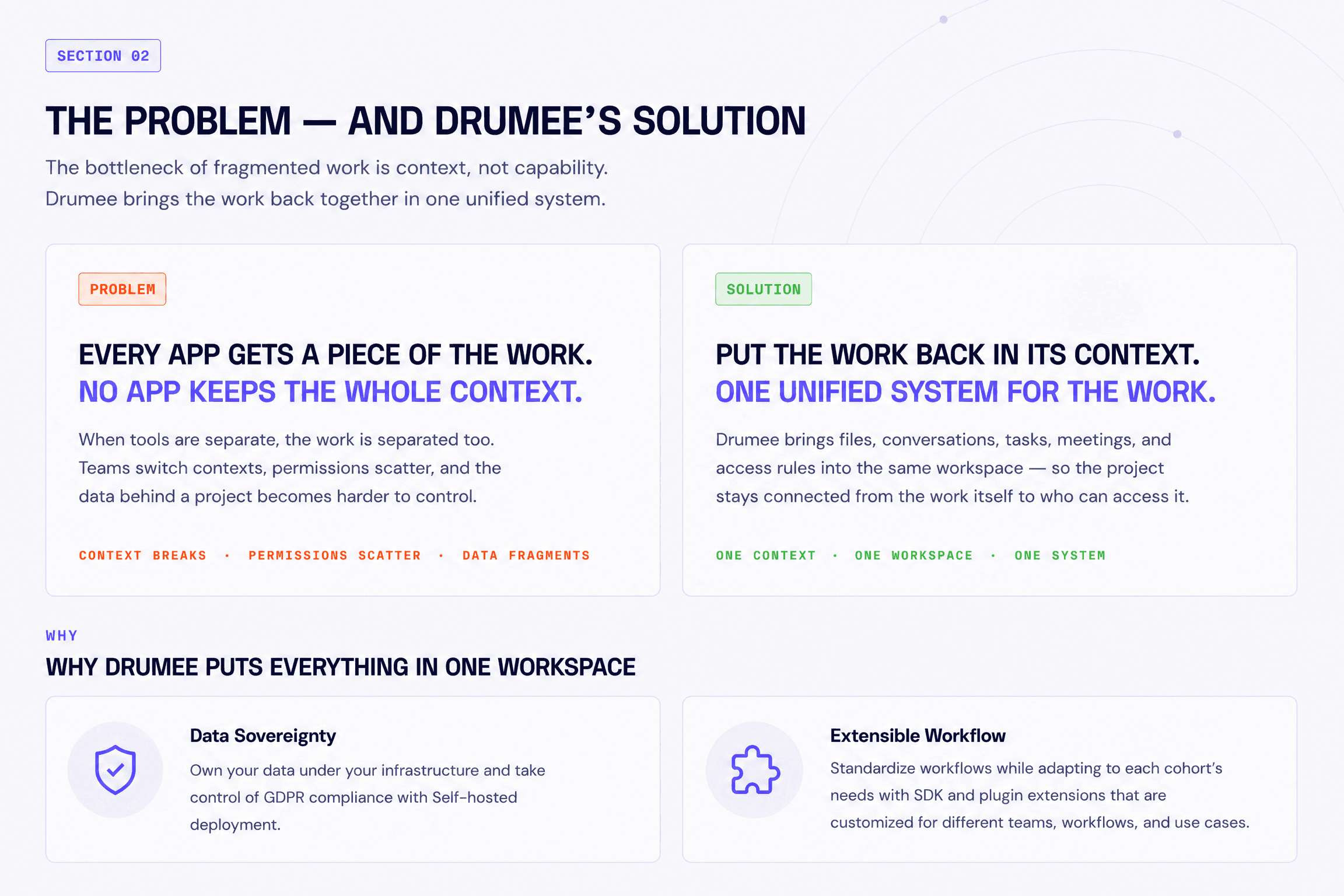
Problem → Solution
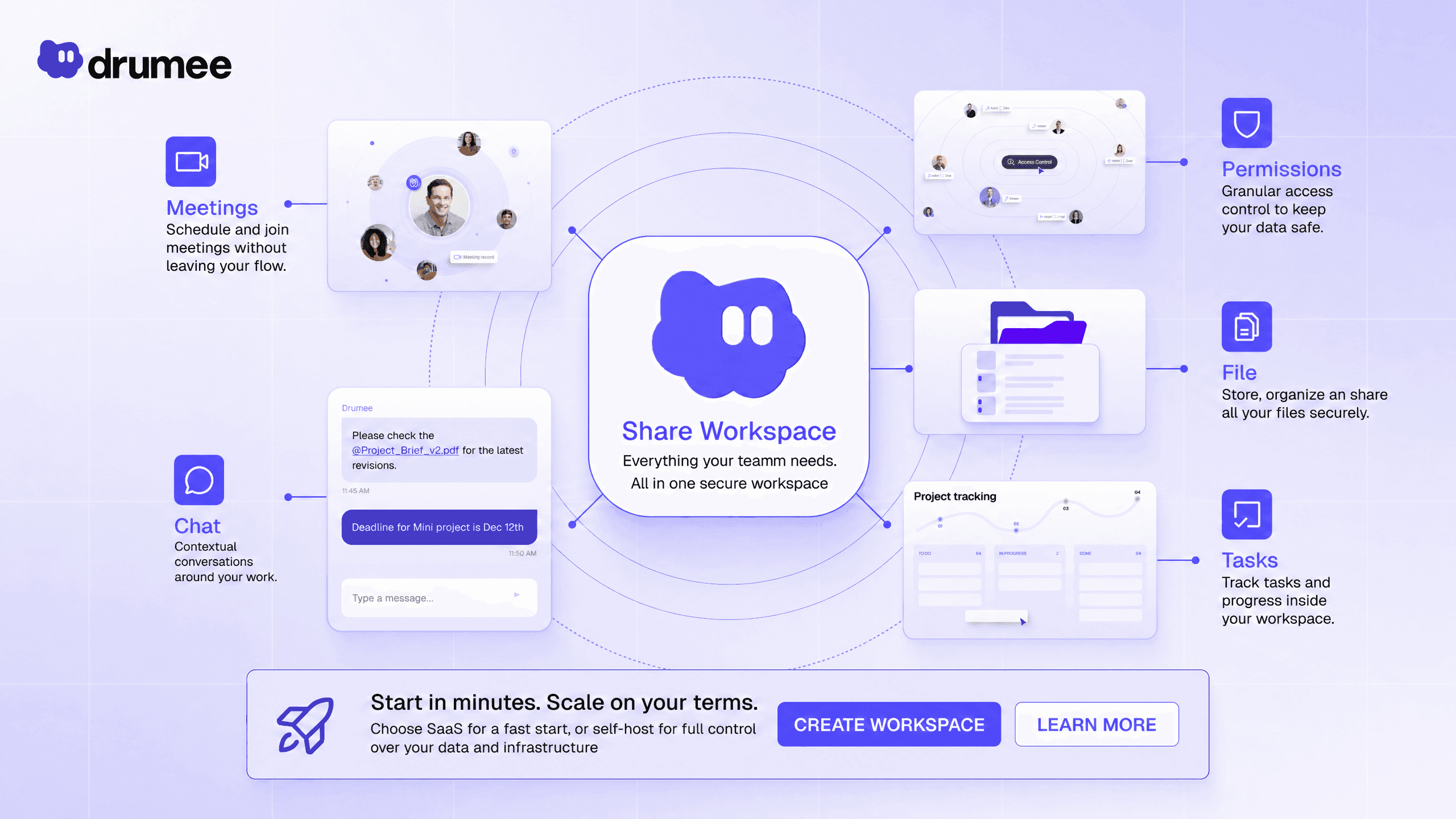
The Product
Get Started with Drumee
Set up your workspace — ready in 5 minutes. A practical guide to getting from account creation to a working collaborative context. Open app.drumee.com.
Eight practical moments: create an account, make a workspace, bring in files, work with people, then keep access and migration under control.
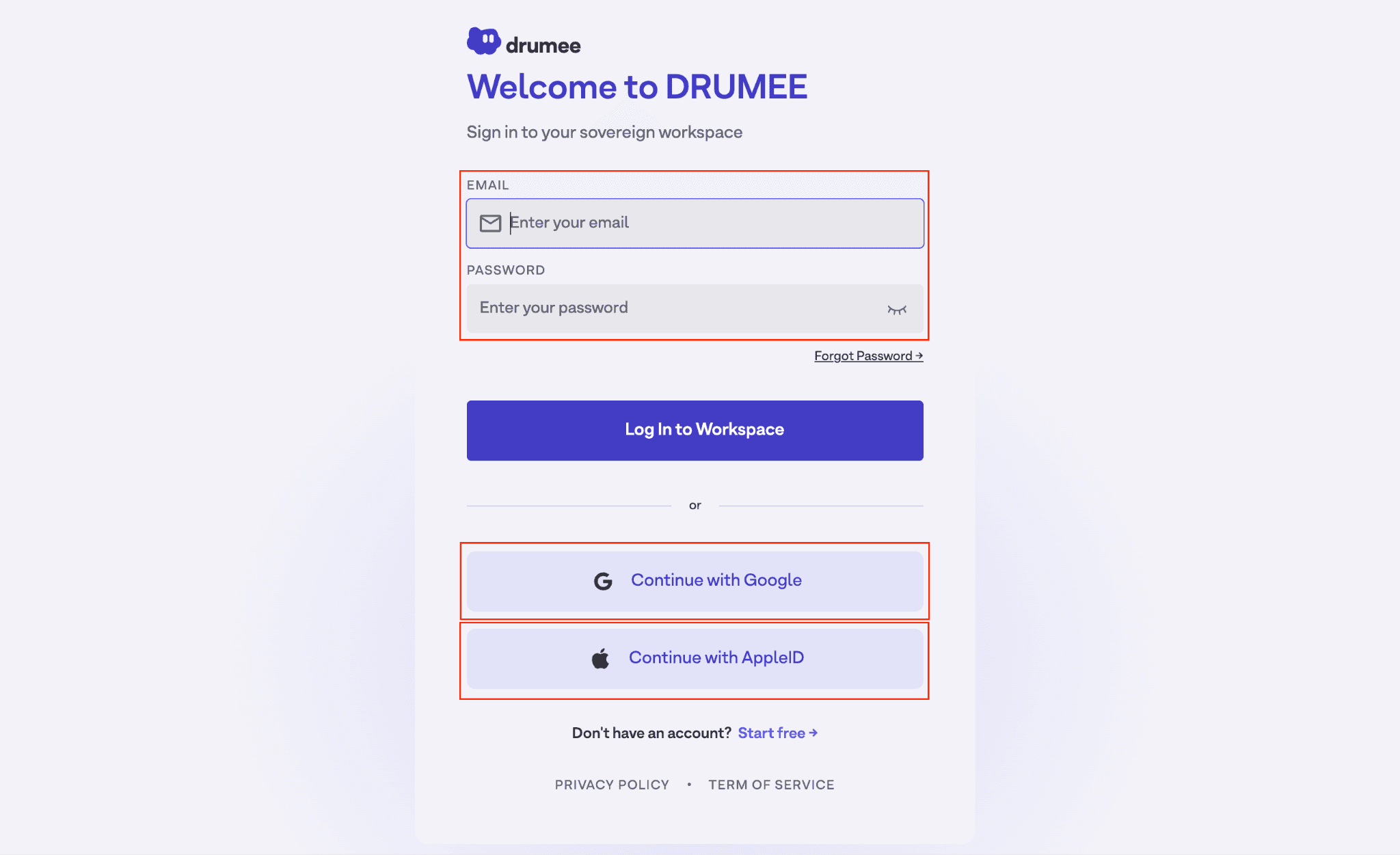
Step 1 — Create Your Account
A practical first step. Go to app.drumee.com. New users can choose Start free or continue with Google or Apple ID. Existing users enter their email and password, then select Log In to Workspace.
- Open app.drumee.com.
- Choose Start free, Continue with Google, or Continue with Apple ID when creating an account.
- After login, land on Home and create your first workspace.
Step 2 — Create Your First Workspace
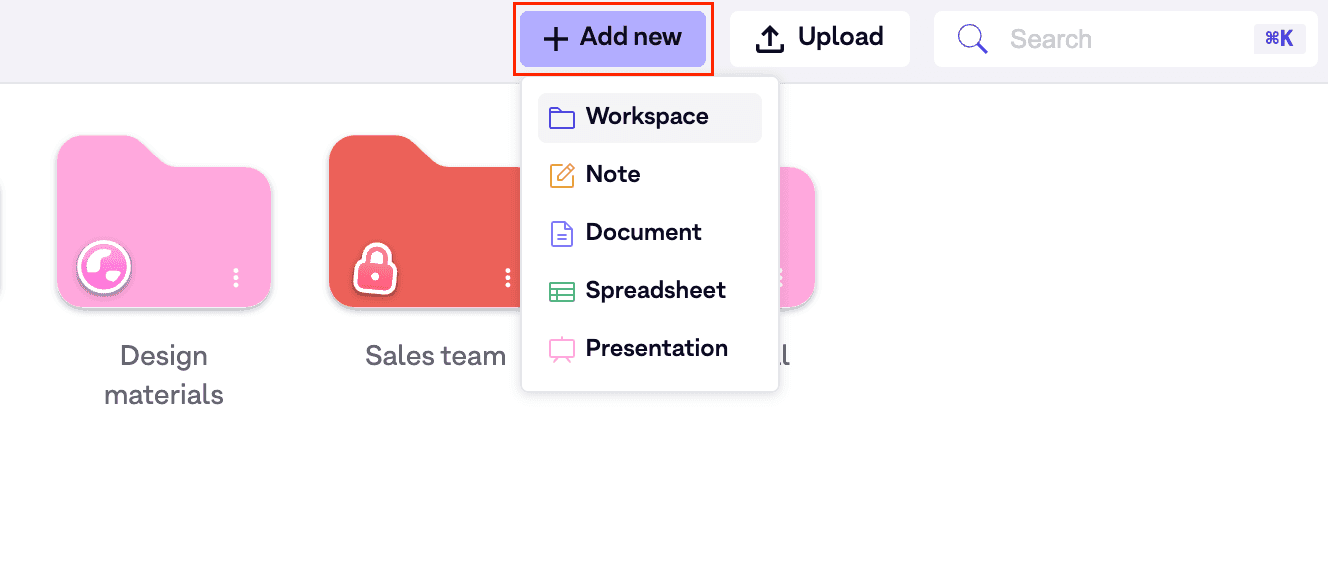
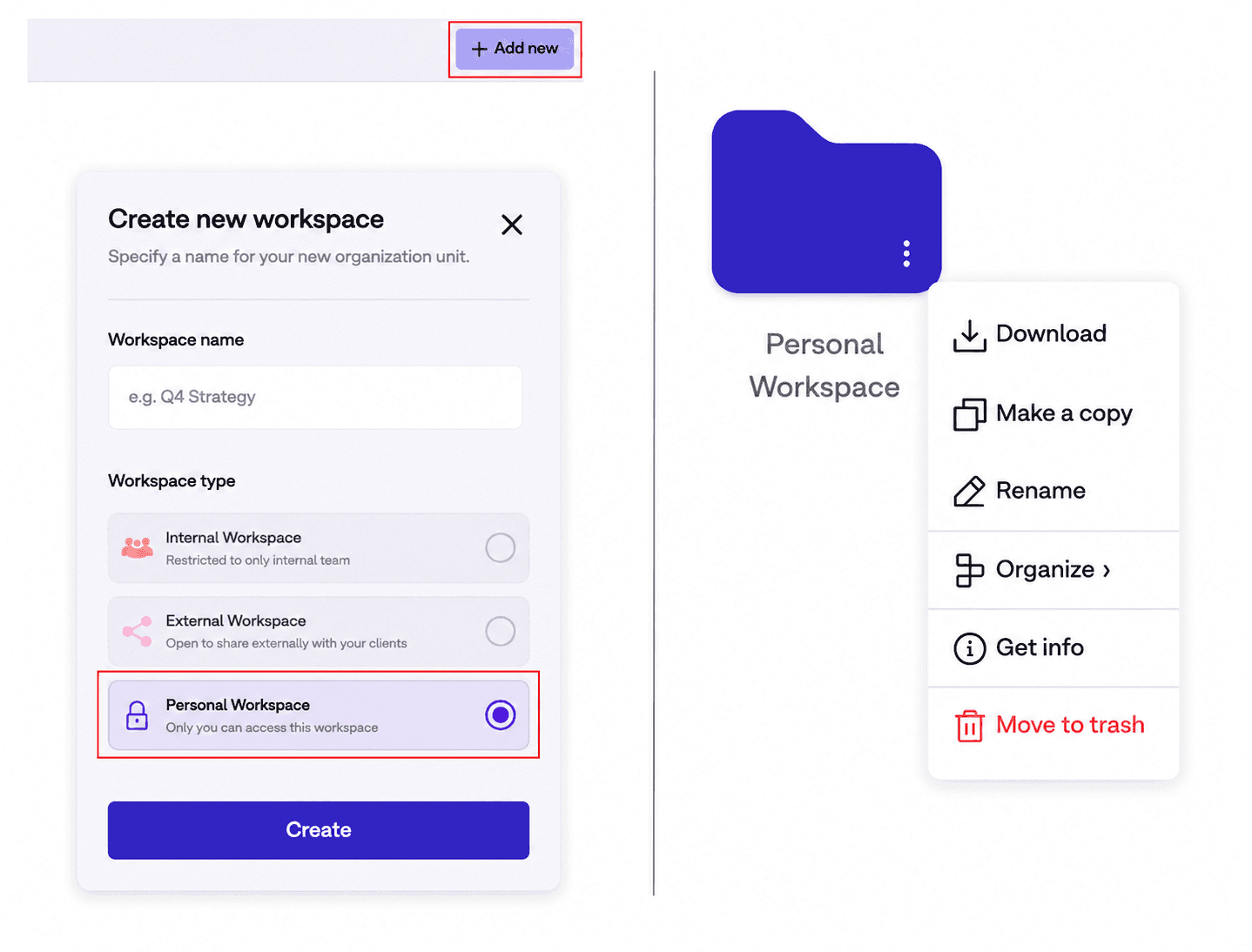
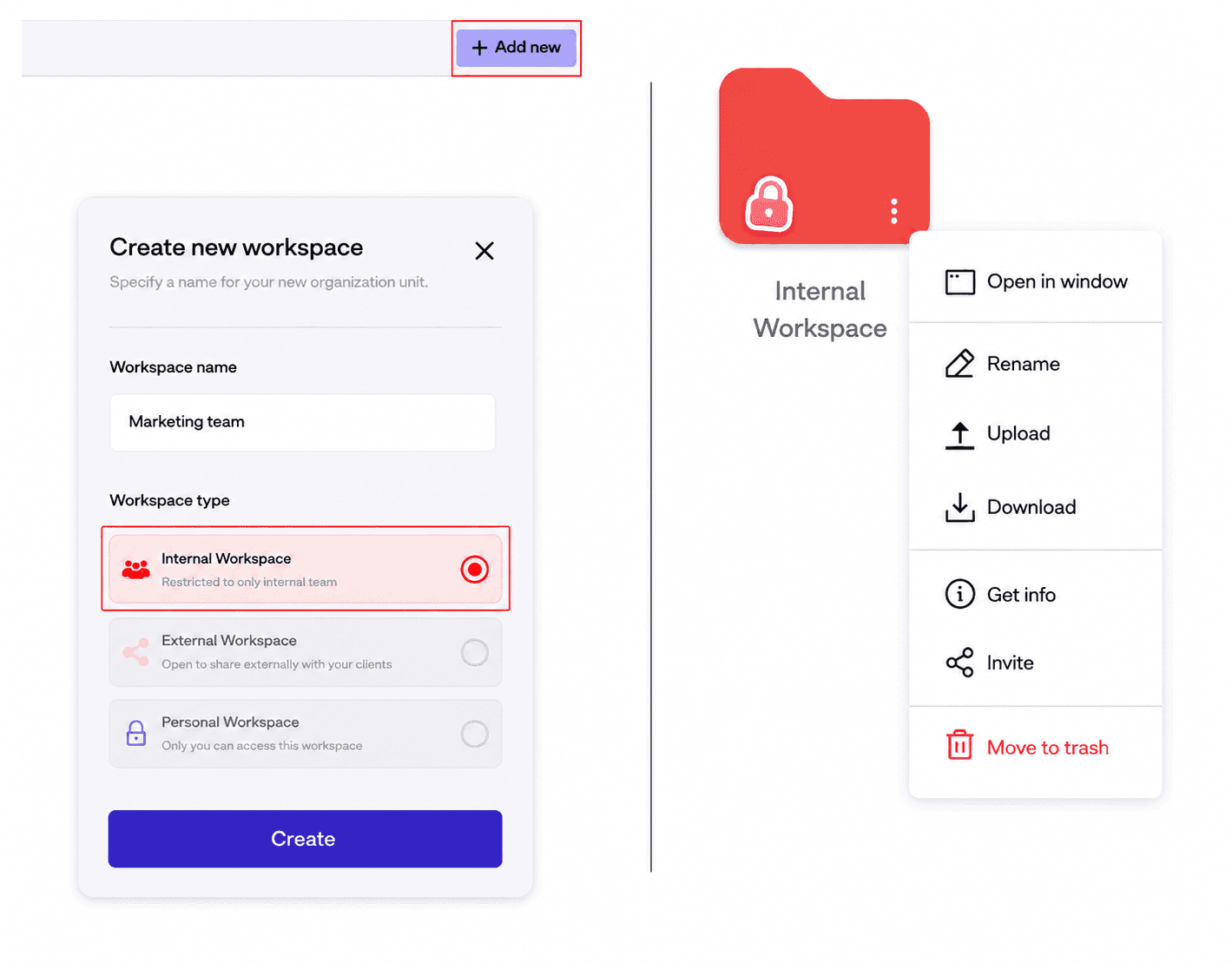
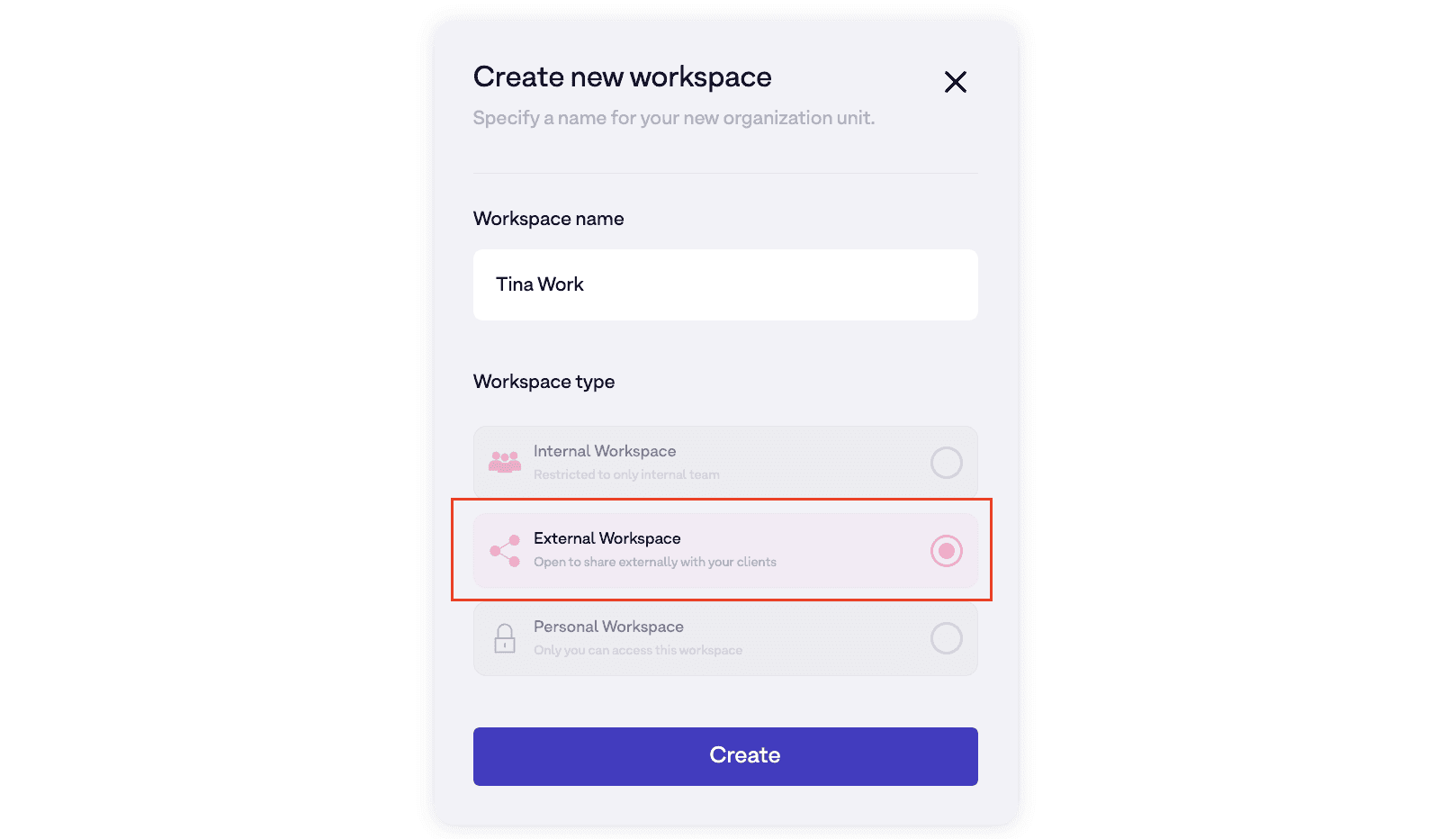
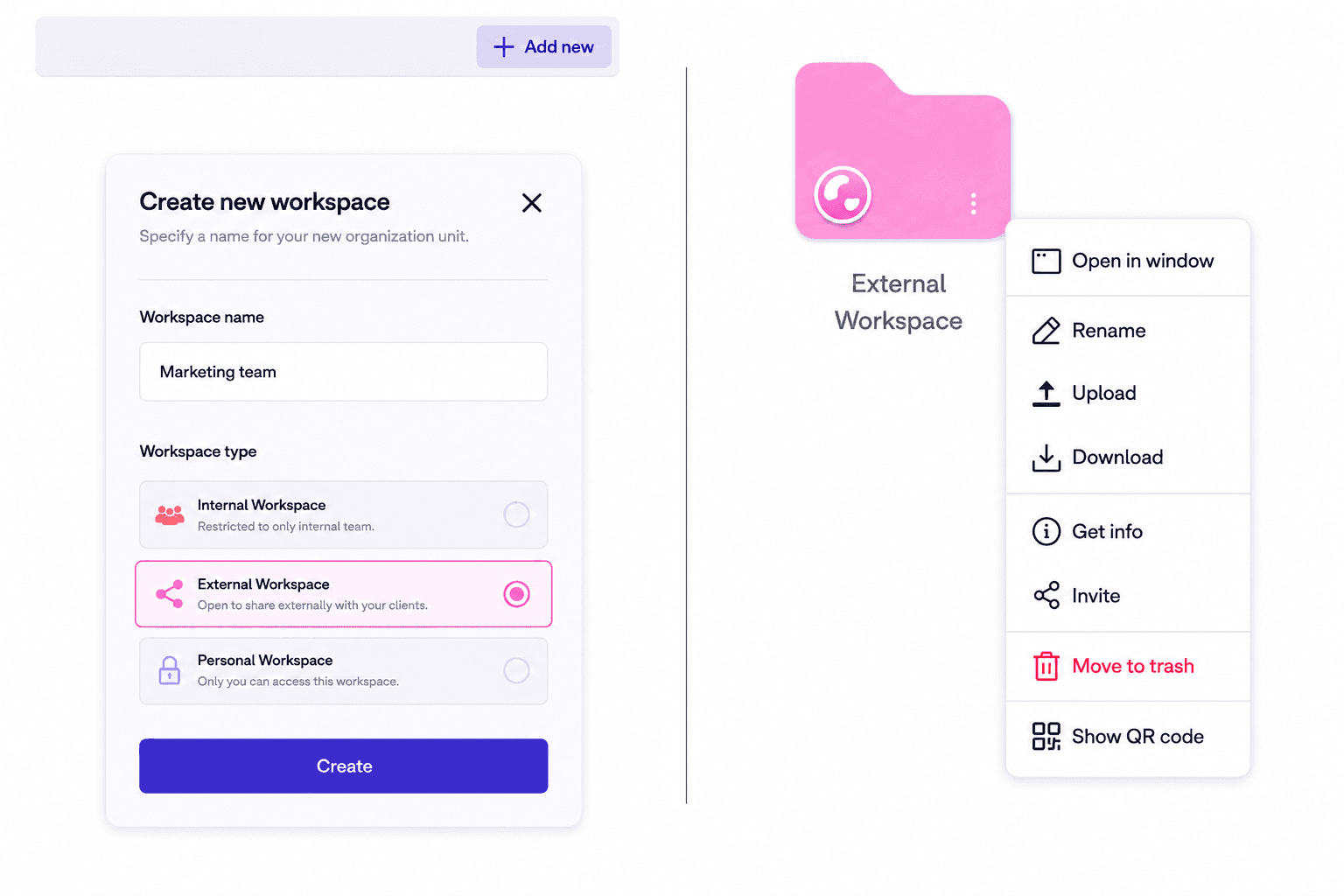
Choose a context for the work. From Home, select + Add new and choose the workspace type that matches the work and the people involved.
- Personal / Private: drafts, private research, notes, temporary files, and personal knowledge.
- Team / Internal: secure collaboration across Marketing, Sales, Product, Finance, and other organizational workstreams.
- Shared / External: proposals, deliverables, review materials, and secure collaboration with clients or partners.
- Select Create to make the workspace instantly.
Step 3 — Upload and Search
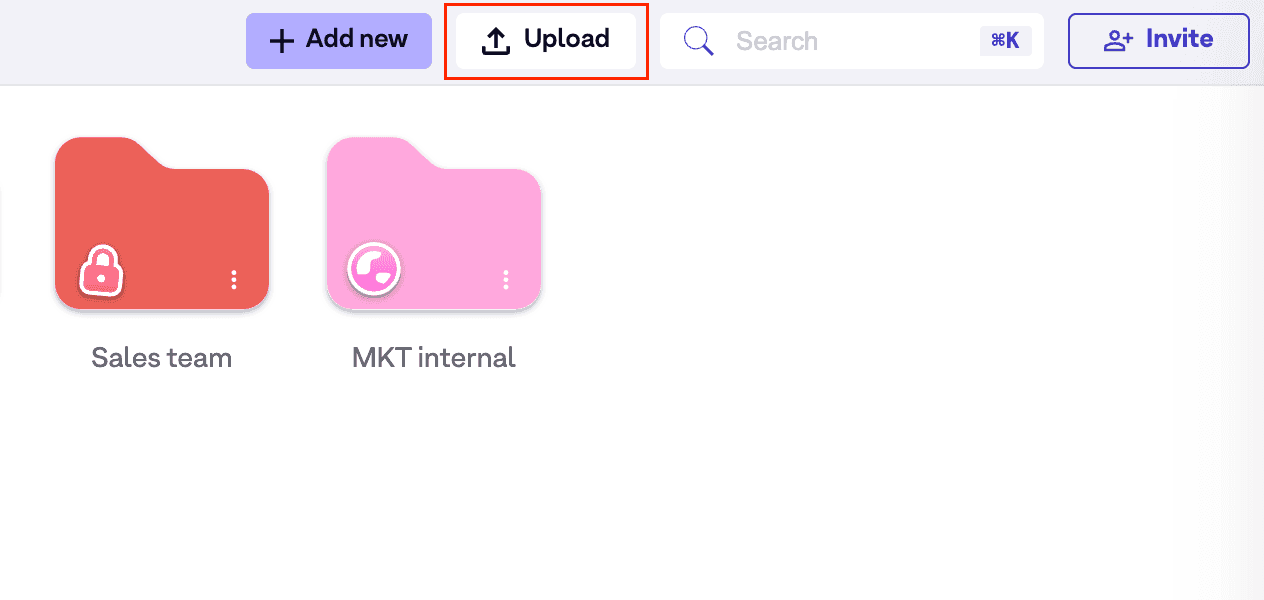
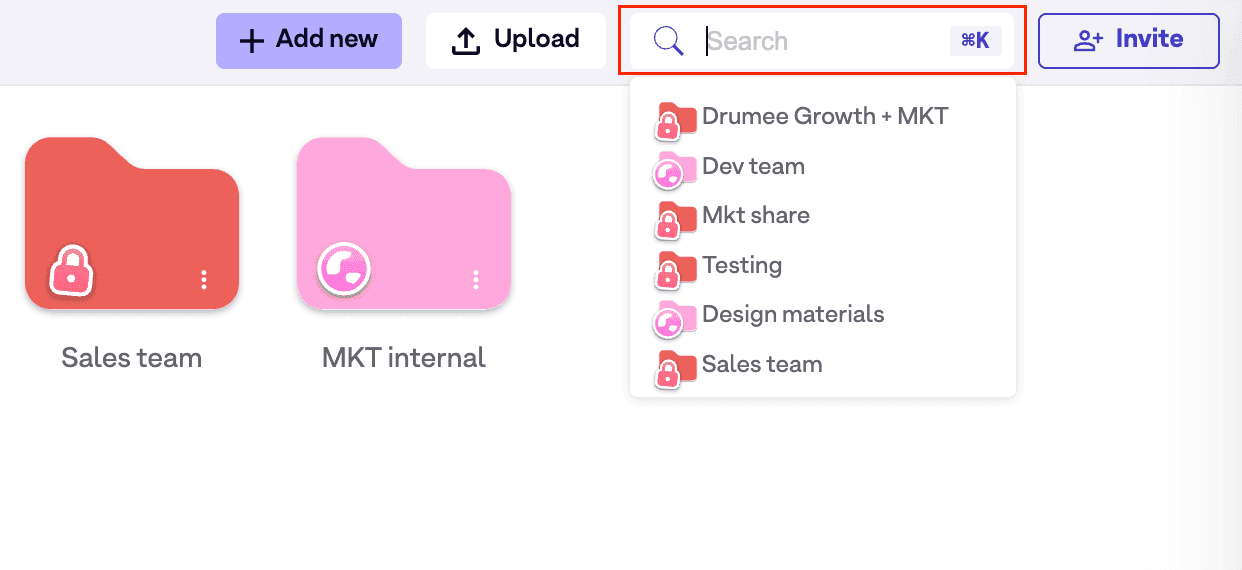
Bring work into context. From Home, upload files from your device. Use the search bar to find workspaces, files, folders, or conversations across everything.
- Select Upload and choose files from your device.
- Upload the files into the appropriate Drumee workspace.
- Type in Search, then choose the workspace, file, folder, or conversation you need.
Step 4 — Invite Members
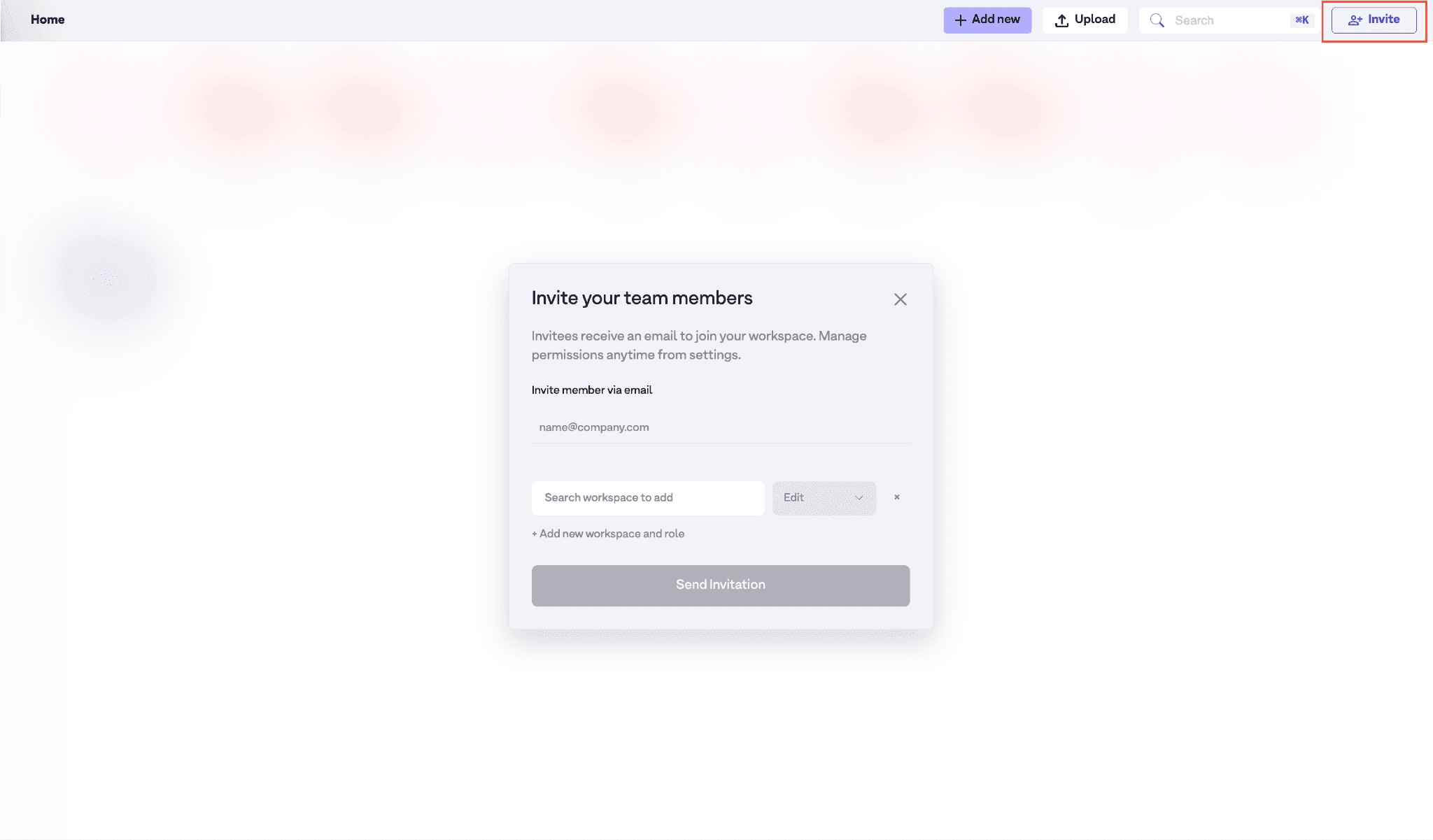
Make the workspace collaborative. From Home, select Invite, enter an email address, choose the workspace and role, then send the invitation.
- Open Invite from Home.
- Enter the member’s email and select their workspace and role.
- Select Send Invitation.
Step 5 — Chat with Your Team
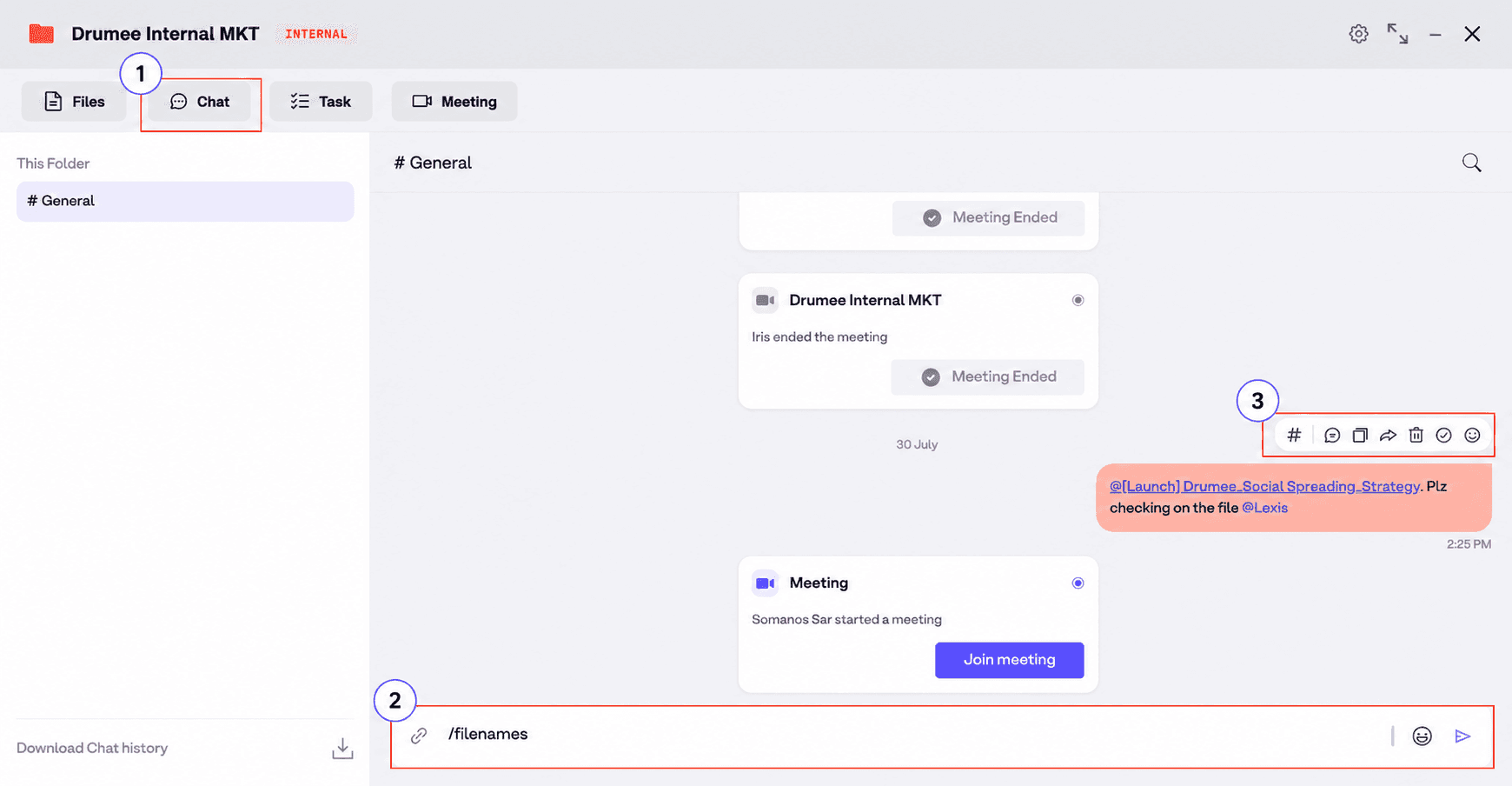
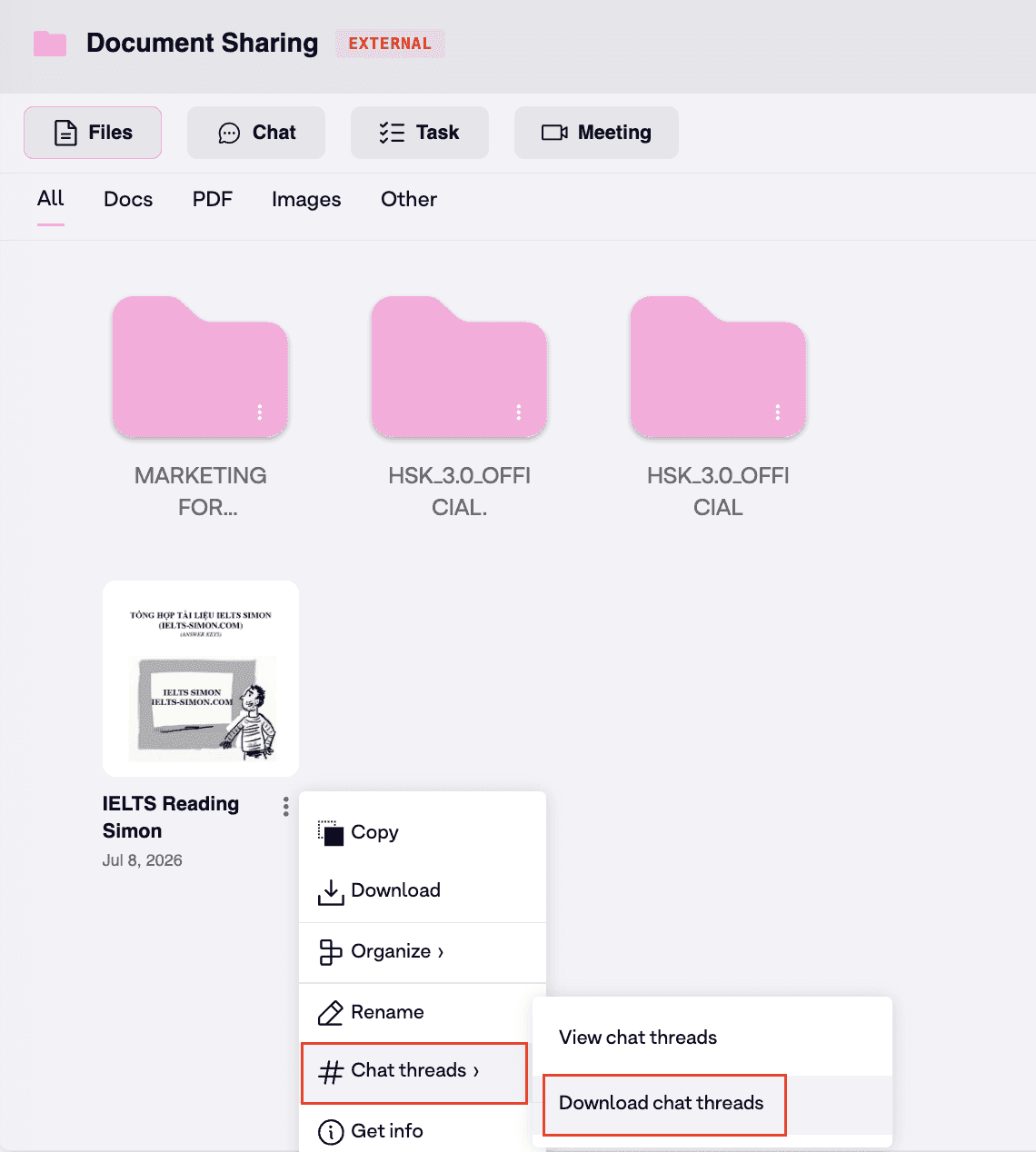
Keep the discussion attached to the work. Use folder and file chat to keep conversations in the same context as the work. Mention teammates with @mentions, type /filename to tag a file, and download folder chat history when needed.
- In a folder, select Chat and use /filename to drop files into a conversation.
- Select # to open folder chat threads and continue the discussion in the sidebar.
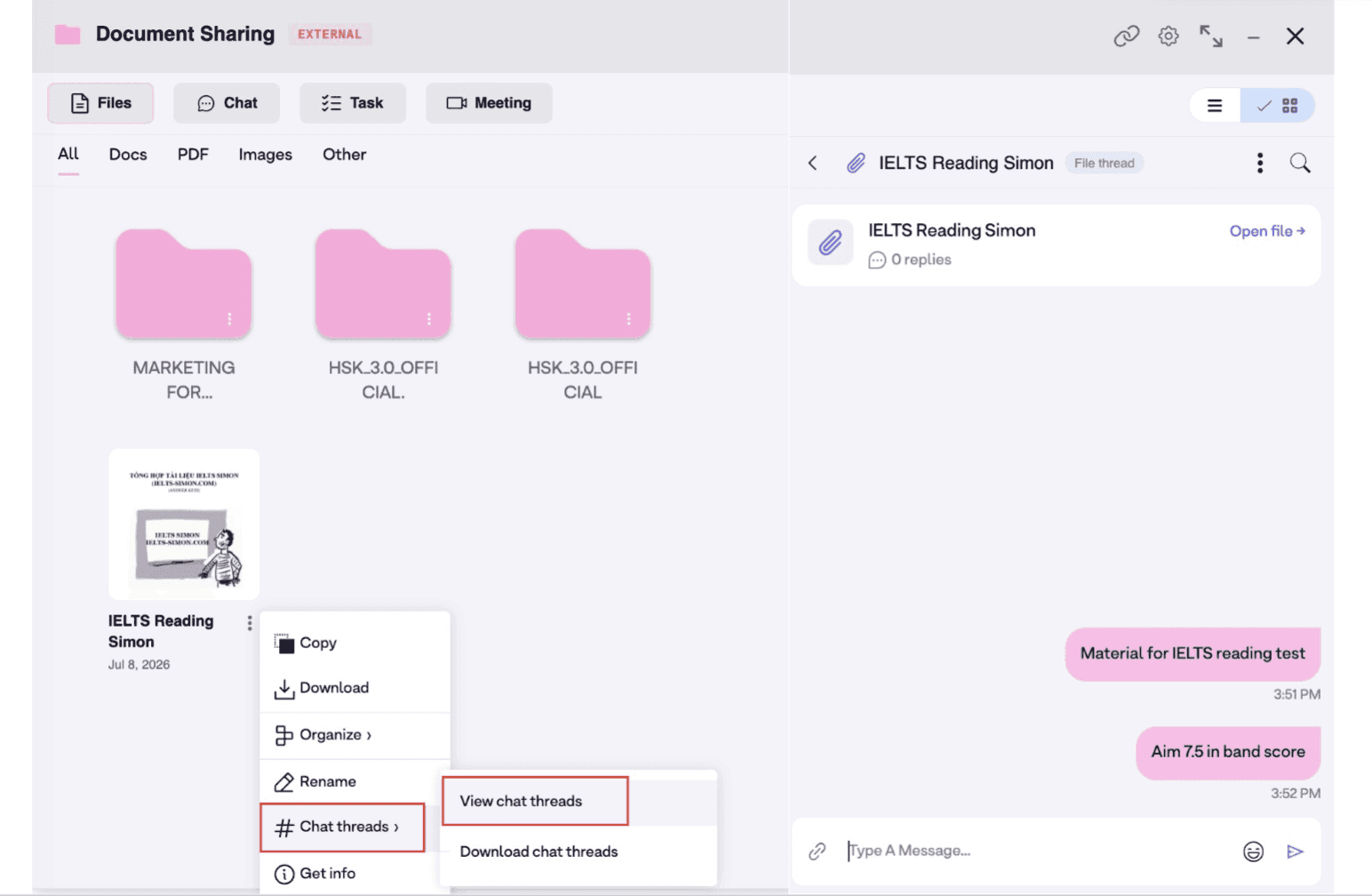
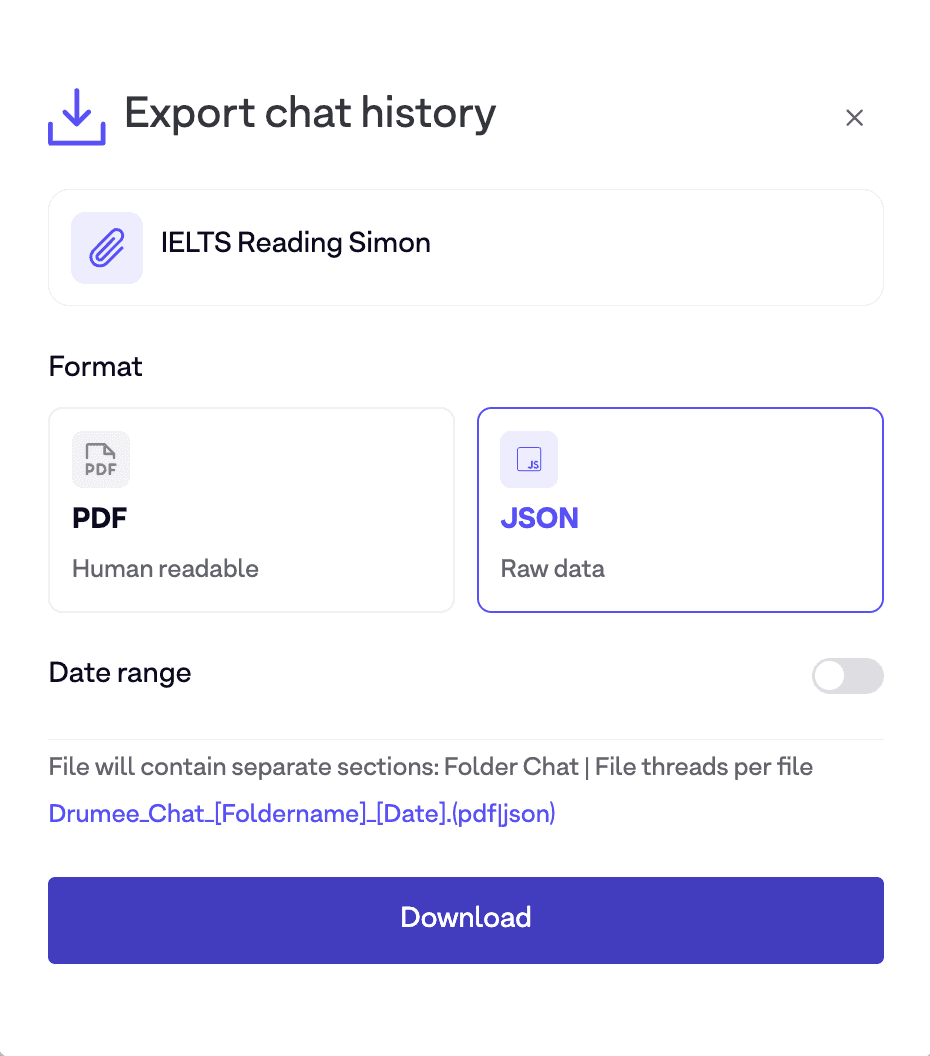
- In a file, select Chat threads to view the history or Download chat threads to export it.
Step 6 — Meet in the Workspace
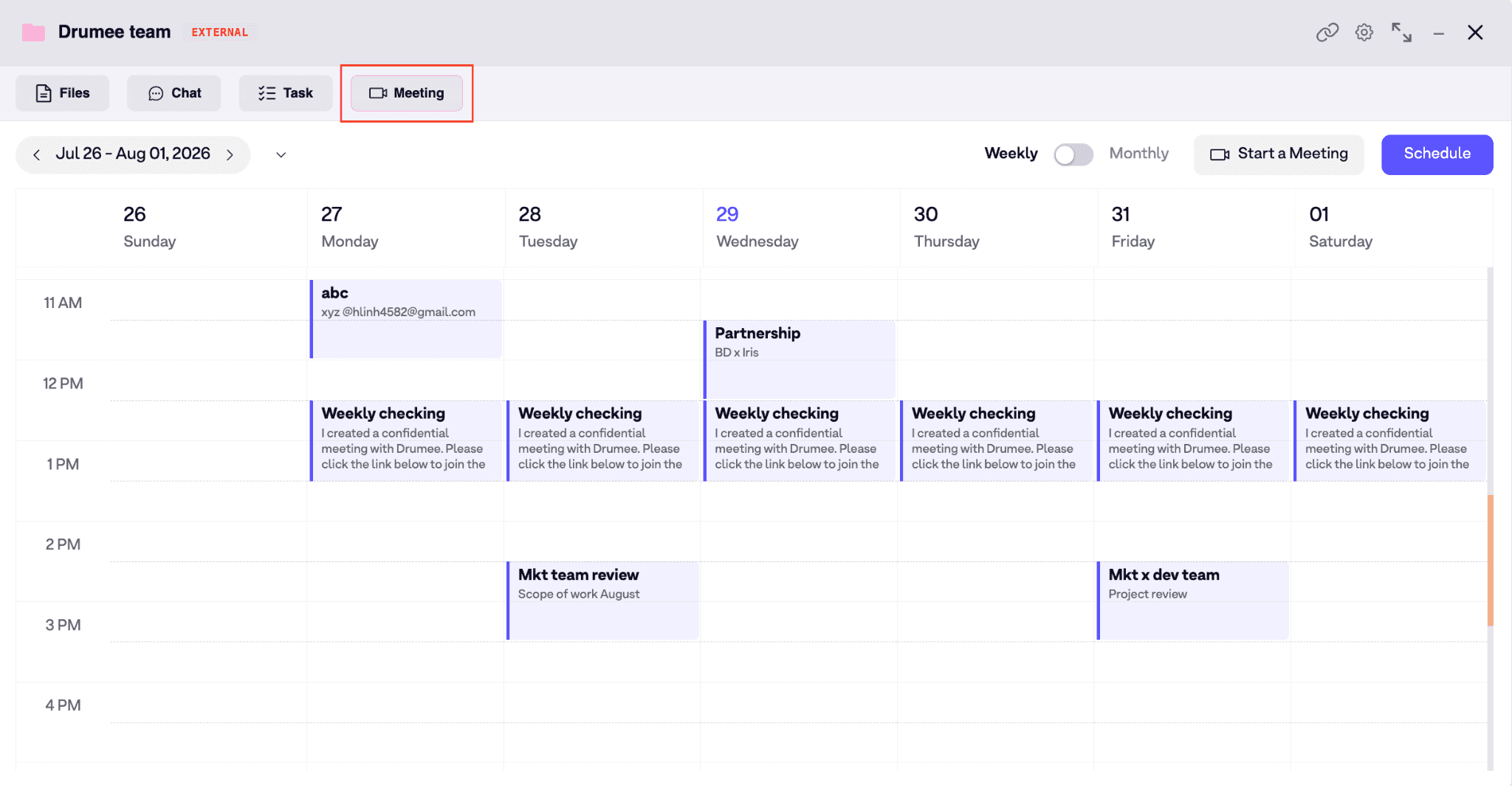
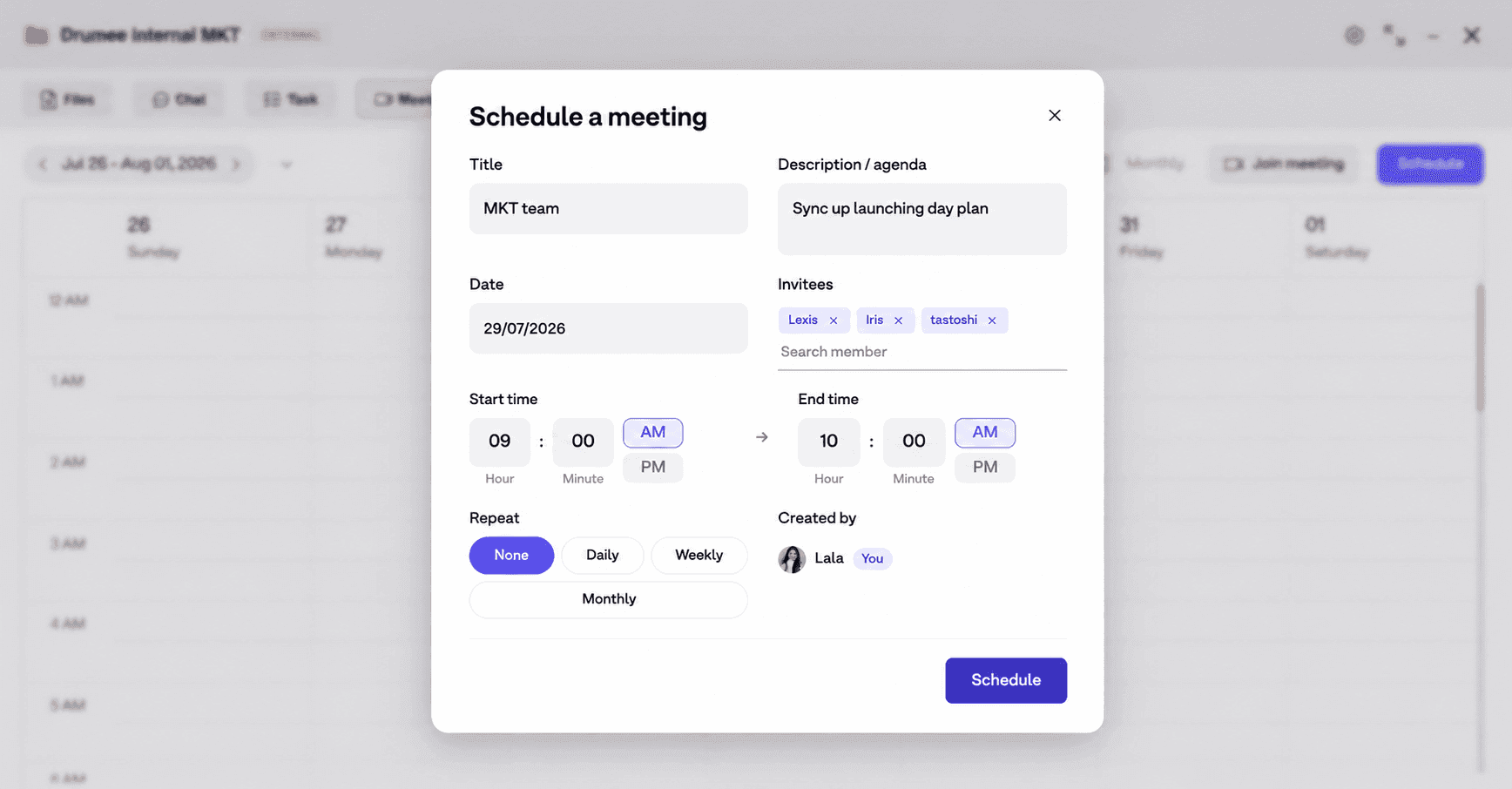
Keep a project’s meetings with its project. Open a folder and select Meeting. Use Schedule in the tab bar, set the meeting details, and select Schedule to complete it without leaving the folder.
- Open the folder where the project lives and select Meeting.
- Select Schedule and set the meeting details.
- Select Schedule to complete the meeting setup.

Step 7 — Grant Permissions and Share Securely
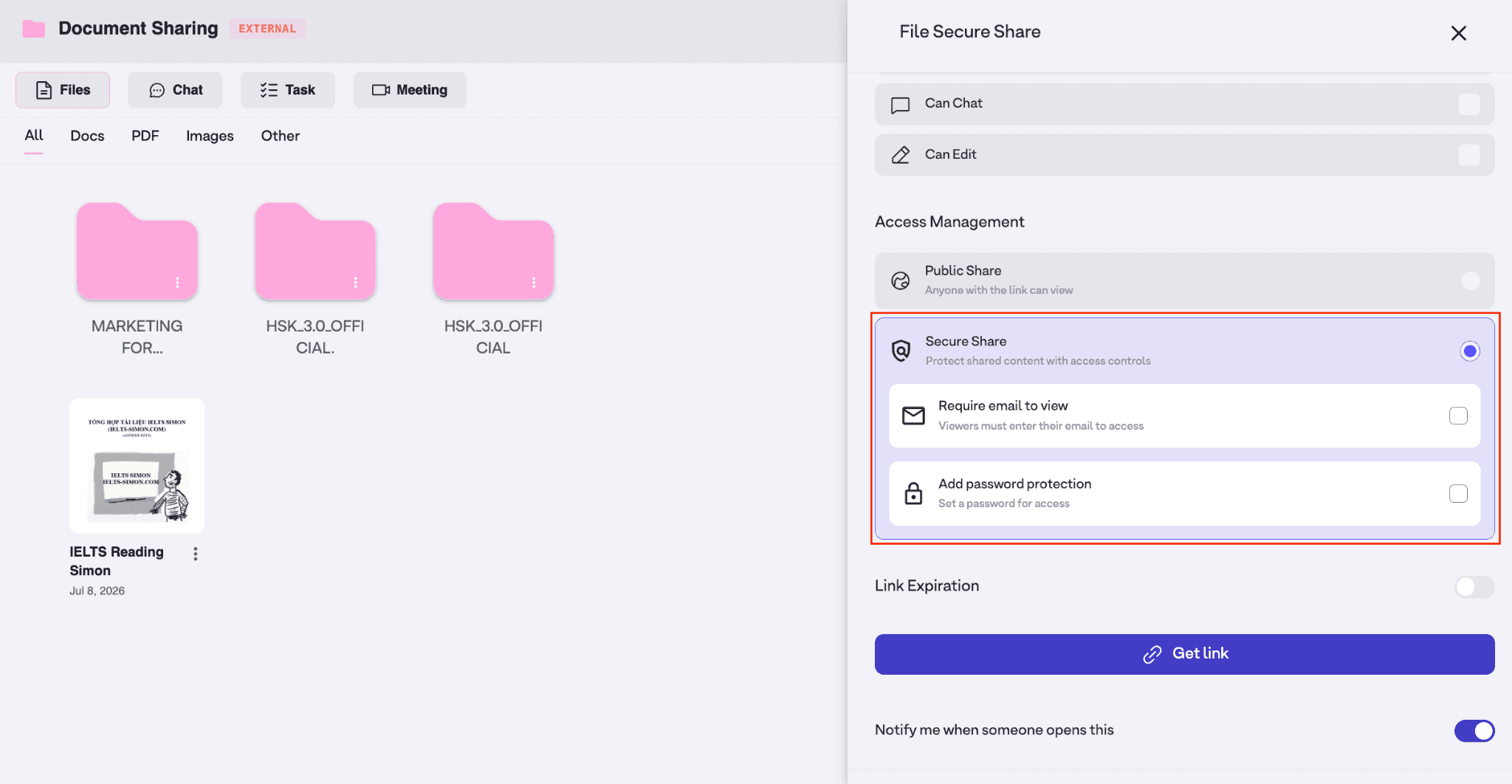
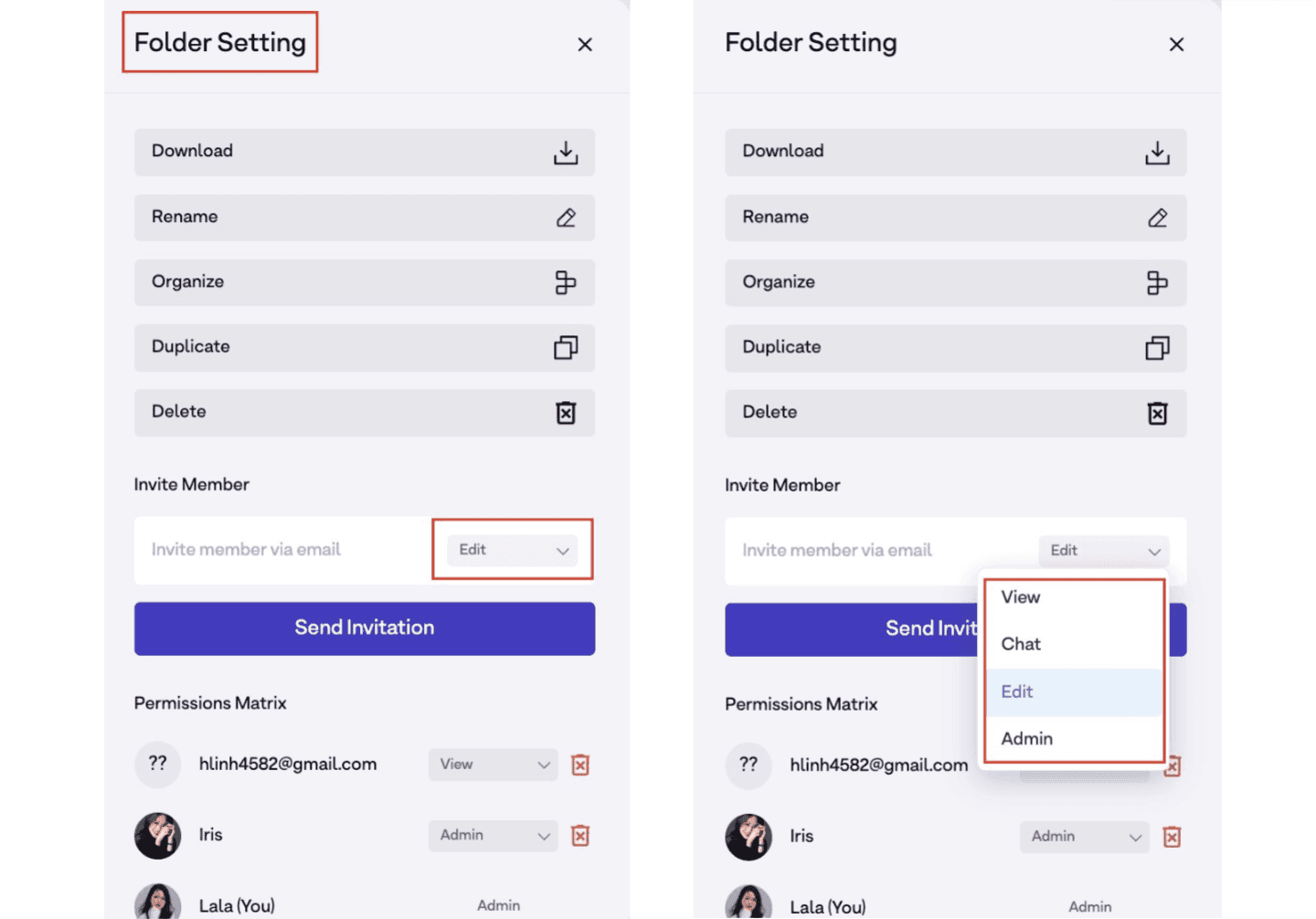
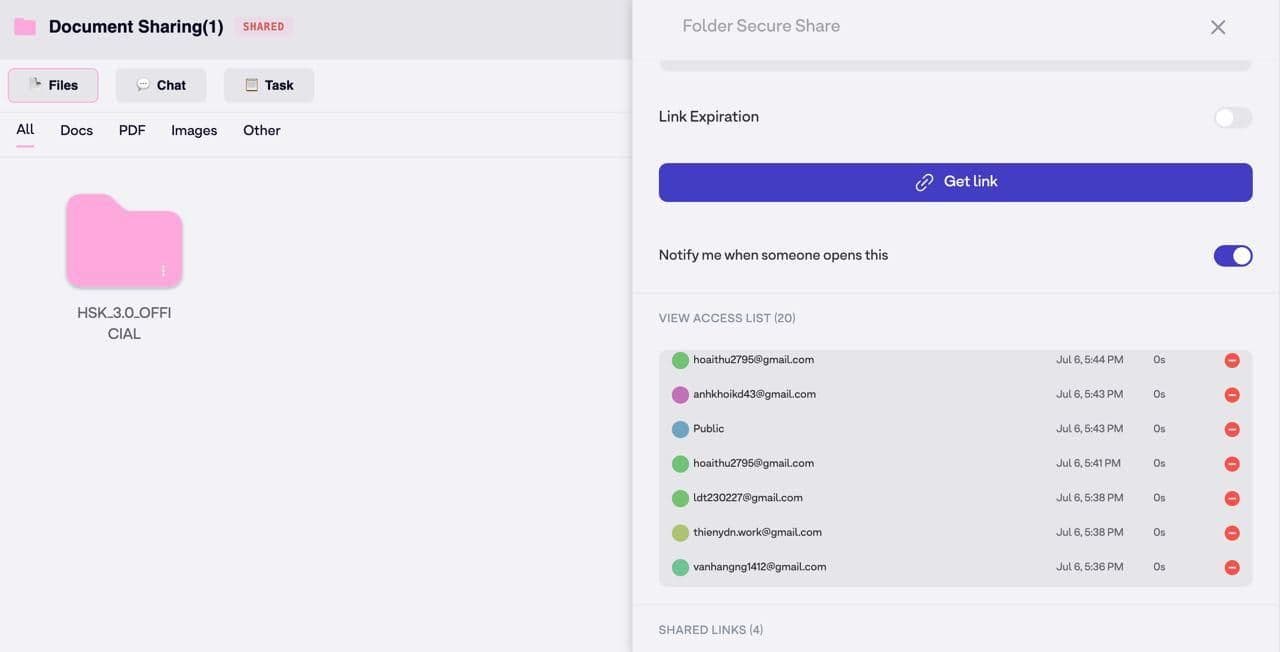
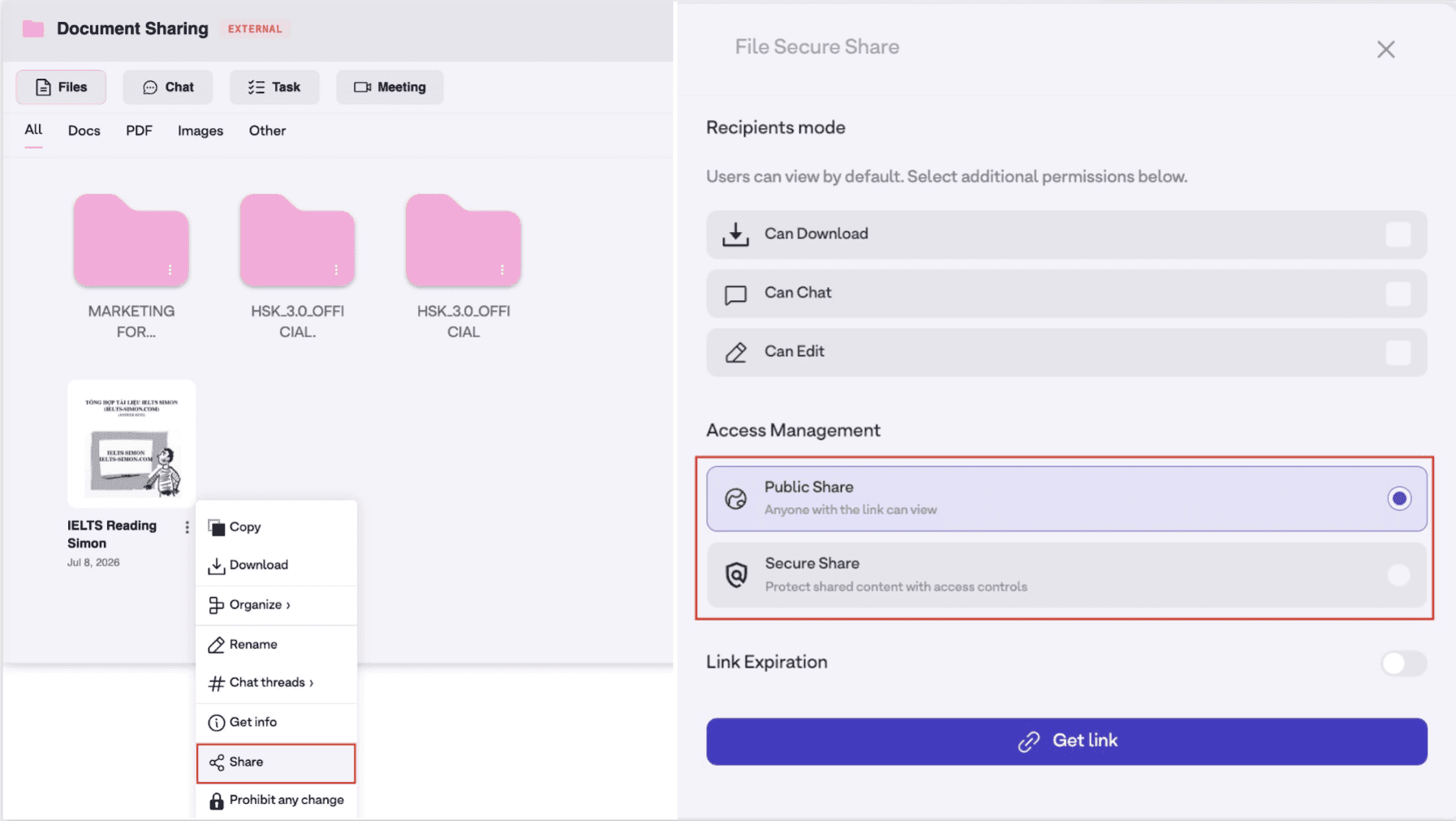
Keep access close to the work. Use Permissions in folder settings to define who can view, edit, and share. Secure Share gives external recipients controlled access to a file without putting them inside the workspace.
- Open a folder, go to Setting, enter the member’s email, and choose their permission status.
- For Secure Share, open Share and select Secure share.
- Optionally require email verification, add a password, set an expiration date, and review file activity in the access list.
Step 8 — Migrate from Google Drive
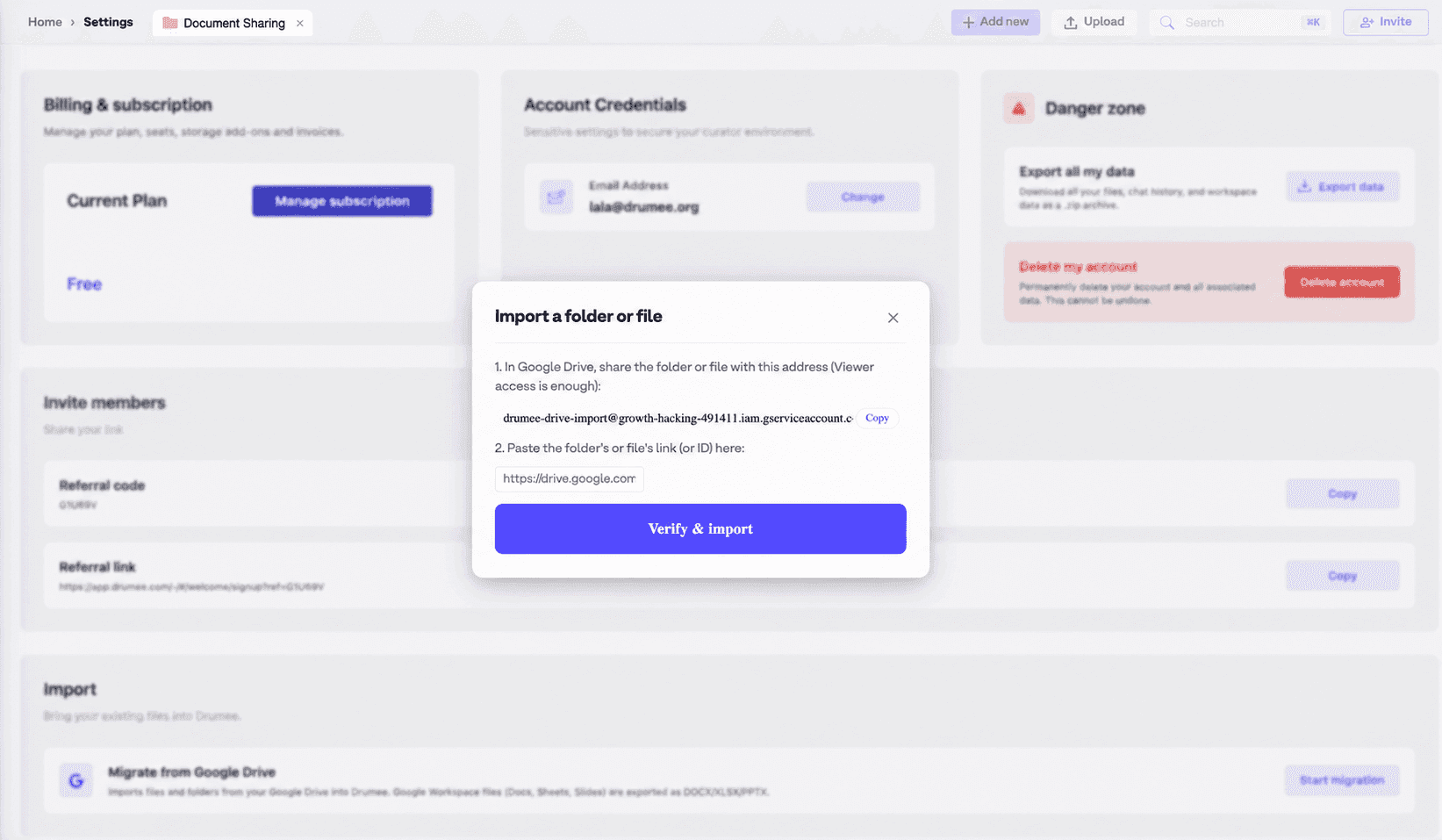
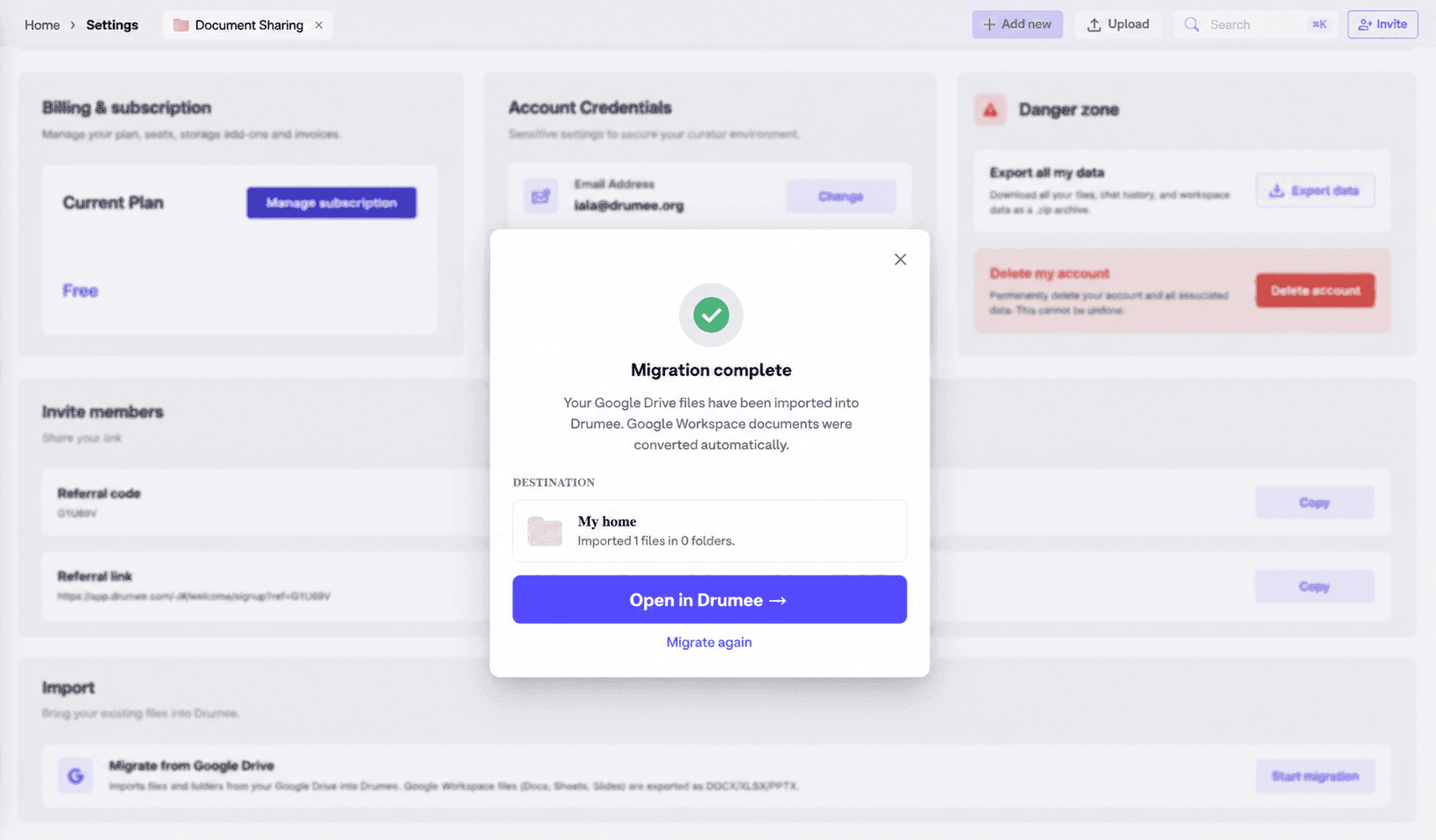
Move projects without rebuilding their structure. In Setting, choose Import and select Migrate from Google Drive. Verify and import the chosen file or folder, then continue in Drumee when the migration is complete.
- Go to Setting and select Import.
- Select Migrate from Google Drive, then verify and import the chosen items.
- When the migration completes, open the content in Drumee.

Official Links & Resources
Everything you need in one place.
- Website: drumee.com
- App: app.drumee.com
- X (Twitter): x.com/DrumeeOS
- LinkedIn: linkedin.com/company/drumee
- Founder on X: x.com/somanossar
- GitHub (open source): github.com/drumee
- All links: linktr.ee/drumee
Keep reading
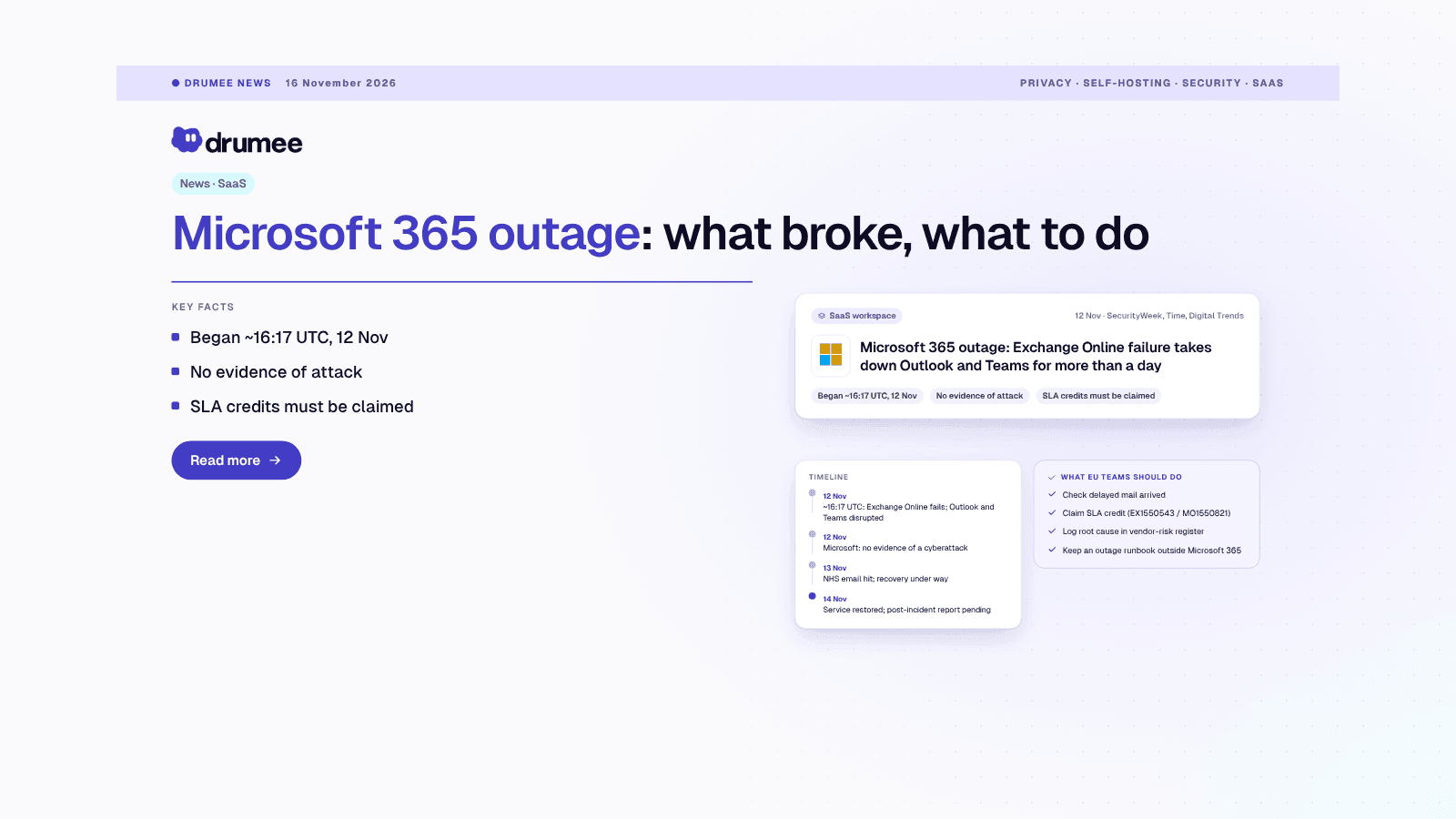
Microsoft 365 Outage (November 2026): What Broke, Who Was Hit and What to Do Now
Published 16 November 2026 · Updated 16 November 2026 · 7 min read The Microsoft 365 outage that started on Thursday 12 November 2026 was one of the longest disruptions of Outlook and Teams in years. This post sets out what is confirmed, what Micr...
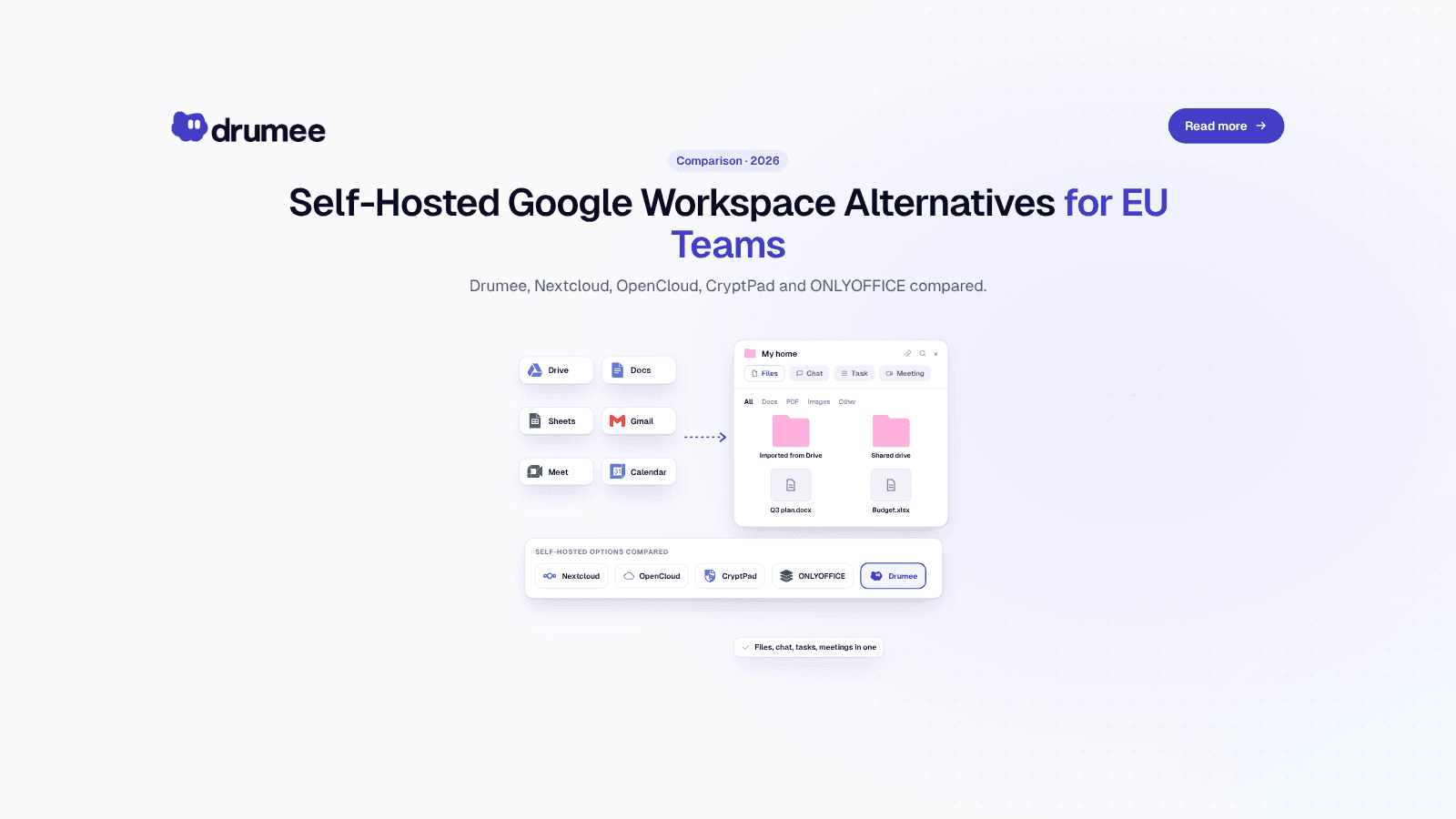
Self-Hosted Alternatives to Google Workspace: 2026 Guide for EU Teams
Google Workspace is the default office stack for most European startups. It is also a US-controlled service whose list price went up in January 2025, whose data sits under US legal reach, and whose exit path takes days of admin work. For a growing...
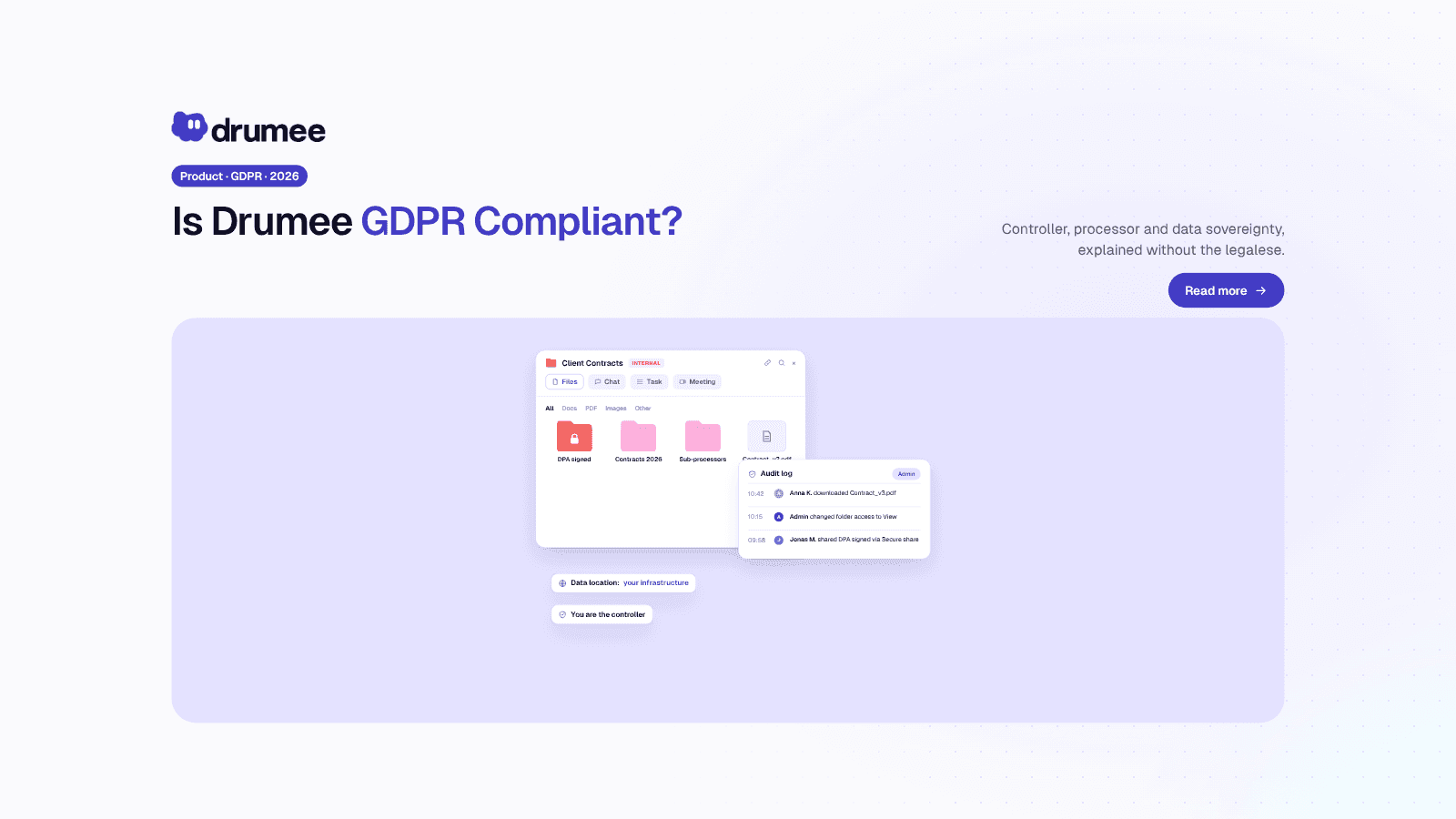
Is Drumee GDPR Compliant? Data Sovereignty Explained (2026)
"Is this tool GDPR compliant?" is the first question every European buyer asks about workspace software, and it is the wrong question to ask in isolation. No software product is GDPR compliant on its own. The regulation applies to organizations an...