
Migrate Google Drive to Drumee: A Practical Migration Plan
To migrate Google Drive to Drumee, choose Migrate from Google Drive in a workspace's New menu, connect your Google account and pick the files and folders to bring in. The import runs in the background, converts Google Docs, Sheets and Slides to ...
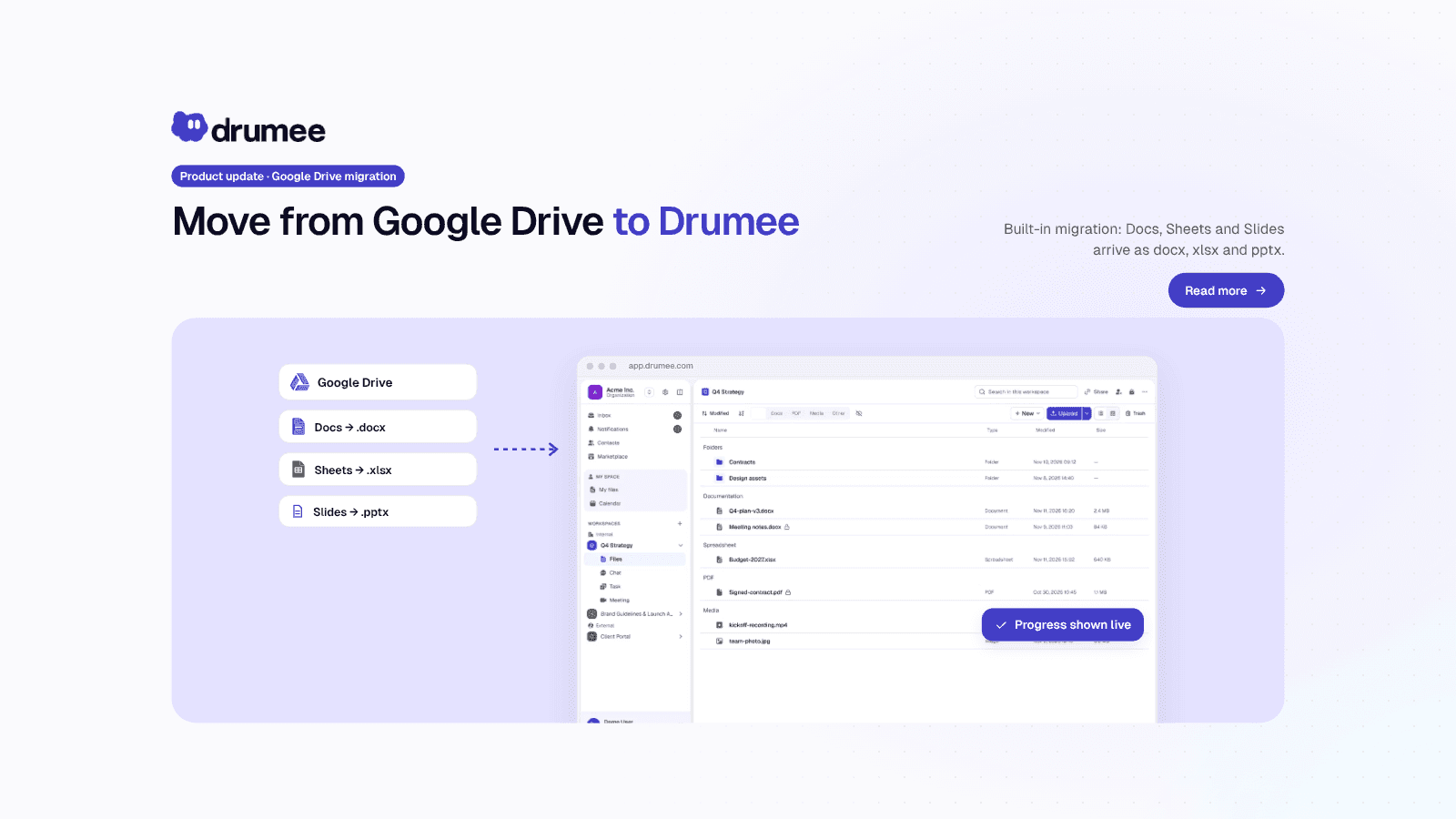
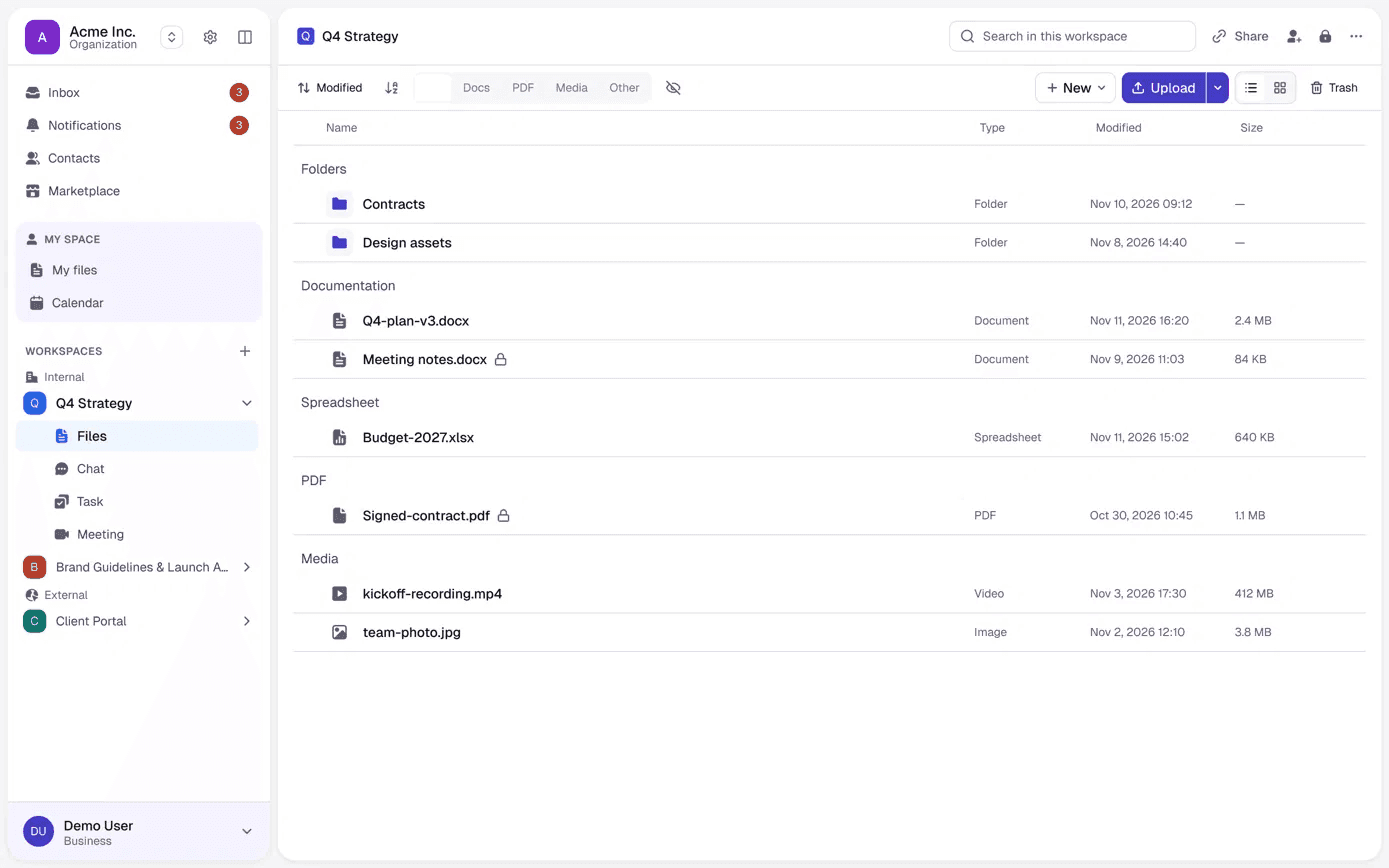
Drumee's Files New menu with Migrate from Google Drive selected, next to a workspace file list where imported Docs arrive as editable docx files
To migrate Google Drive to Drumee, choose Migrate from Google Drive in a workspace's New menu, connect your Google account and pick the files and folders to bring in. The import runs in the background, converts Google Docs, Sheets and Slides to docx, xlsx and pptx, and never overwrites a file that already exists.
This post explains what the import does, what the documentation does and does not cover, and a before, during and after checklist for moving a team. Facts come from Drumee's File Storage docs and the Getting Started tutorial.
What does "Migrate from Google Drive" do?
Drumee's Google Drive migration is a built-in import. You connect your Google account and select files and folders; a background job on Drumee's servers reads them from Google and writes them directly to Drumee's object storage, reporting progress as it goes. Google Docs, Sheets and Slides arrive as Word, Excel and PowerPoint files, and a file whose name already exists in the destination folder is skipped.
The import is live today on the hosted service at app.drumee.com, as part of the November 2026 product update. Drumee's tutorial describes the goal plainly: move entire projects or departments into Drumee, "original folder hierarchy preserved, no rebuilding from scratch."
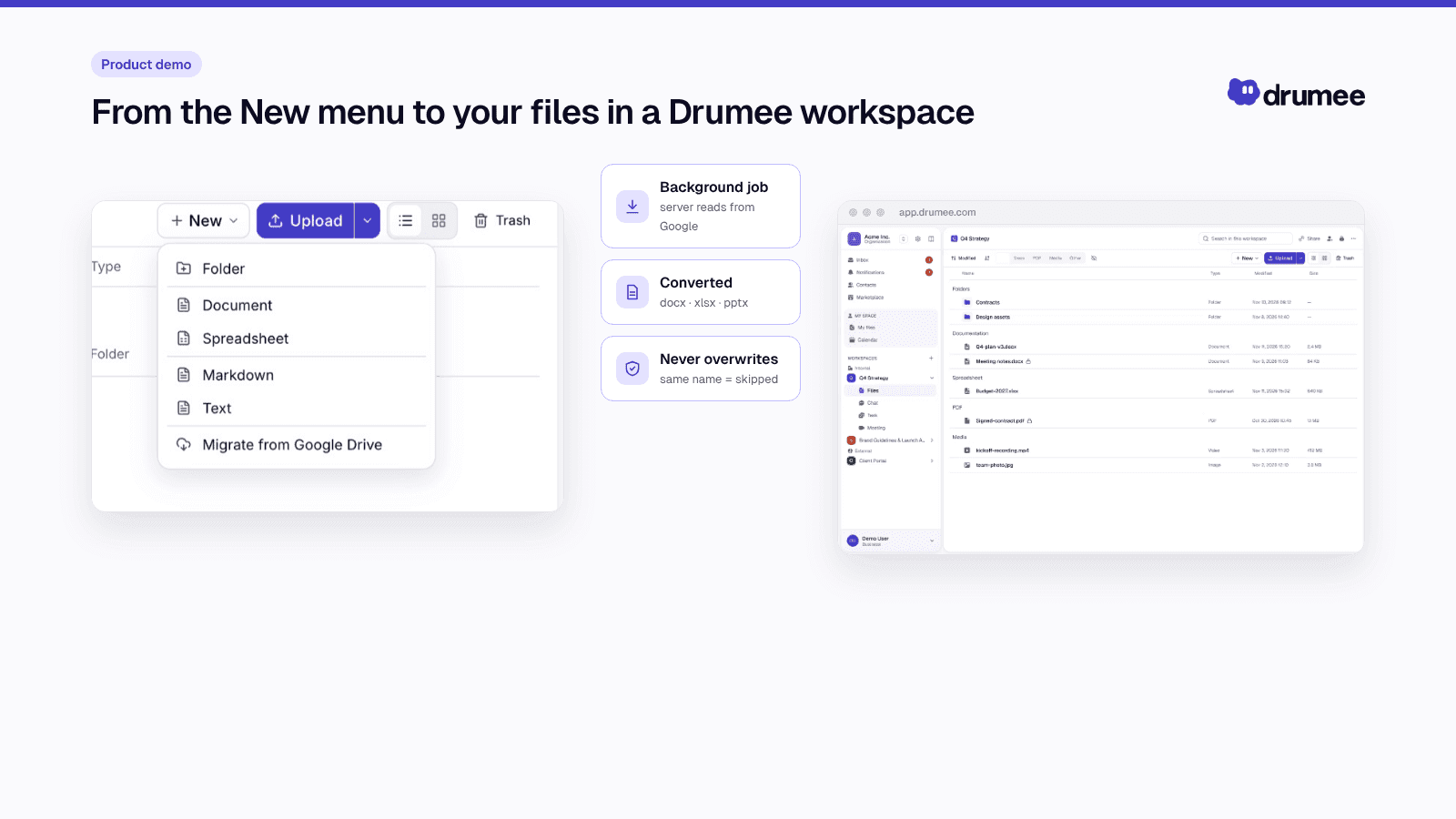
A Google Drive import landing in a Drumee workspace.
Two ways to start the migration
The documentation shows two entry points to the same import.
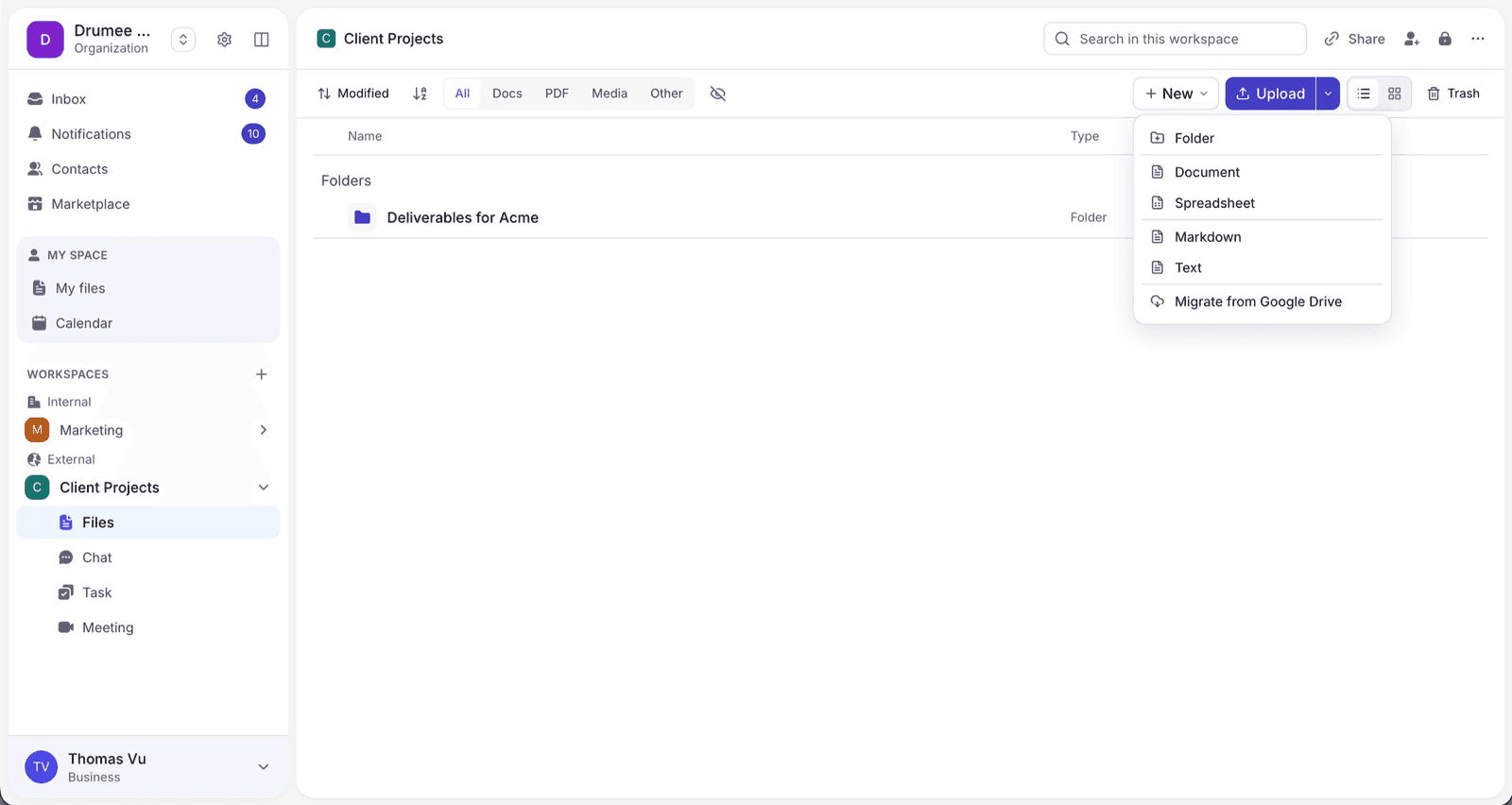
- From a workspace. Open the workspace's Files section, click New and choose Migrate from Google Drive. The same menu creates folders, documents, spreadsheets, Markdown and text files.
- From your account. Open the account menu at the bottom of the sidebar, choose Account and scroll to Import. Click Start migration, connect your Google account and choose the files and folders to bring in (Component definition).
What happens during the import
The work does not run in your browser tab. According to the Request Pipeline docs, imports run on their own background queue, so you can keep working, or close the tab, while files move.
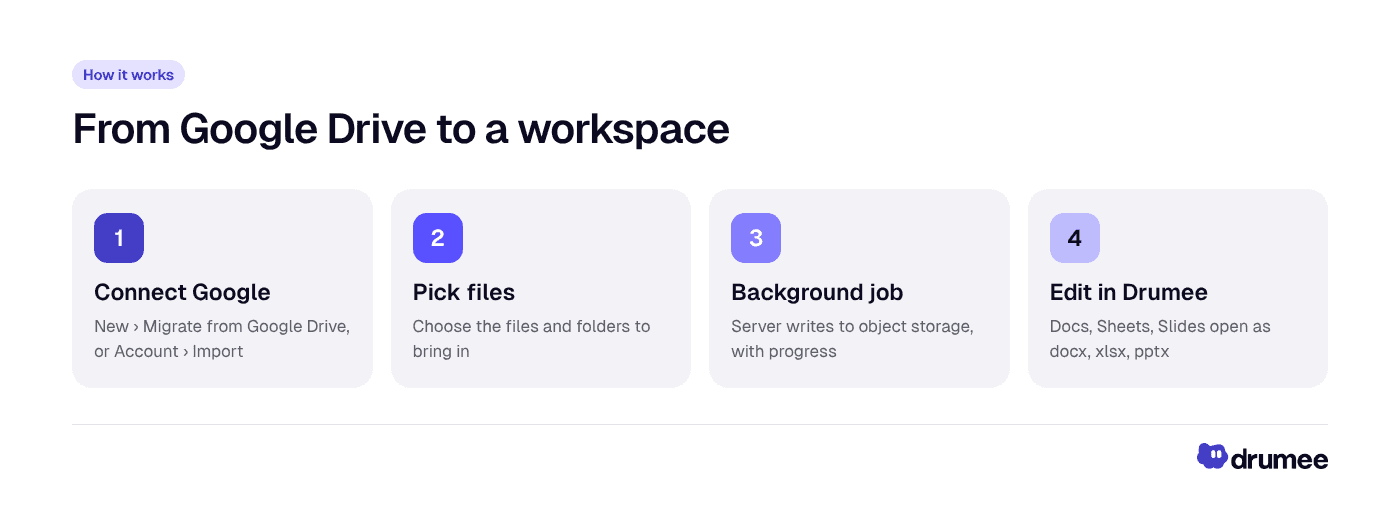
From Google to a Drumee workspace: the server does the transfer, you watch the progress.
- Server to server. The server reads the selected files from Google and writes them directly to object storage. Your laptop's upload speed is not the bottleneck.
- Progress you can see. The job reports to the person who started it with progress, done, failed and cancelled events.
- Resilient by design. A failed job is retried a limited number of times, and a job whose worker stopped is picked up by another worker.
- Never overwrites. A file whose name already exists in the destination folder is skipped.
The connection to Google is protected too. Tokens of a linked Google Drive account are sealed with AES-256-GCM under a key used only for that purpose, as the Data Storage & Encryption docs describe.
What arrives, and what the docs do not cover
Google's own formats do not exist outside Google, so the import converts them to the Office formats Drumee edits in the browser.
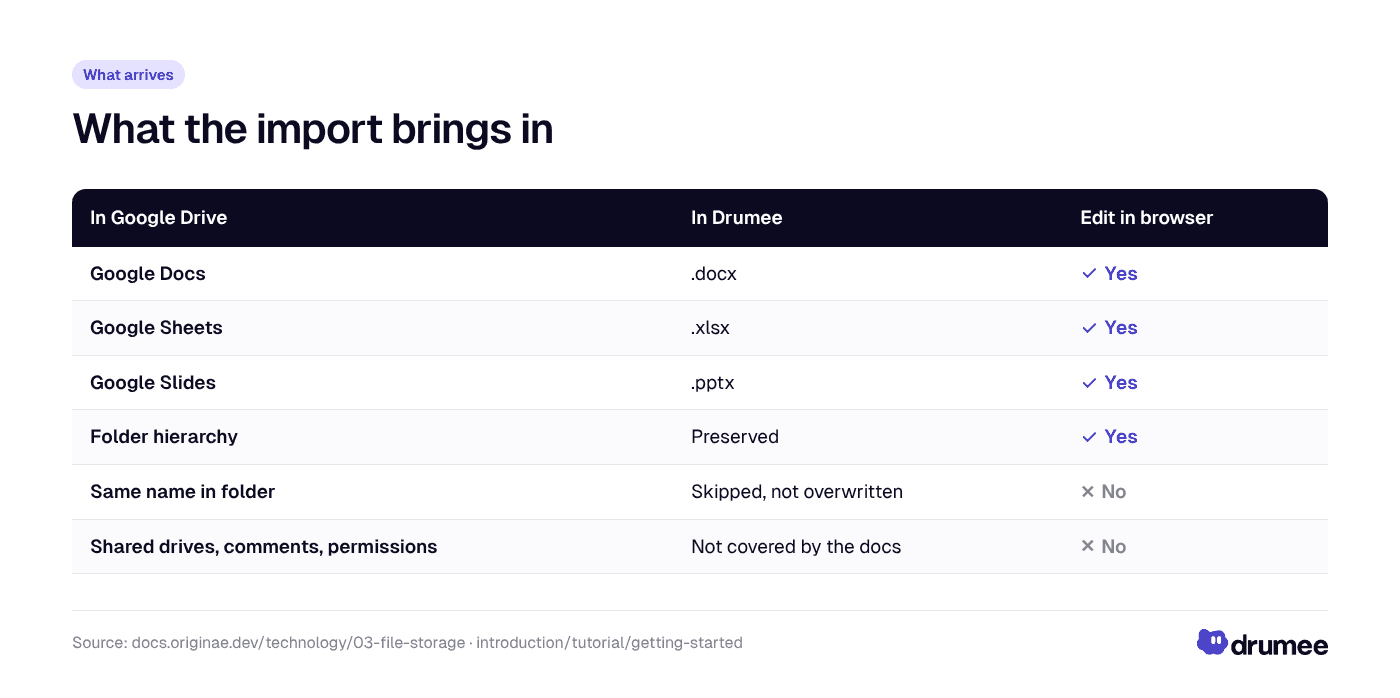
Docs, Sheets and Slides become editable Office files; several Drive features are not covered by the documentation.
What the documentation confirms:
- Google Docs → .docx, Google Sheets → .xlsx, Google Slides → .pptx, all editable in the browser.
- Folder hierarchy is preserved.
- Same-name files in the destination folder are skipped, never overwritten.
- Imported files count toward storage. Every stored file counts toward the tenant's quota, and the allowance depends on the plan (Drumee pricing).
What the documentation does not cover, so check it with Drumee before a large move:
- Shared drives (team drives), as opposed to files in My Drive.
- Comments, suggestions and revision history from Google Docs.
- Sharing permissions. The docs do not say Drive permissions are carried over, so plan to rebuild access (below).
- File-size limits for imports. Uploads support a single file up to about 78 GiB, but the docs give no import-specific limit.
- Other Google formats such as Forms, Drawings or shortcuts.
Before you migrate: a checklist
A good Google Drive migration starts with a map of where the work should live, not a list of folders. Drumee's core idea is the workspace: "Not 'Where do I store this file?' but 'What workspace does this work belong to?'"
- Map folders to workspaces. One project, client or department per workspace. Use Internal for your organization (Everyone, Selected teams or Private) and External for work with clients or partners.
- Decide roles per workspace. A role covers the whole workspace: View, Chat, Edit, Admin or Owner. There are no per-folder permissions for members, so content that needs different people goes in its own workspace (Drumee FAQ).
- Tidy names in Drive. In Drumee, a name is unique in its folder regardless of letter case, and the characters /, \ and : are replaced with a dash. Fix duplicates and odd names before you start.
- Check storage. Make sure your plan's storage covers what you are bringing in. An over-quota tenant becomes read-only until space is freed.
- Note what the import may not carry. Export anything from the list above that you must keep, such as comment threads you rely on.
- Create the workspaces first, so each import has a destination.
During the migration
- Import in batches by workspace, so each team can check its own files.
- Watch the progress and note any failed job to run again.
- Re-running is safe. Because same-name files are skipped, a second run of the same selection should only bring in what is missing.
- Upload what lives outside Drive. Use Upload files or Upload folder, or drag and drop. Large uploads pause when the network drops and resume when it is back, and a file that is already stored is not uploaded again.
After: rebuild sharing with workspaces and roles
In Drive, access is often set file by file. In Drumee it is set once per workspace, and the server checks the role on every request, as the RBAC System docs explain.
- Invite colleagues from the top bar: enter an email, choose a role and send. An invitation is valid for 7 days. In an organization, Add from team adds existing members without an email.
- Use teams for internal workspaces, so people join automatically with the workspace's default role.
- Bring clients into an External workspace. People from outside your organization join as guests with the View or Chat role, or as outside members with Edit or Admin where your plan allows.
- Replace "anyone with the link". Share links exist only in External workspaces and point at one file or folder. Secure Share adds an email gate, a password, an expiry and an access log.
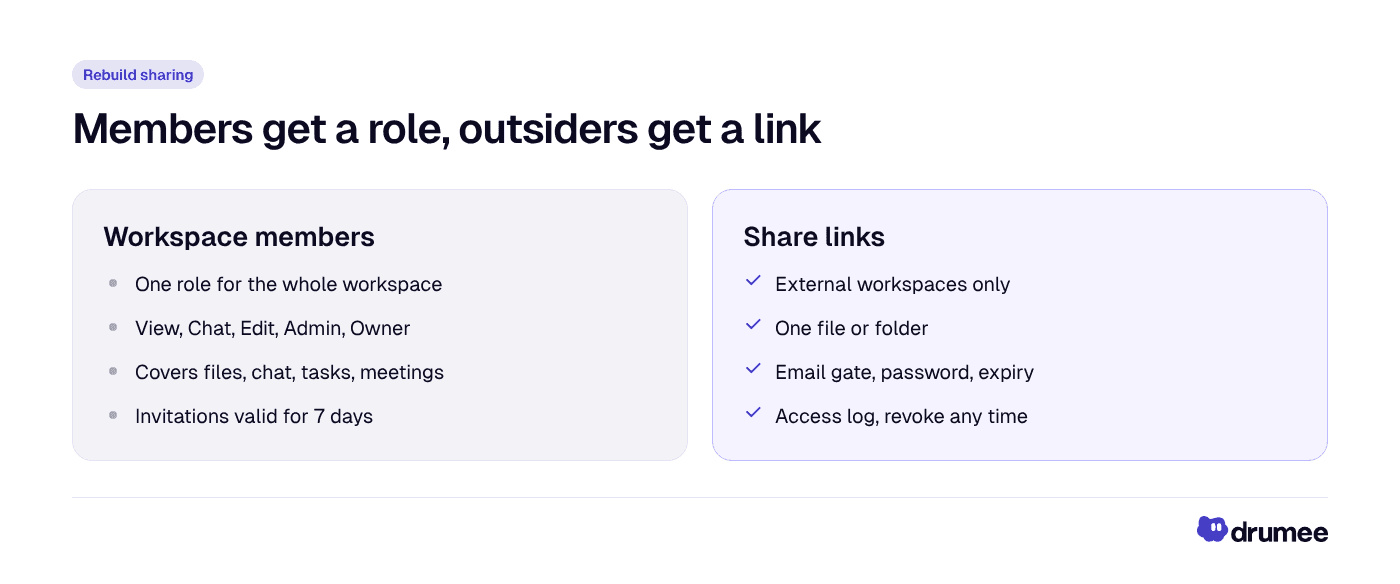
Members get a role for the whole workspace; outsiders get a link to one item.
Our guide to Internal and External workspaces walks through links, Secure Share and the access log in detail.
Keep editing in the Office engine
Converted files are not archives. Double-click a .docx, .xlsx or .pptx and it opens in Drumee's Office engine, with real-time co-editing, autosave, comments and @mentions. History shows who changed what, a file keeps up to 200 versions, and deleted files stay in the trash for 30 days.
Each file also has its own thread in the workspace chat, so the feedback that lived in Docs comments can continue next to the document.
Where this fits in a wider exit from Google
Files are usually the biggest part of a move, not the only one. Our guide on how to quit Google Workspace without losing your data covers mail, calendars and the order of the switch, and our self-hosted Google Workspace alternative comparison looks at the options.
The import described here runs on Drumee Cloud, the hosted workspace at app.drumee.com. Teams that need Drumee on their own infrastructure can ask about Drumee Sovereign Node through contact sales.
FAQ
How do I migrate Google Drive to Drumee?
Open a workspace's Files section, click New and choose Migrate from Google Drive, or go to Account, then Import, then Start migration. Connect your Google account, select files and folders, and the import runs in the background with progress updates.
Are Google Docs, Sheets and Slides converted?
Yes. They arrive as .docx, .xlsx and .pptx files, which you can co-edit in the browser in Drumee's Office engine with autosave, comments and History.
Will the import overwrite files that are already in Drumee?
No. A file whose name already exists in the destination folder is skipped, so an import never overwrites your work.
Are my Google Drive sharing permissions carried over?
The documentation does not say they are, so plan to rebuild access. In Drumee, each person gets one role per workspace, and outsiders get secure share links from External workspaces.
Is there a file size limit when moving files from Google Drive?
The docs give no import-specific limit. Regular uploads are resumable and support a single file of up to about 78 GiB, and every file counts toward your plan's storage.
Conclusion
Migrating Google Drive to Drumee is mostly a planning job: map folders to workspaces, choose roles, then let the background import convert and copy your files without overwriting anything. Next in the series: Internal vs External workspaces and secure client sharing.
Try Drumee with your team: your first month is $1. Start your team for $1
Keep reading
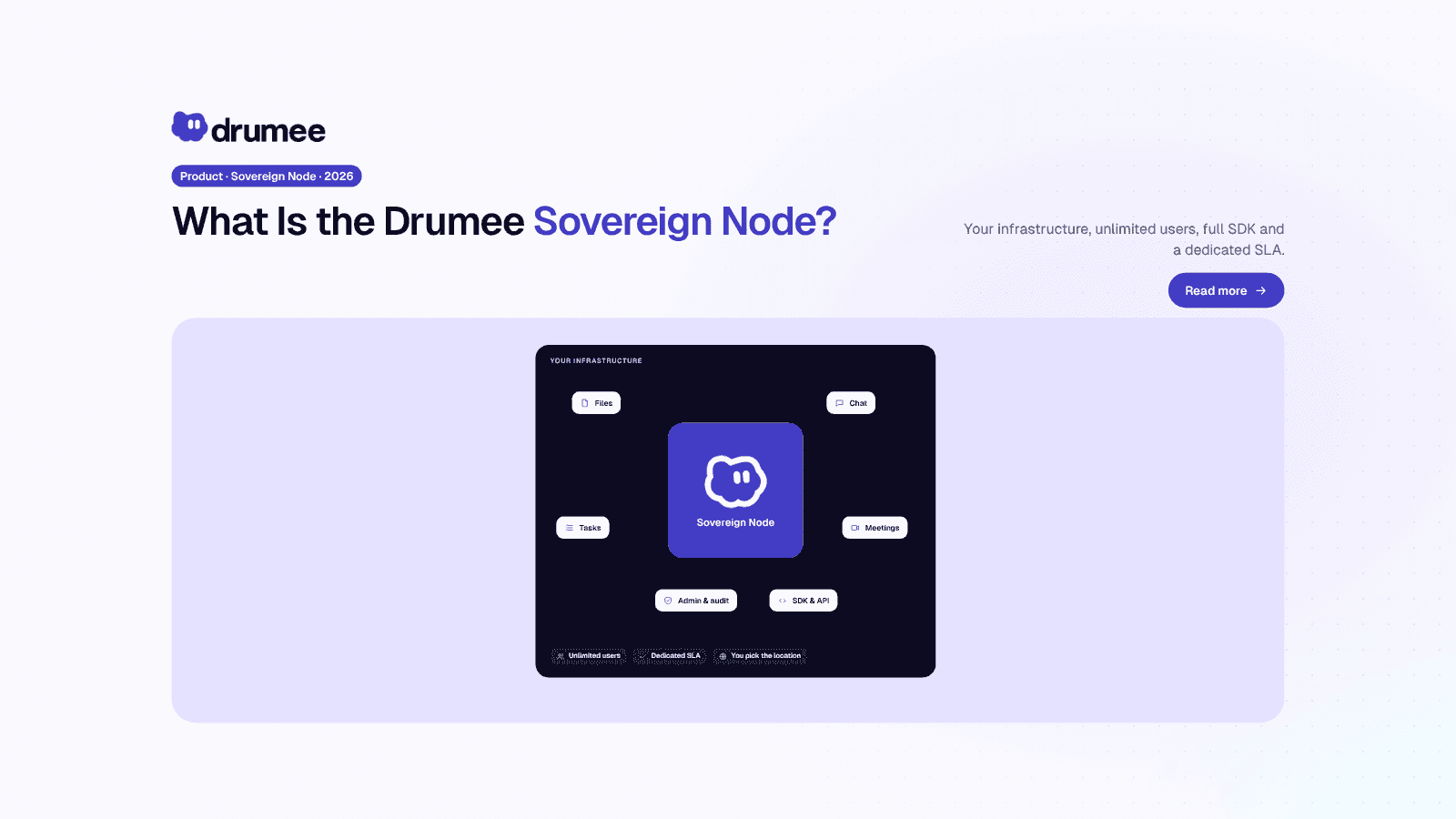
What Is the Drumee Sovereign Node? Self-Hosted Workspace Explained
Most teams meet Drumee on a Drumee-hosted plan: sign up, invite colleagues, move files in. Some buyers cannot stop there. A bank's security team, a defence supplier or a public body needs the workspace to run on infrastructure it operates, under c...
Drumee Organizations: Workspace Admin Roles and the Audit Log
A Drumee organization is a shared space for a company's members, teams and workspaces, administered on its own ladder of six levels, from Member to Owner. Admins manage people, teams, policies and the audit log, but administration is not access: a...
Turn Chat Messages Into Tasks: Drumee's One-Workspace Flow
To turn a chat message into a task in Drumee, hover over the message, click the create-task icon, and the message text becomes the task description. Because chat, files, tasks and meetings live in the same workspace, the task lands on that workspa...