
Understanding Drumee in 5 minutes
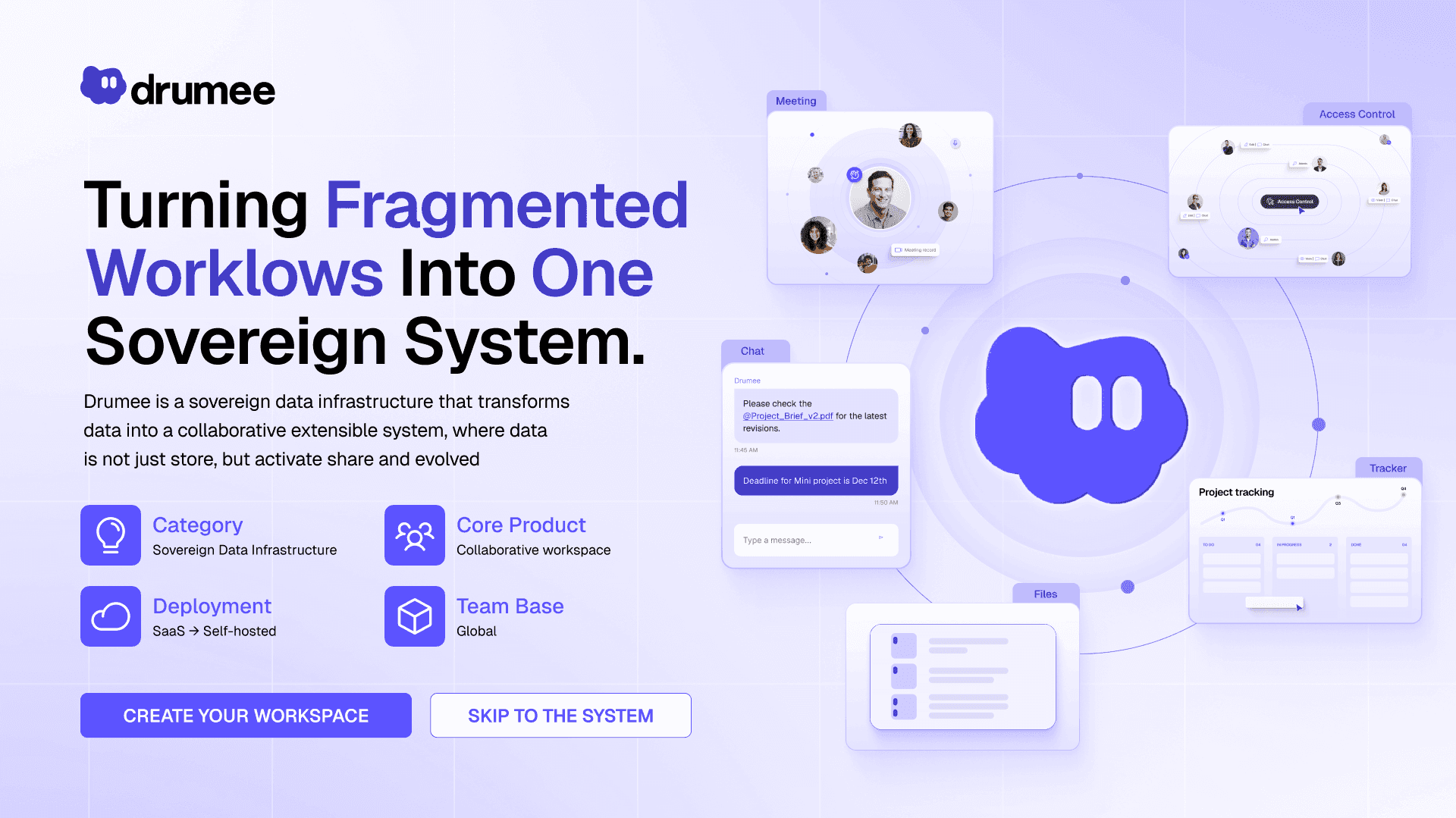
Drumee is a sovereign data infrastructure that transforms data into a collaborative, extensible system where data is not just stored, but activated, shared, and evolved.
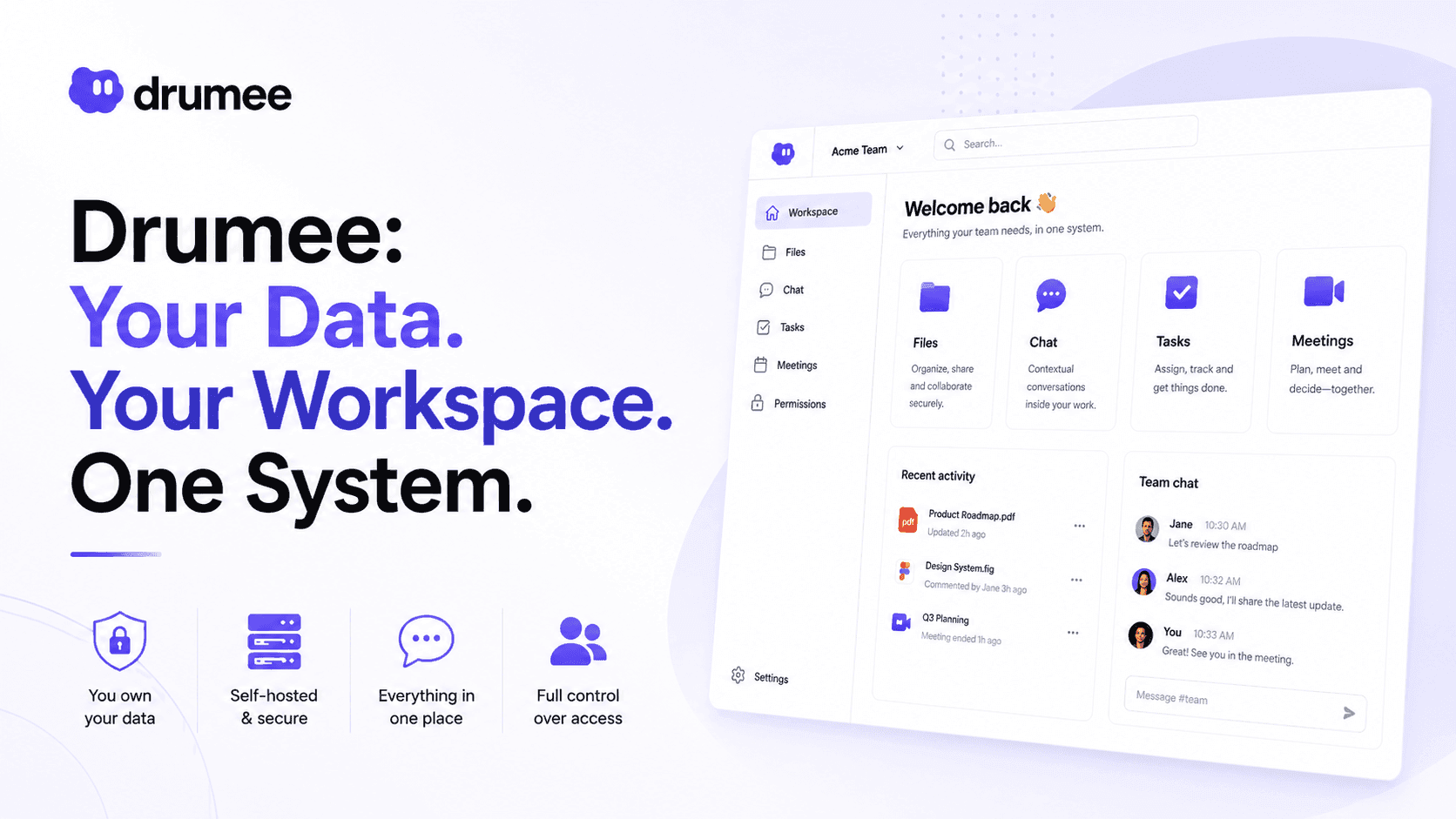
Drumee - Your Sovereign Data Infrastructure. Built to be yours!
1. Meet Drumee
Drumee is a sovereign data infrastructure that transforms data into a collaborative, extensible system where data is not just stored, but activated, shared, and evolved.
Sovereign by design. Unified by architecture. Collaborative by nature.
Demo video HERE.
2. The Future We Are Building
The world's first unified sovereign data infrastructure to power your workflow by 3x.
3. Why We Exist
Our mission is to replace fragmented SaaS stacks with one unified, sovereign workspace - bringing files, conversations, tasks, and meetings together without compromising data control.
4. Why Choose Drumee
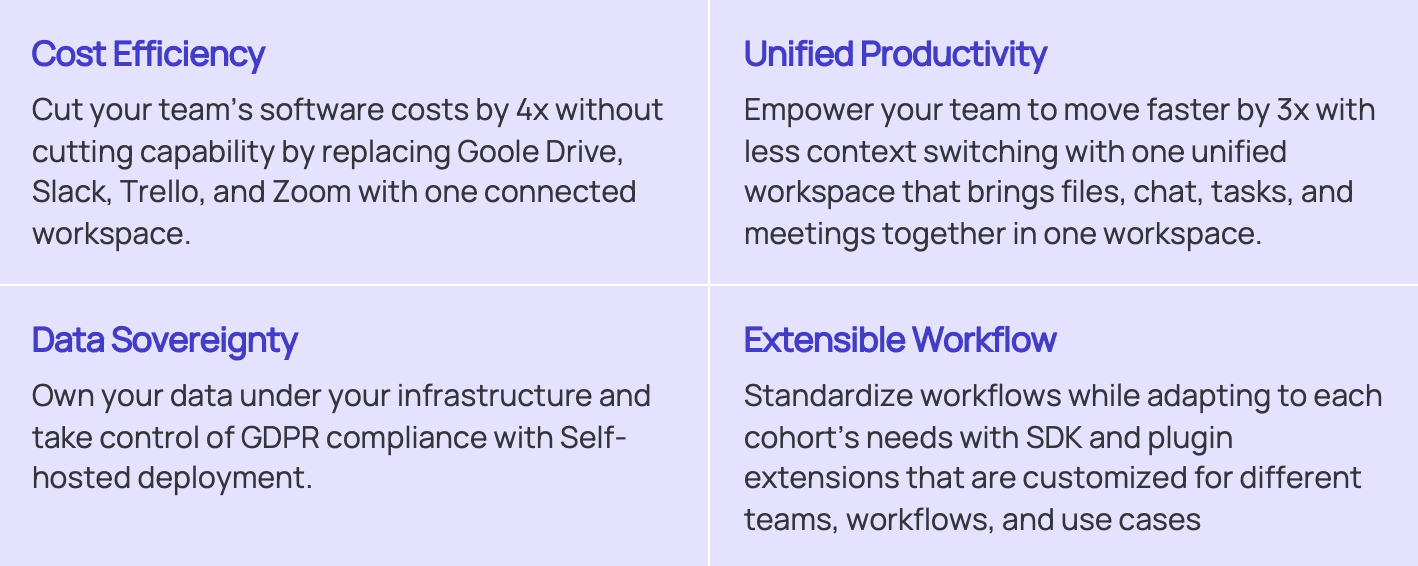
Drumee is built to empower your team’s productivity by 3x and reduce the cost by 4x at the same time.
At Drumee, we offer two deployment options: SaaS and Self-hosted. Start with SaaS for a fast, easy setup. When you're ready, migrate to self-hosting for full control over your infrastructure and data.
-----------------------------------------------------
How To Get Started With Drumee
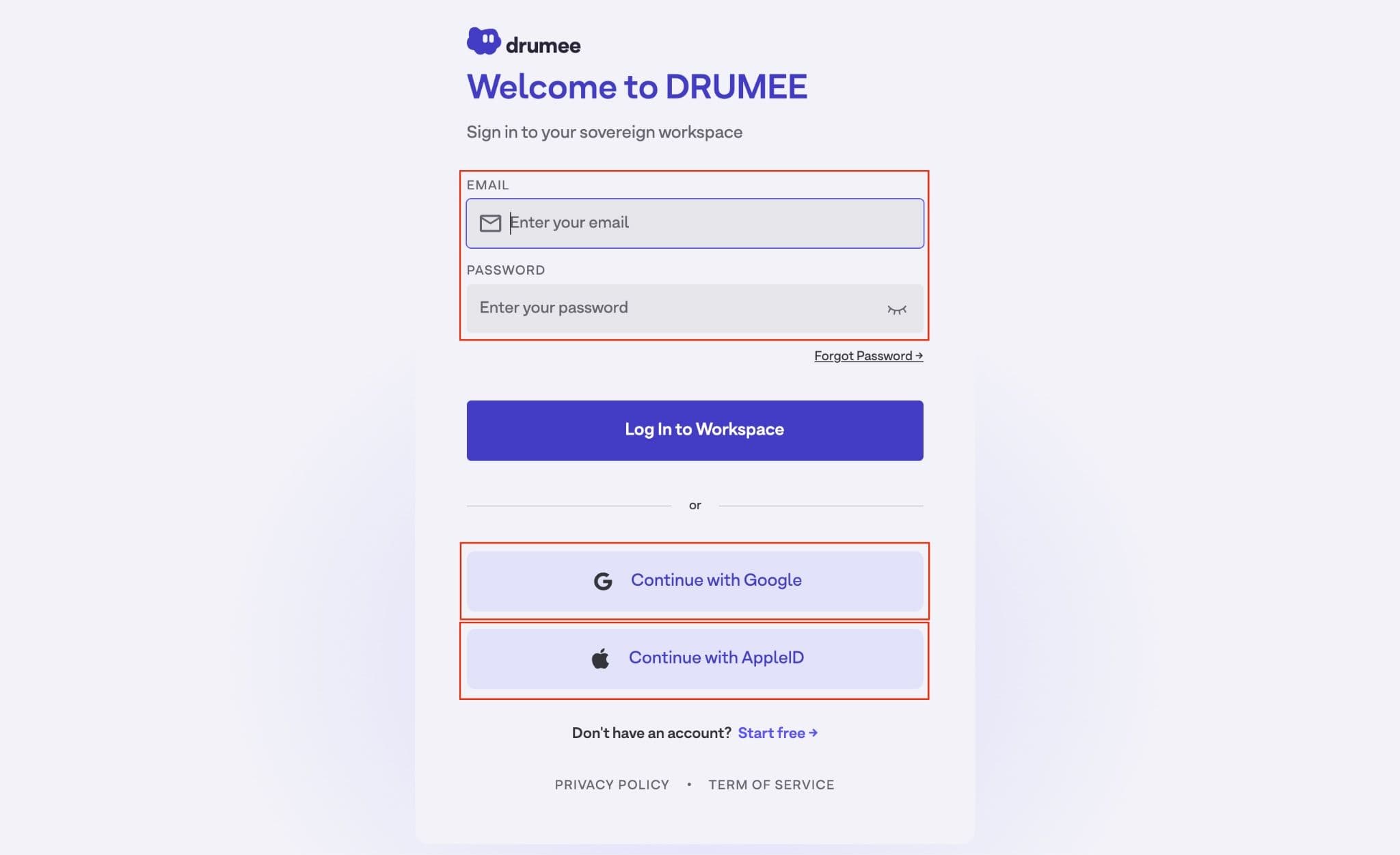
1. Create your account
Step 1: Go to https://app.drumee.com/
Step 2: If you don’t have an account yet
=> Click Start free (bottom of the page) to create your account
=> Or click Continue with Google / Continue with AppleID
Step 3: If you already have an account
=> Enter your email + password
=> Then click Log In to Workspace
Once you’re inside, you’ll land on the Home page - ready to create your first workspace.
2. Create Your First Workspace
Step 1: Go to “Home page” => Click + Add New
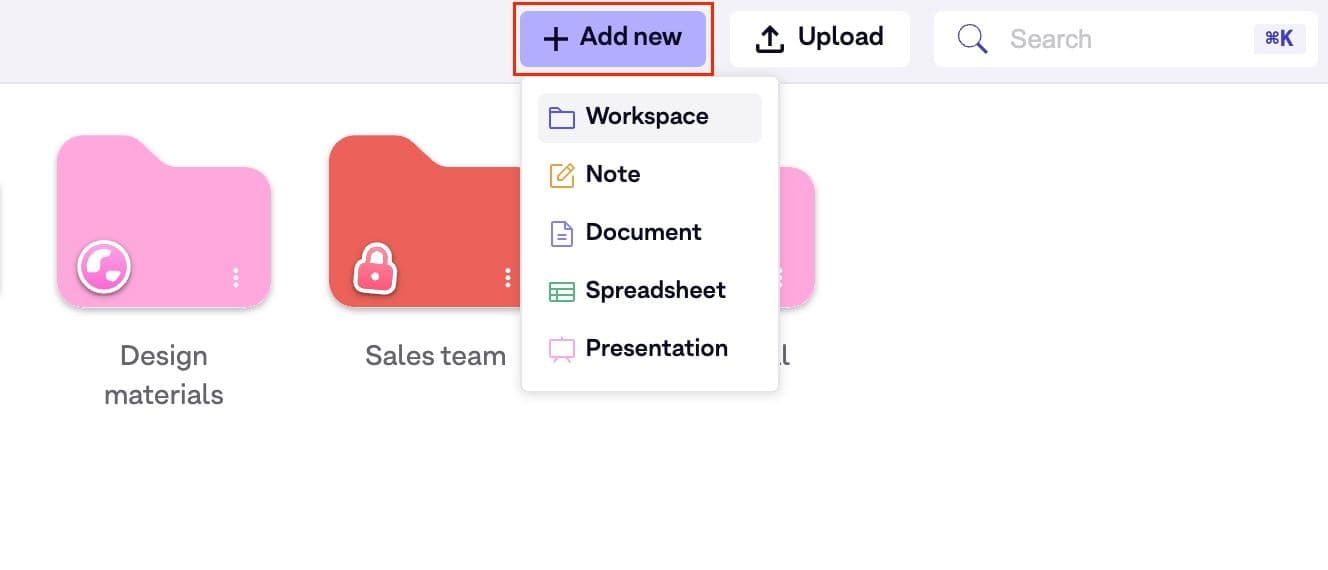
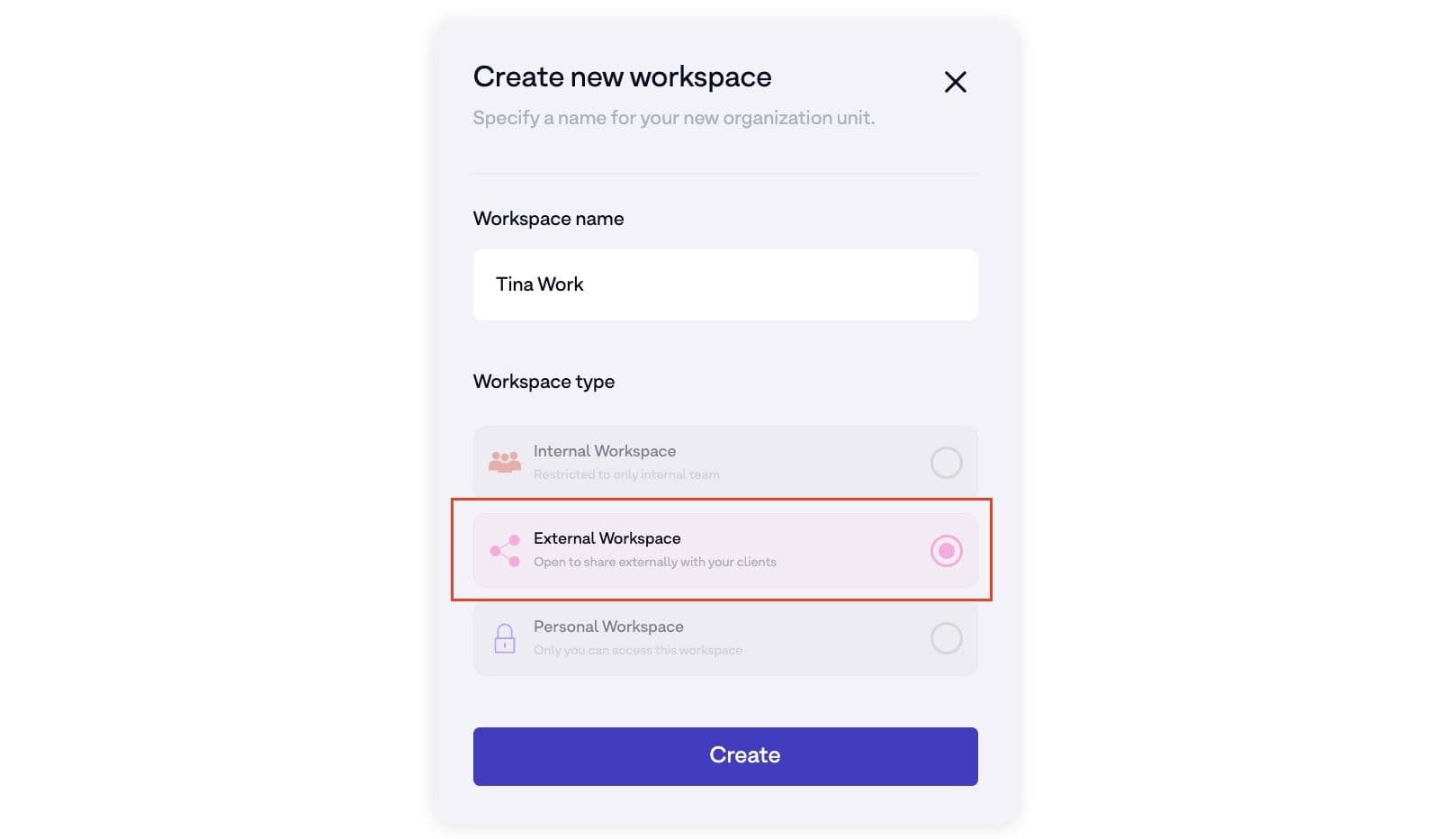
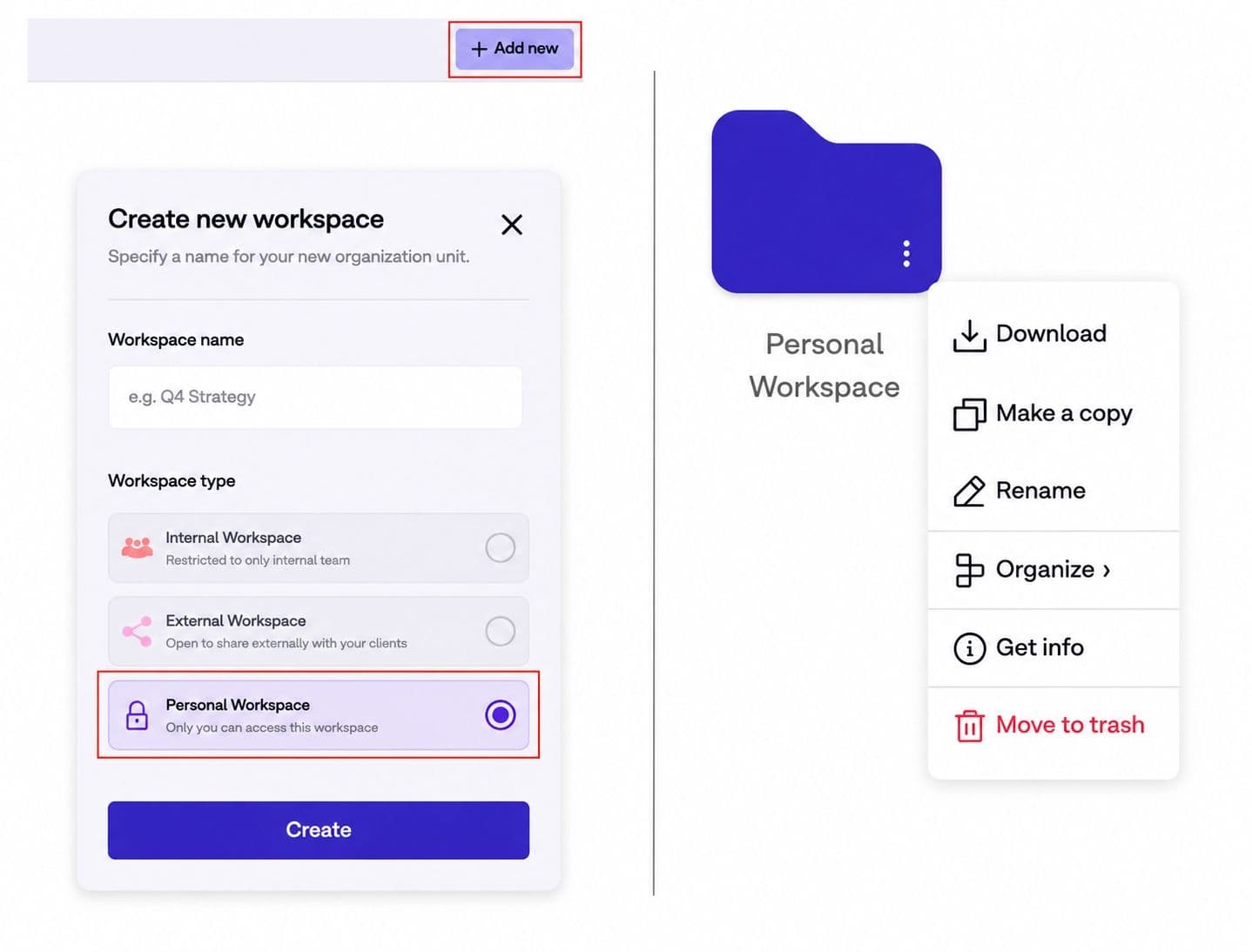
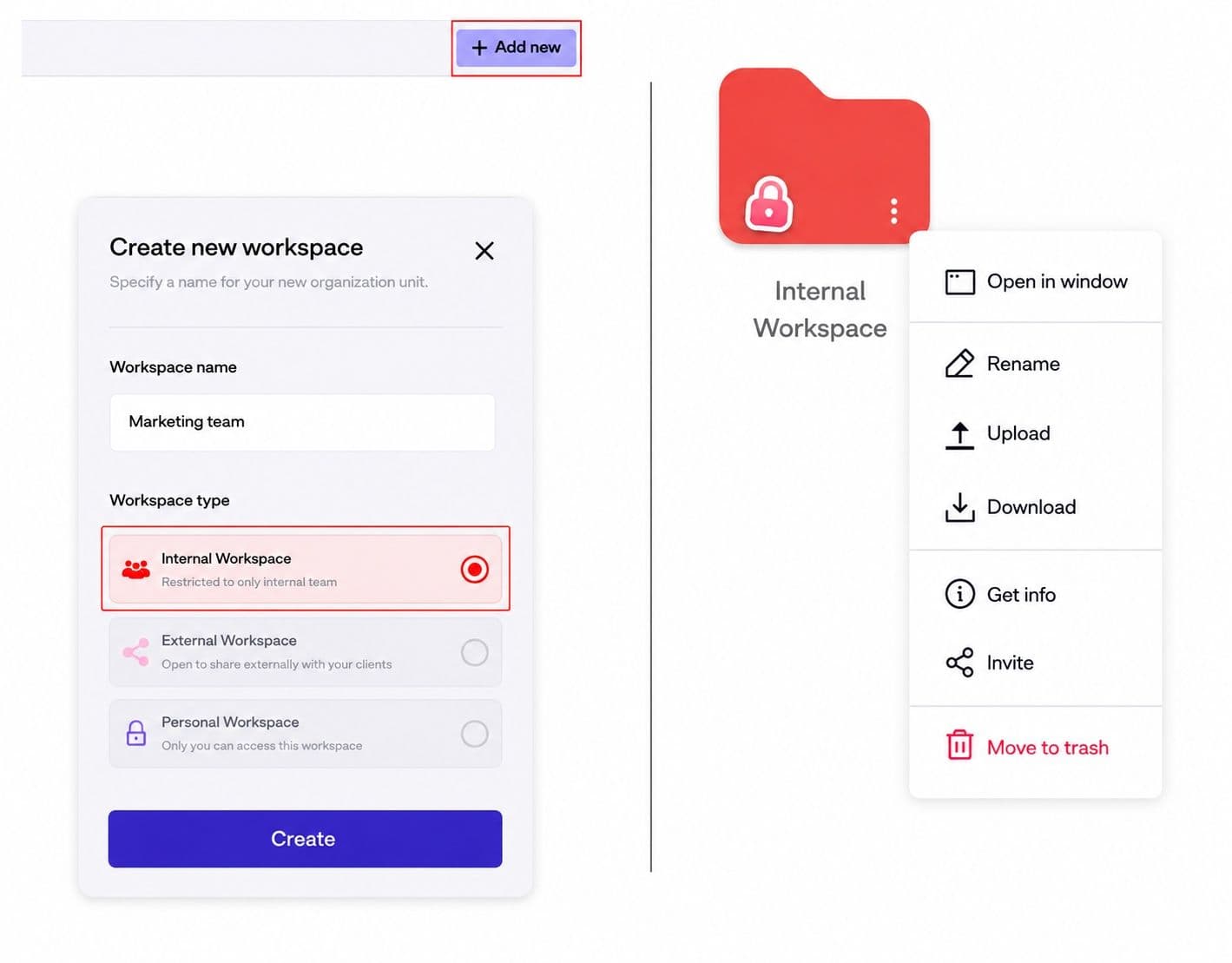
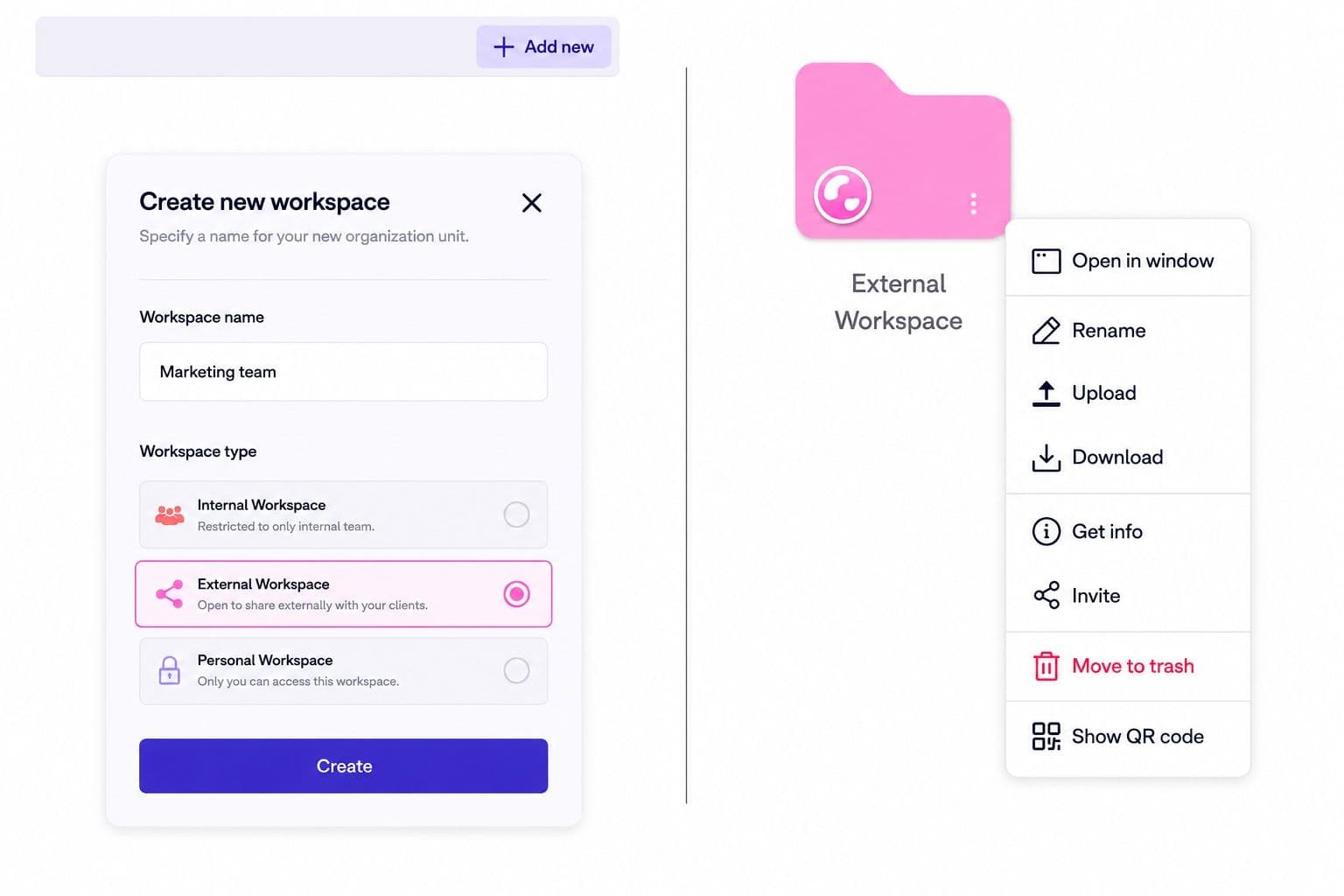
Step 2: Choose your type of Workspace There are 3 types of workspace in Drumee:
2.1 Personal Workspace
- Personal / Private folder: Use this workspace to manage your personal work, including drafts, private research, notes, temporary files, and personal knowledge.
2.2 Internal Workspace
- Team / Internal folder: Use this workspace to collaborate securely with your internal teams on ongoing projects: Marketing, Sales, Product, Finance, and other organizational workstreams.
2.3 External Workspace
- Shared / External folder: Use this workspace to collaborate with clients and partners while securely sharing proposals, deliverables, review materials, and other external resources.
Step 3: Click “Create” => Create your workspace instantly.
3. Upload + Search for files
3.1 Upload New Files
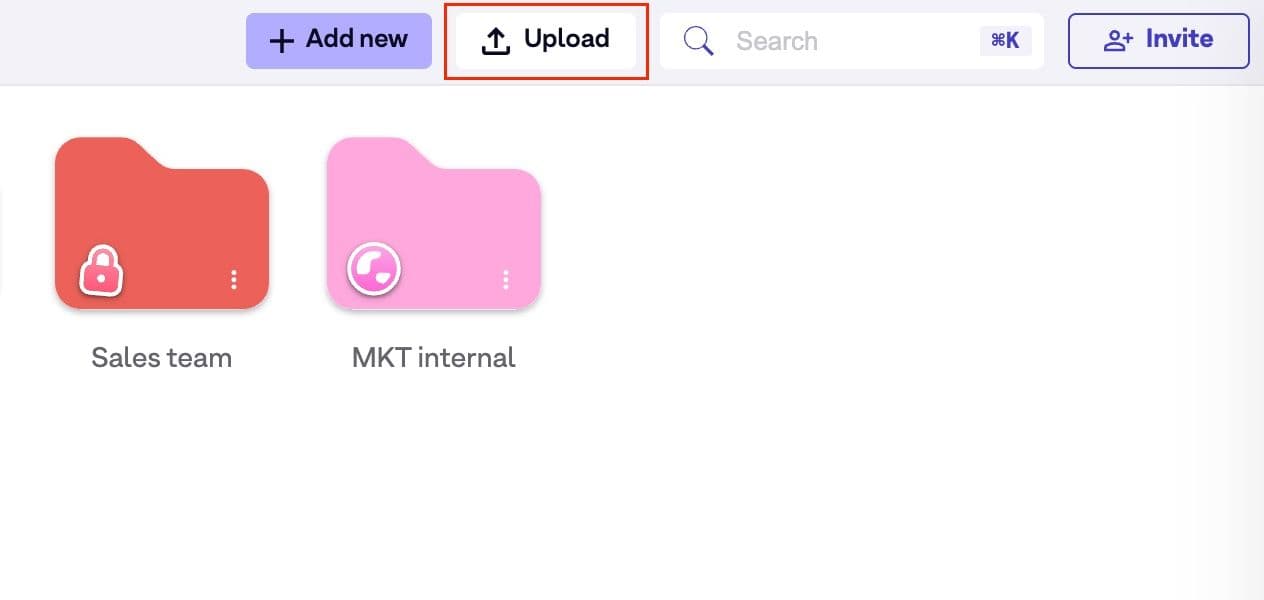
Step 1: Go to “Home page” => Click Upload
Step 2: Choose files from your device
Step 3: Upload in Drumee workspace
3.2 Search Your Files
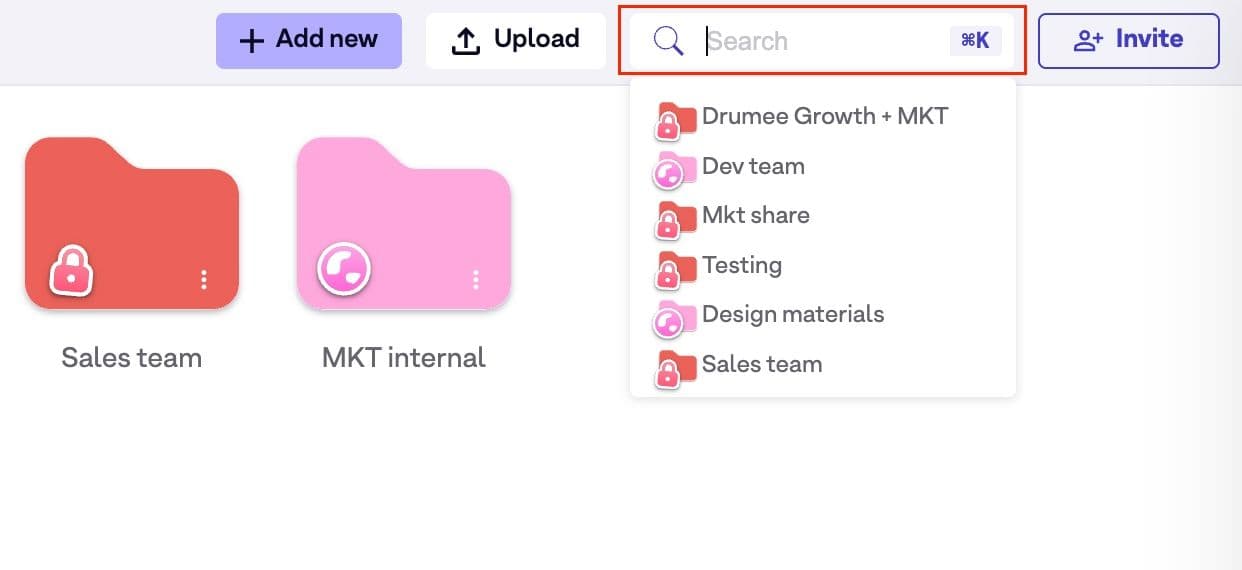
Step 1: Go to “Home page” => Type in the Search bar
Step 2: Quickly find any workspace, file or conversation across everything.
Step 3: Choose the file/folder you’re looking for
4. Invite Members
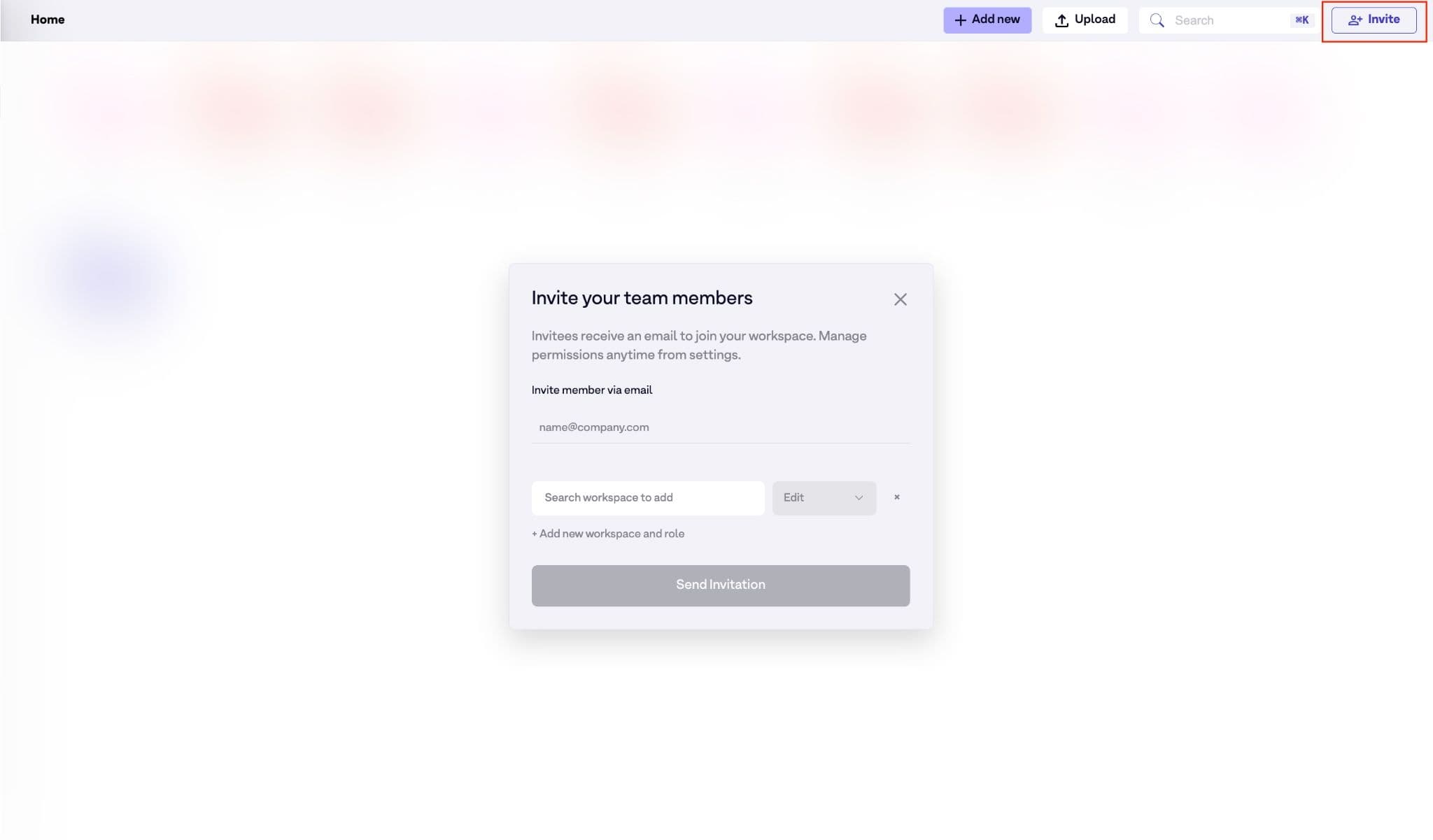
Step 1: Go to “Home page” => Click “Invite”
Step 2: Enter email, choose workspace & role
Step 3: Click “Send Invitation”
5. Chat with your team
Keep conversations attached to the work, no context lost between apps.
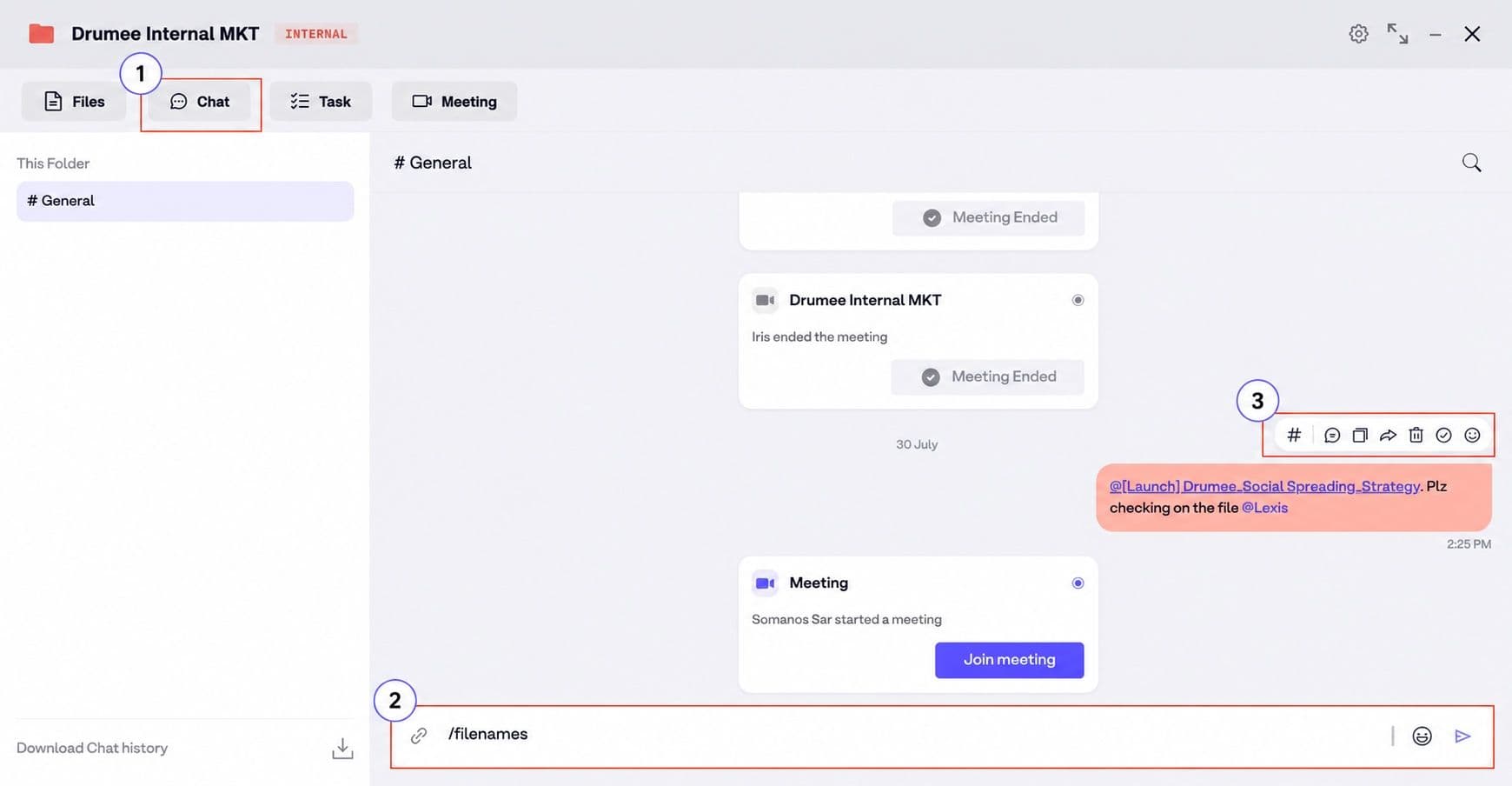
5.1 Chat in folders
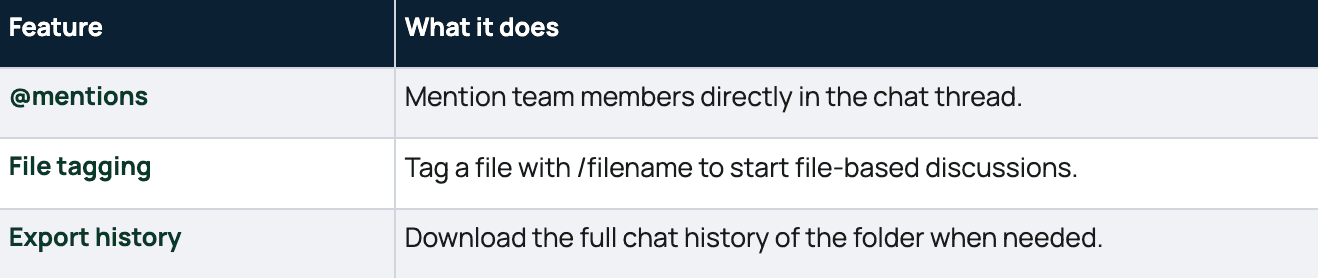
Step 1: Click “Chat” in the folder
Step 2: Drop files: /filenames in the chat box
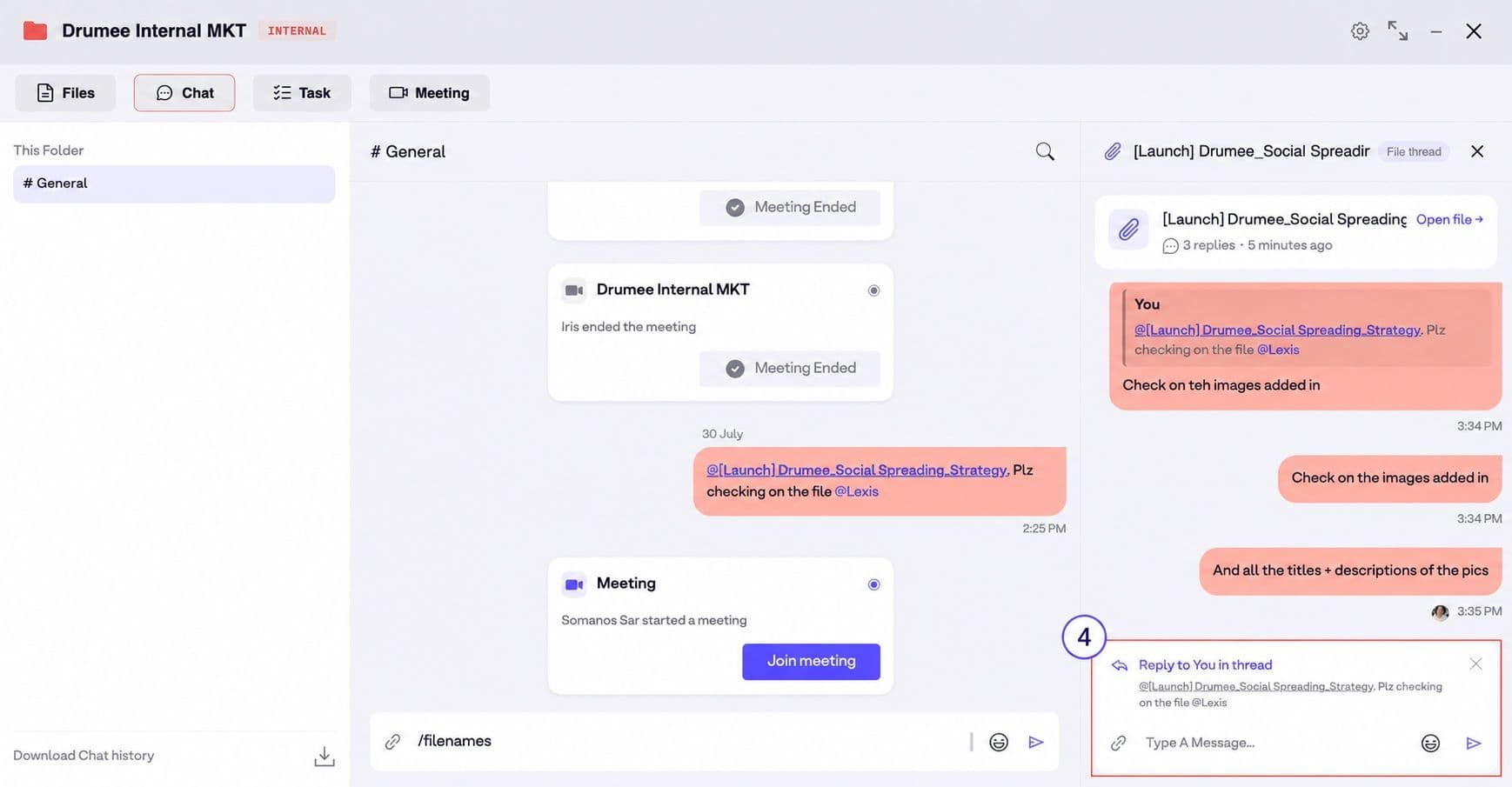
Step 3: Click “#” to open chat threads
Step 4: Discuss in the chat box on the right sidebar
5.2 Chat in files
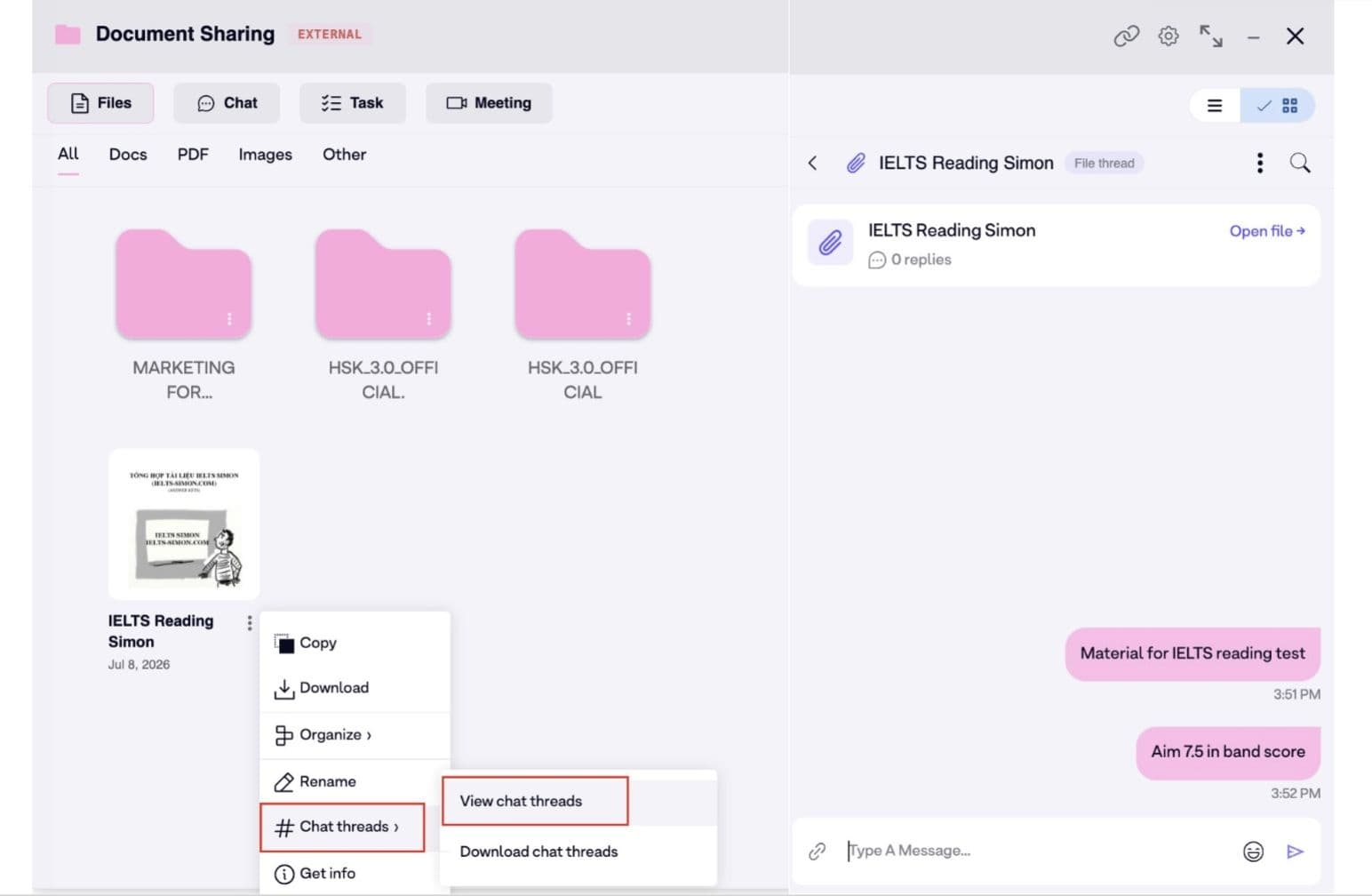
Step 1: Click on the file → Select “Chat threads" to start the conversation
Step 2: Select View chat threads to see the whole chat history & continue the conversation
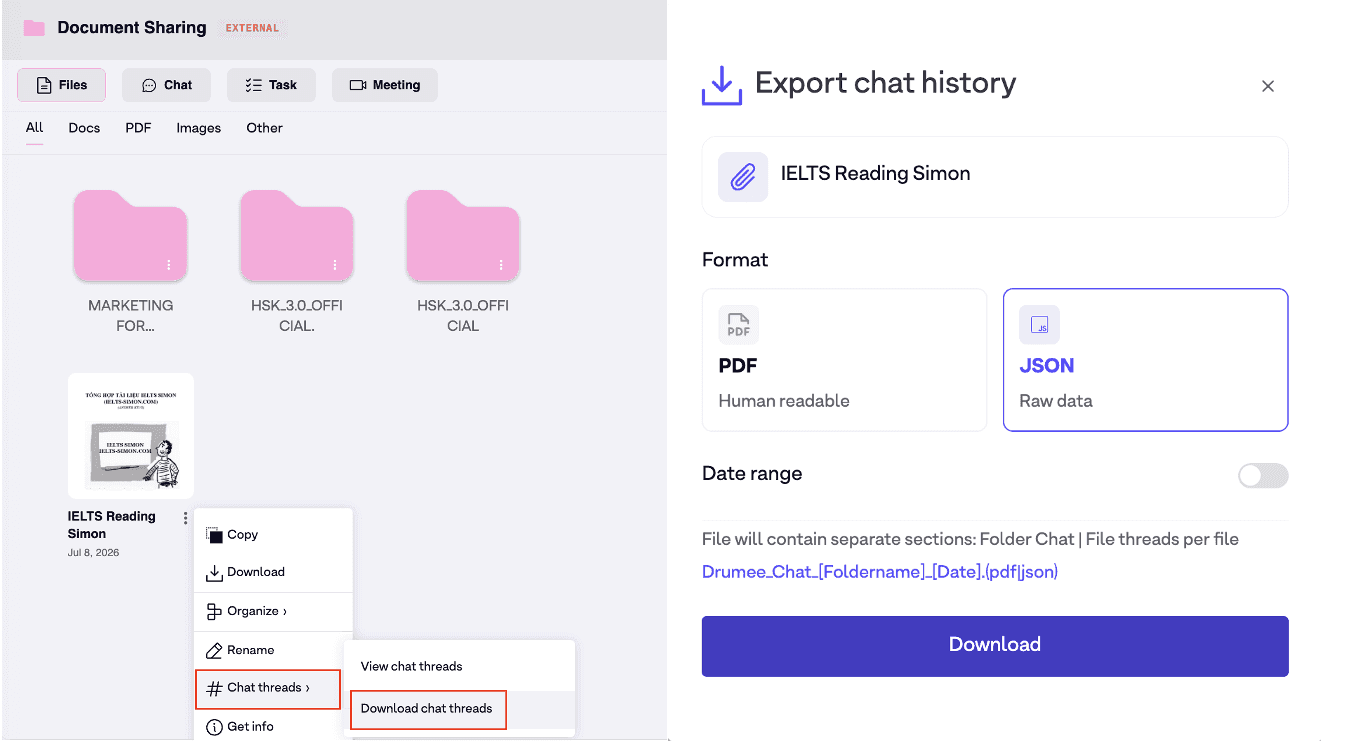
Step 3: Select Download chat threads to download the whole chat history
6. Meeting with your team
Use “Meeting" to schedule and join meetings without leaving the folder, keeping every discussion within the same project context.
Step 1: Open folder => Select “Meeting”
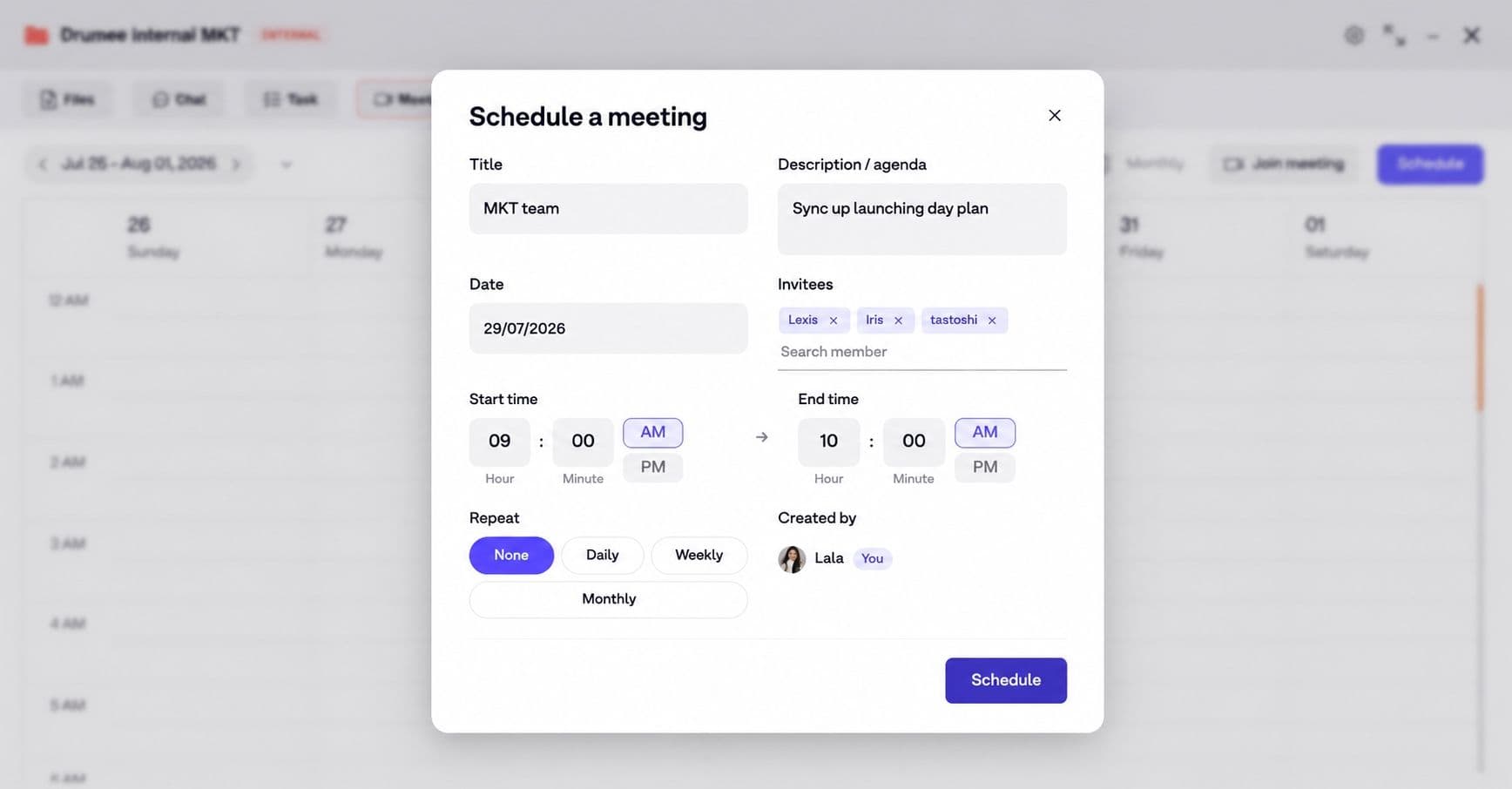
Step 2: Click “Schedule” on tab bar => Set up meeting details
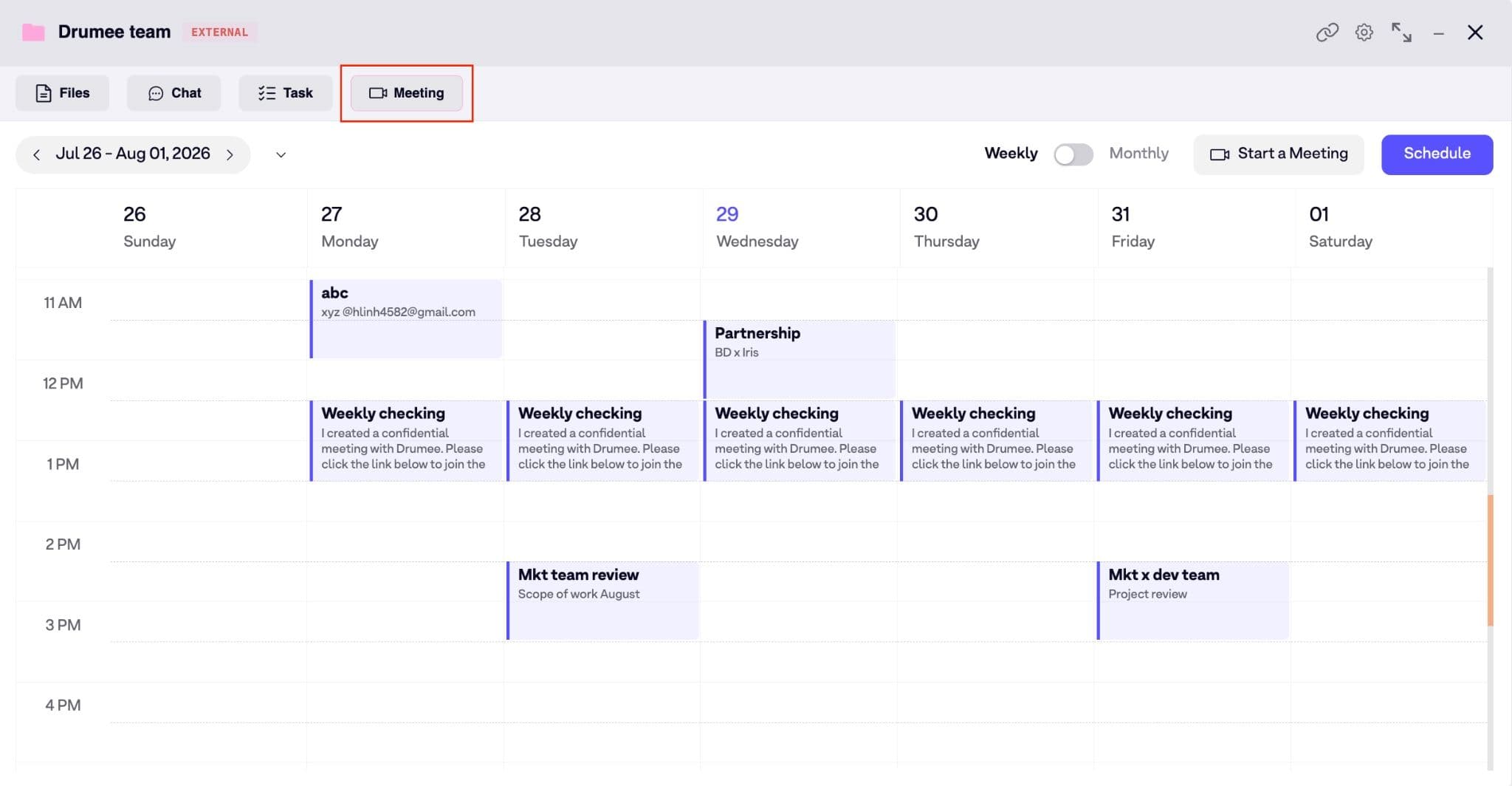
Step 3: Click “Schedule” to complete
7. Grant permissions
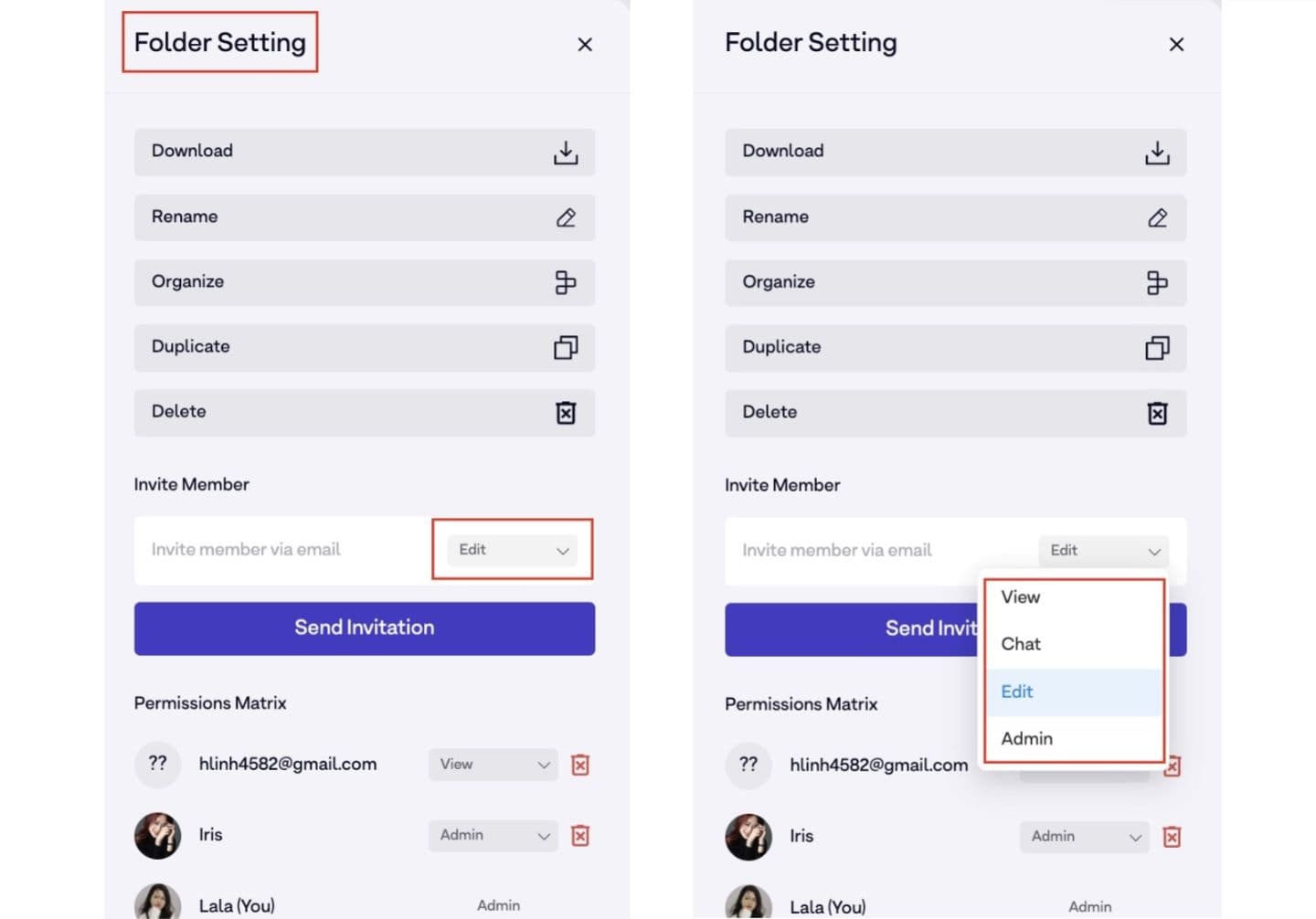
Use “Permissions" to control folder-level access by defining who can view, edit, and share files while tracking their actions in one place.
Step 1: Open folder → Go to “Setting"
Step 2: Enter member’s email address
Step 3: Choose the permission status that need to send
8. AHA Moments
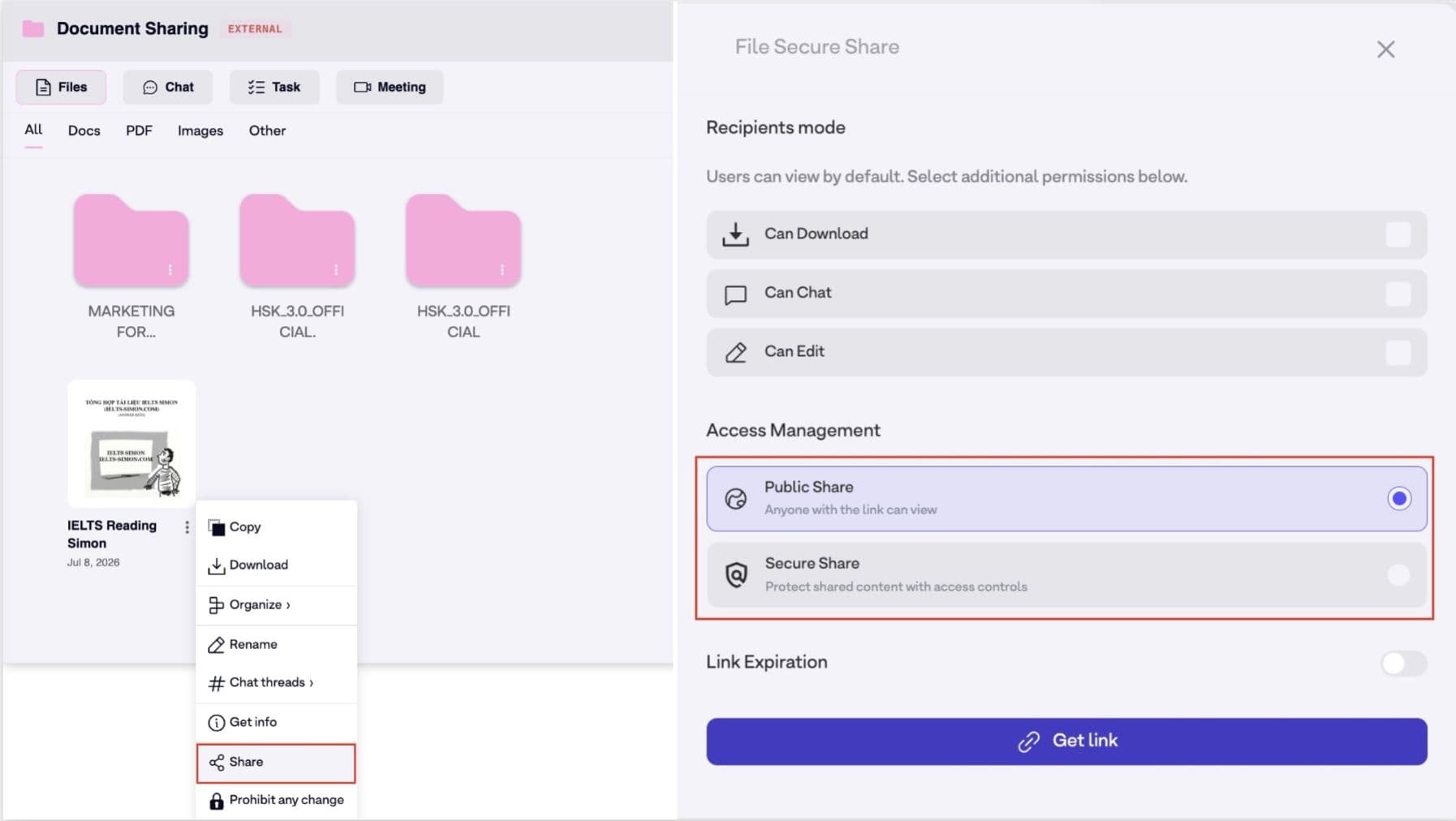
8.1 Secure Share
Use “Secure Share” to send confidential files to clients outside your workspace while controlling access with:
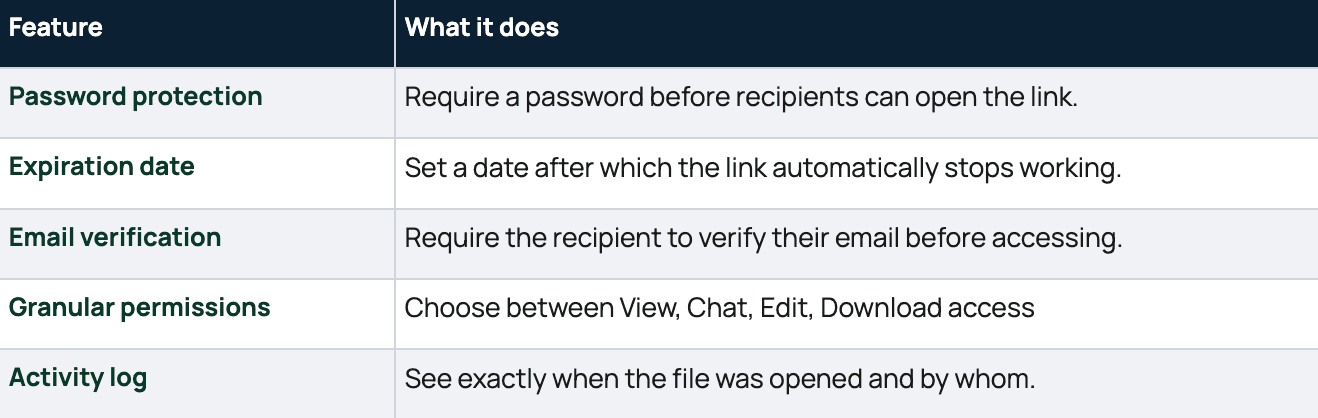
Step 1: Click on folder → Select “Share"
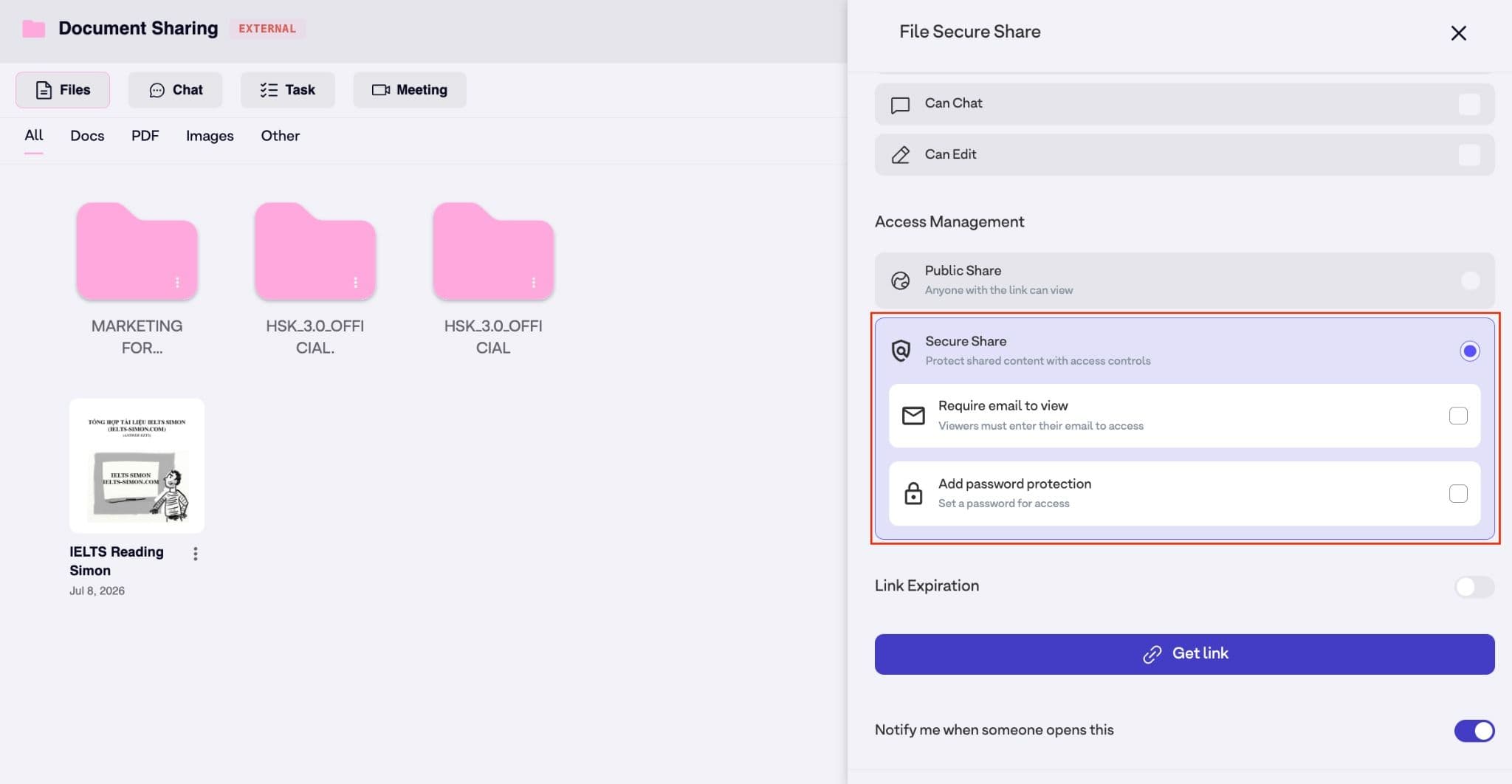
Step 2: Select Secure share
Step 3: Choose Require email review/ Add password for protection.
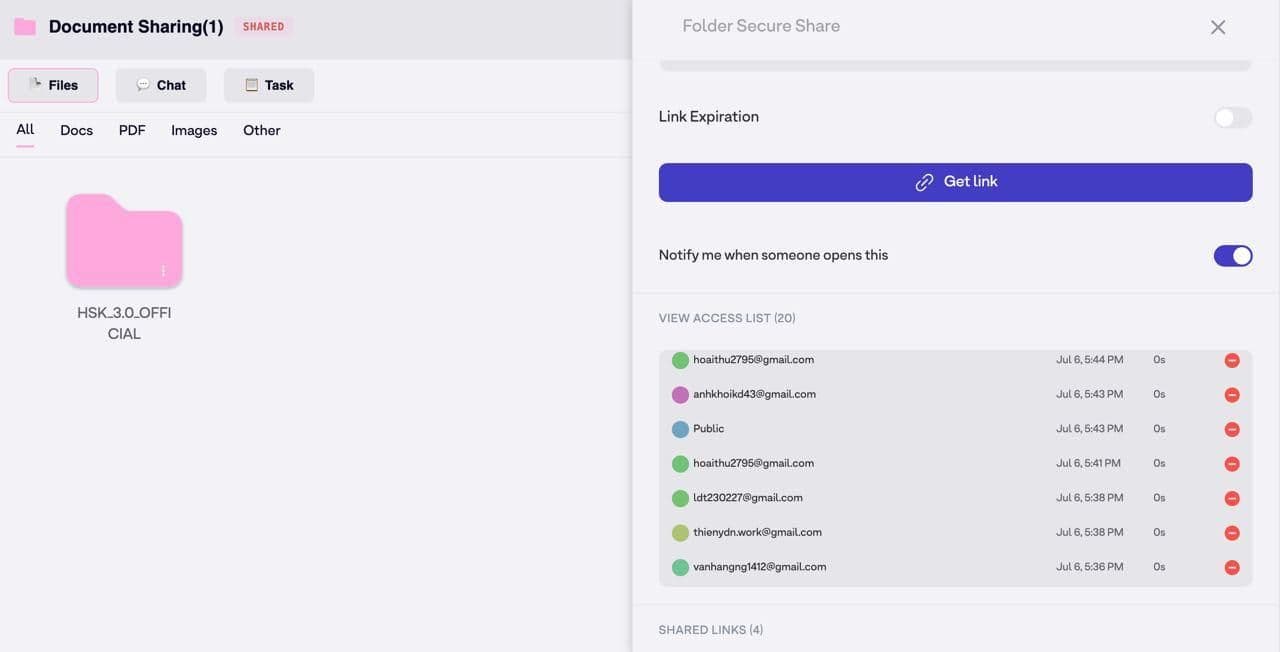
Step 4: View access log to your files in the access list
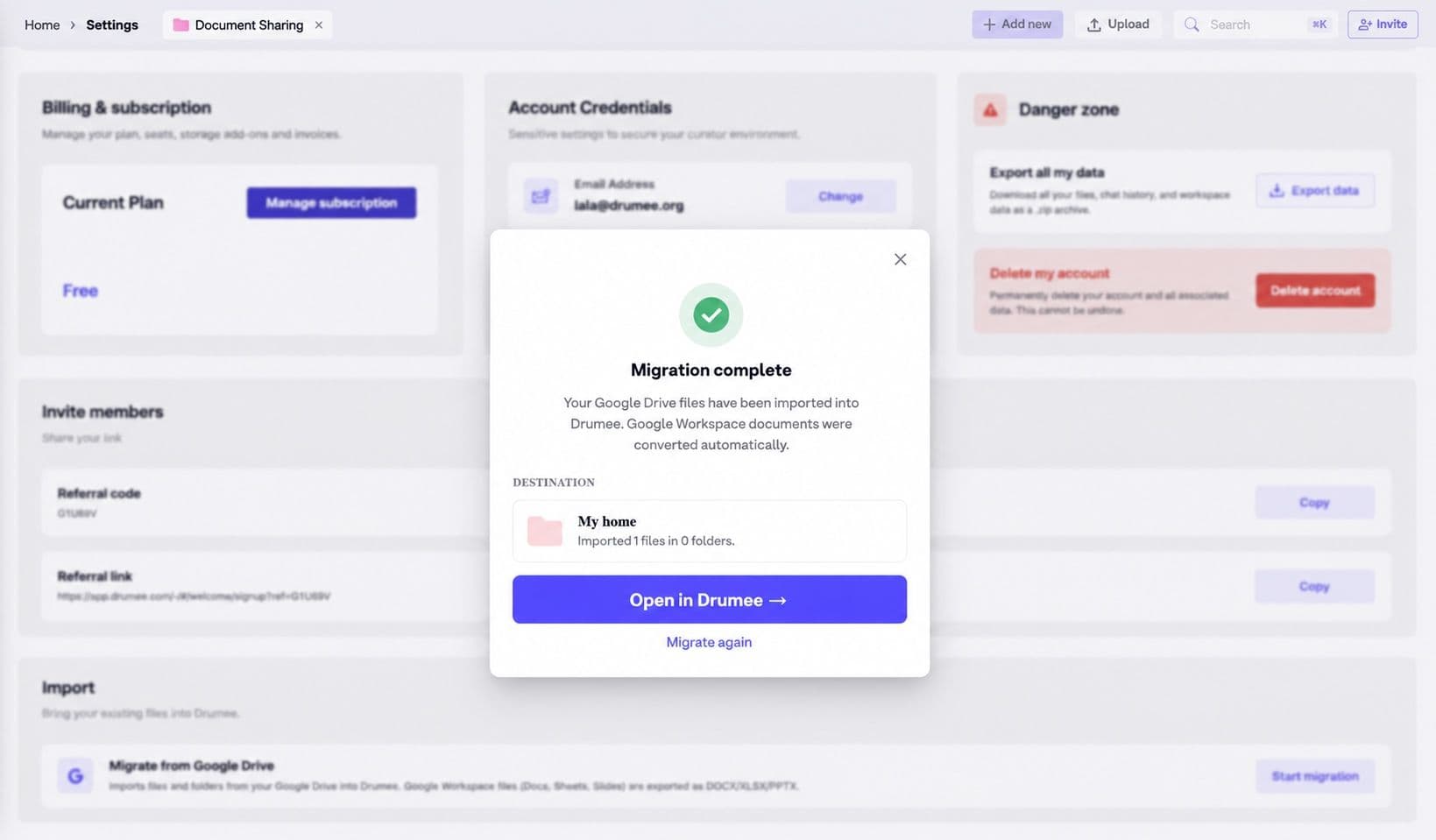
8.2 Google Drive Migration
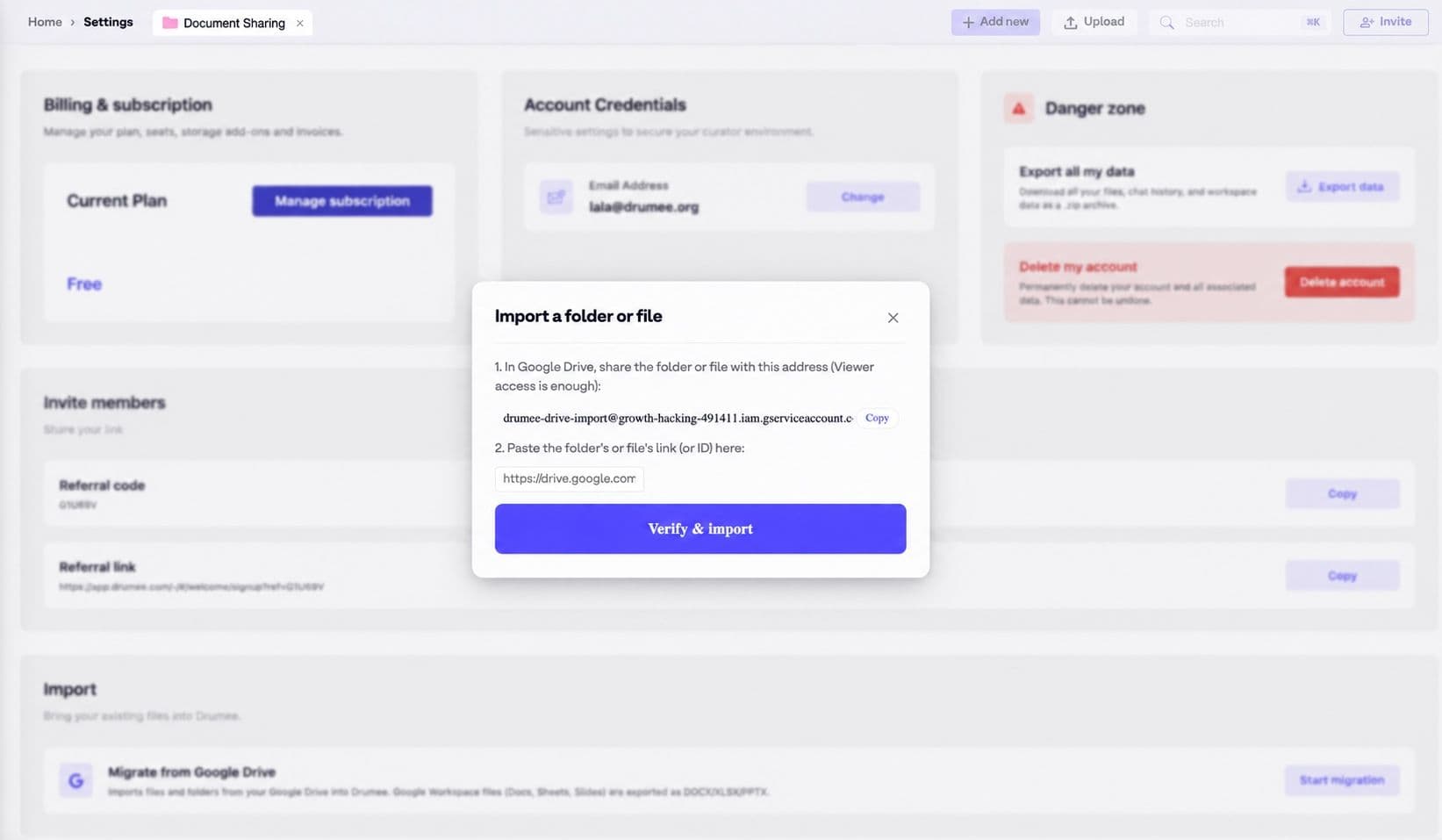
Move entire projects or departments into Drumee with a single click, original folder hierarchy preserved, no rebuilding from scratch.
Step 1: Go to “Setting” => Click “Import"

Step 2: Process the “Verify & Import" actions
Step 3: Migration completed
------------------------------
Follow us at: Website | X | LinkedIn | Drumee Founder X | Drumee Founder LinkedIn
Keep reading
Drumee in 5 Minutes
A five-minute field guide to Drumee: why teams replace Google Drive, Slack, Trello, and Zoom with one sovereign workspace, and eight practical steps from account creation to a working collaborative context — files, chat, meetings, permissions, and migration.
Drumee: Your Data. Your Workspace. One System
Drumee is a self-hosted, sovereign data workspace where files, chat, tasks, and permissions live in one place on infrastructure you own. Learn what Drumee is, what it stands for, and how to get started.

What Is a Sovereign Data OS? The Infrastructure Shift Teams Are Building Toward in 2026
What is a sovereign data OS? Learn how Drumee's unified self-hosted infrastructure replaces fragmented SaaS stacks with a single governable environment for files, chat, permissions, and workflows in 2026.